Vacant Request
The Move Out Request process allows tenants to formally request a lease termination and schedule their departure from a rental unit. This document explains the step-by-step process for submitting a move-out request, tracking its approval status, and completing the move-out procedure.
Move To The Dashboard
Login To Tenant - Rentilium ERP
- Enter your username and password to access the system.
- Upon successful login, you will land on the Dashboard.
Dashboard Overview
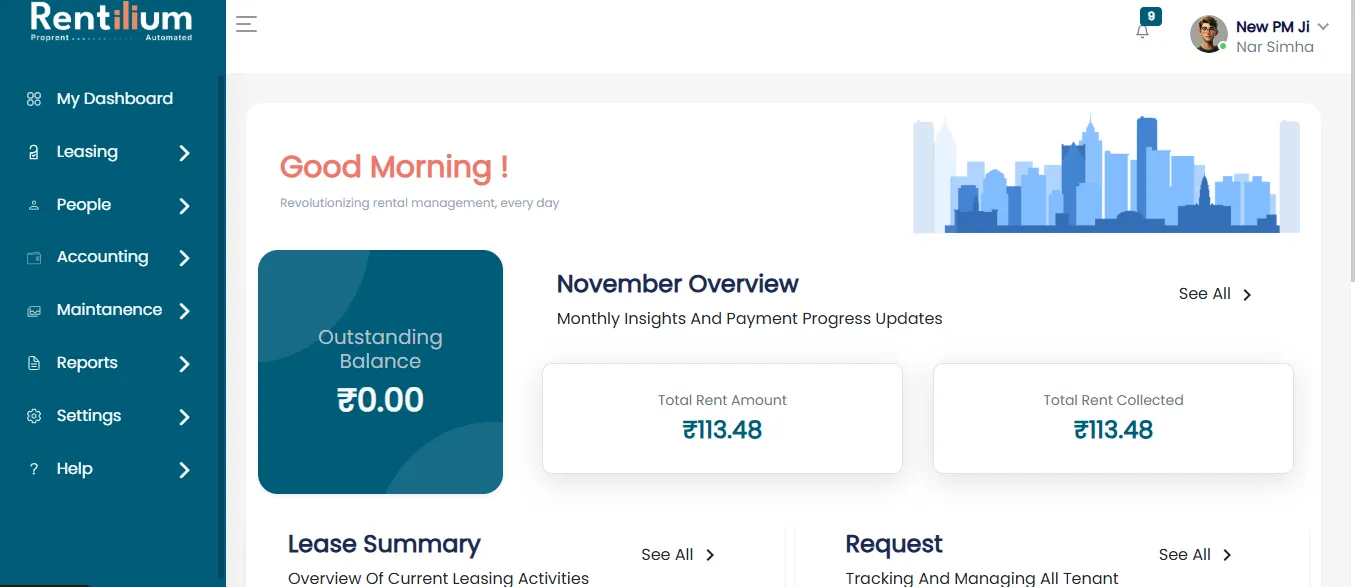
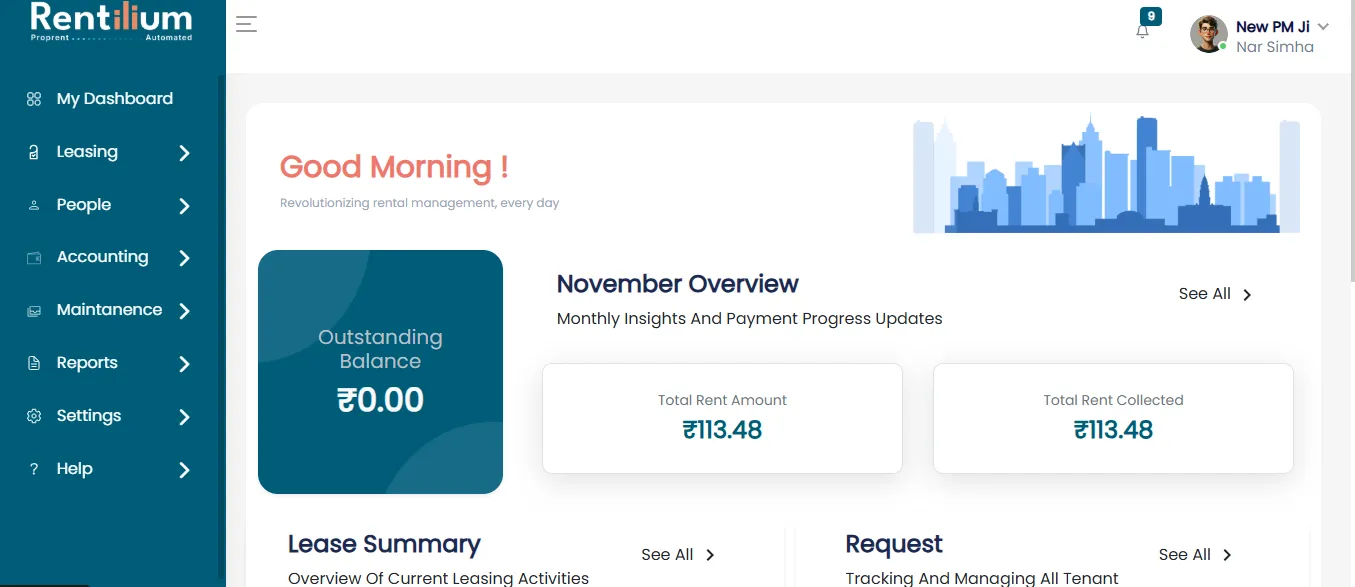
- The dashboard provides an overview of financial transactions, lease details, and tenant-related actions.
- Users can navigate to different sections using the left sidebar, including leasing, accounting, operations, and settings.
Dashboard Sections
Advance Payment Section: Displays any due or advance payments.
Financial Overview: A summary of past and current payments.
Lease Summary: Displays a quick view of active leases and their details.
Invoices: View and manage invoice payments related to your lease.
Active Lease Information
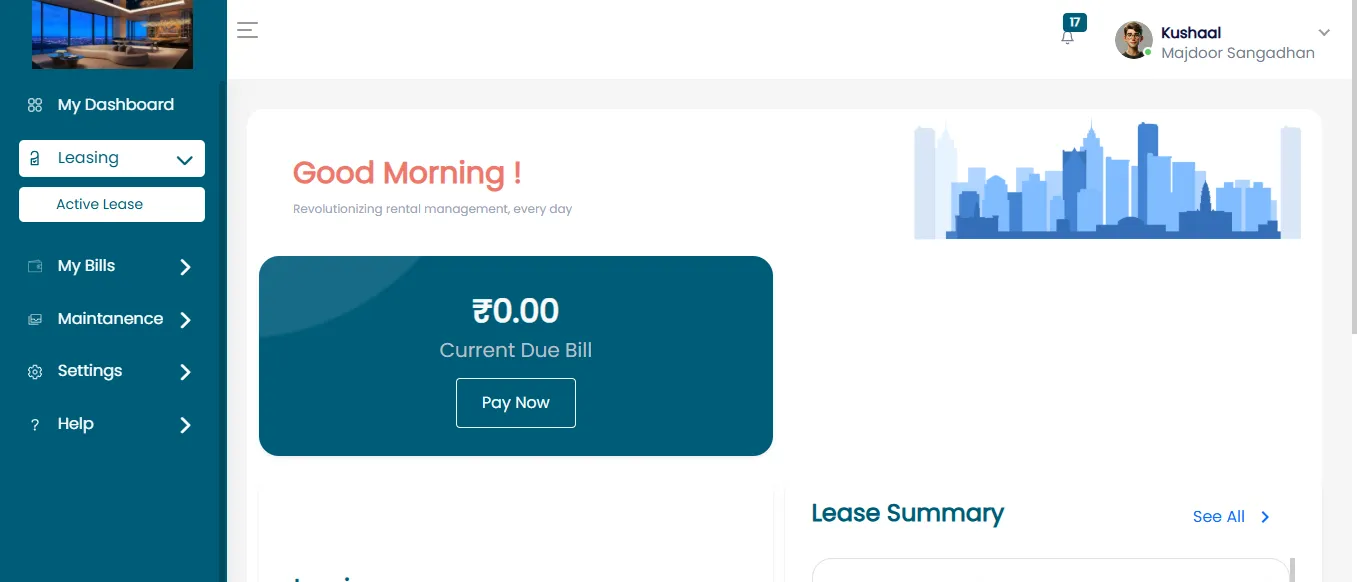
- Click on Leasing to expand the available options.
- Select 'Active Lease' to view all active rental agreements under your profile.
Viewing Active Lease Details
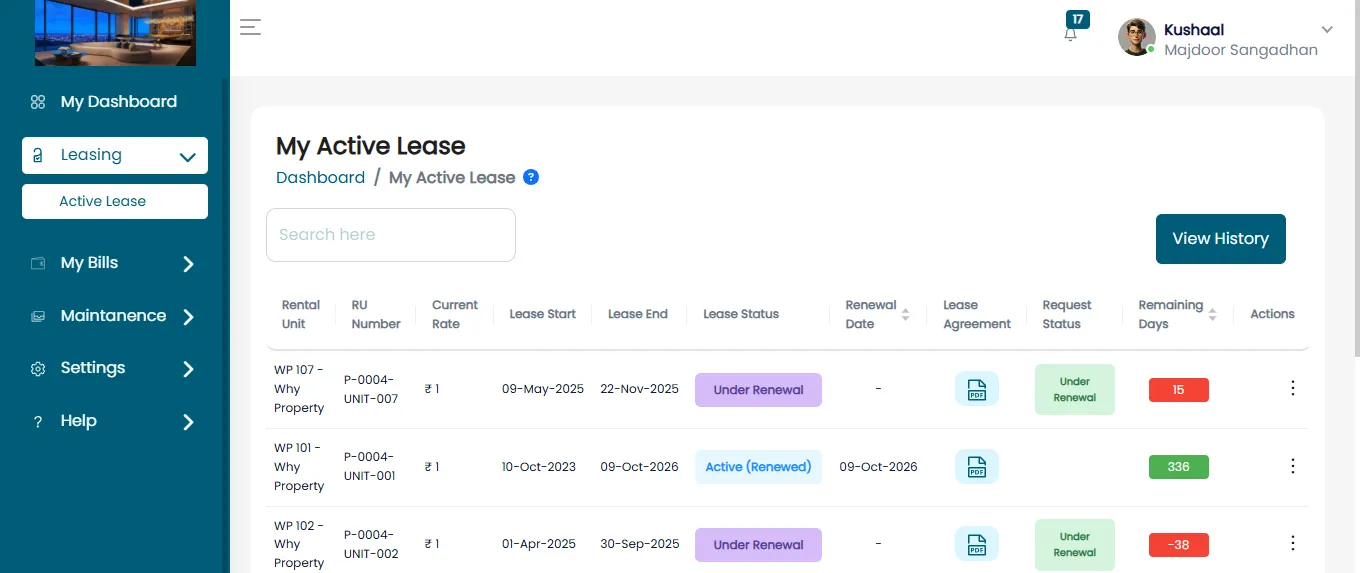
The Active Lease page provides essential lease information, including:
Rental Unit Name: Displays the name or identification of your leased unit.
Property Type: Specifies the type of property (e.g., 2BHK, commercial office space, etc.).
Current Rent Rate: The monthly rental amount applicable to the unit.
Lease Start and End Dates: Shows the duration of the lease agreement.
Lease Status: Displays whether the lease is Active, Pending, or Terminated.
Request Status: Indicates if a Notice To Vacant or Renewal request has been submitted.
Remaining Days: Shows the number of days left in the lease term.
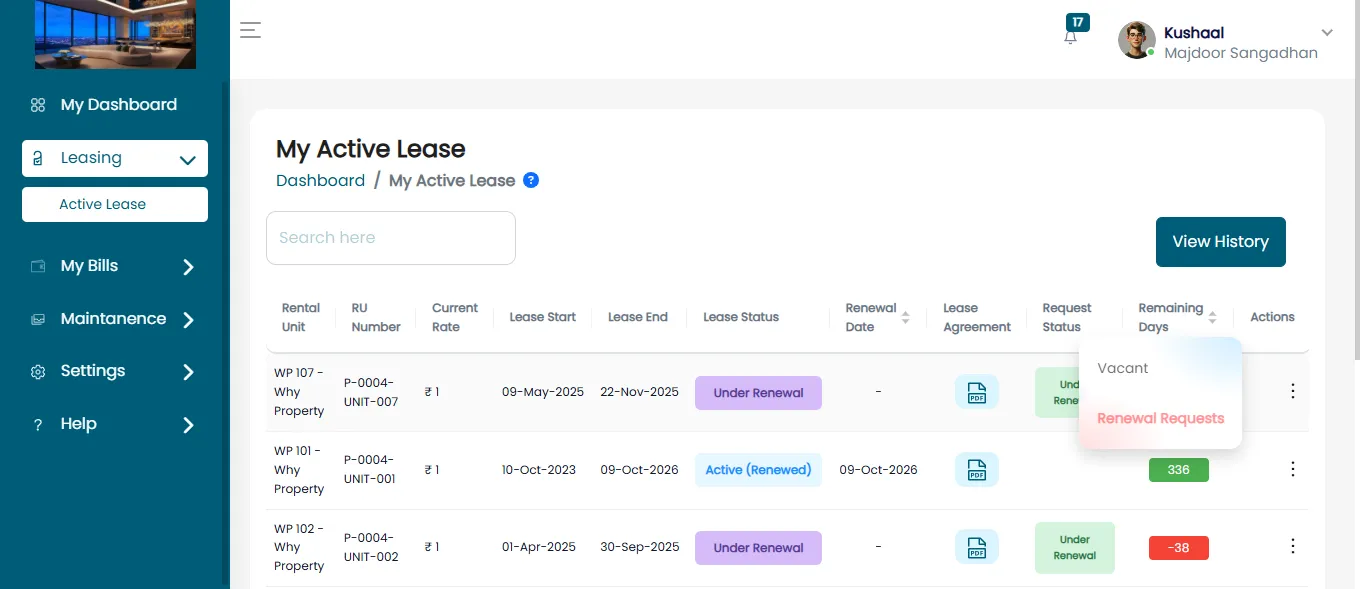
Available Actions: Buttons for Notice To Vacant or Renewal Request.
Initiating Vacant Request
- Identify the rental unit you wish to move out from.
- Click the 'Vacant Request' button next to the respective unit.
Vacant Request Form
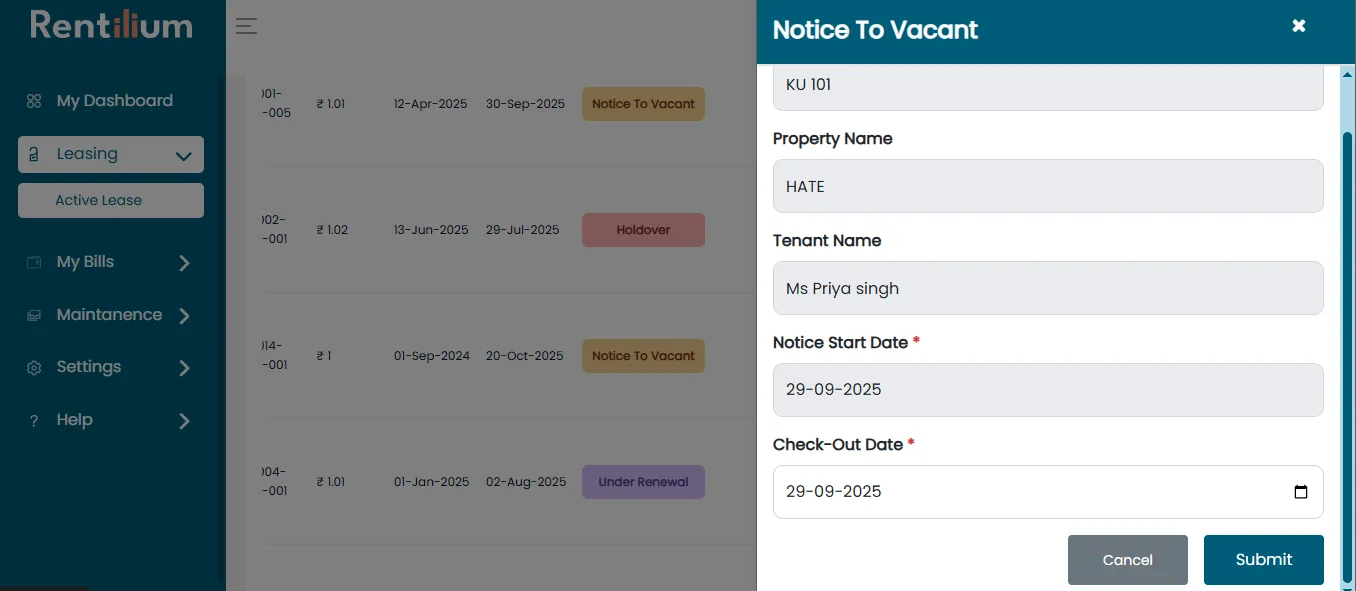
A popup form appears, requiring the following details:
Unit Name: Auto-filled from the selected rental unit.
Property Name: Displays the associated property name.
Tenant Name: Automatically filled with the logged-in tenant’s name.
Notice Start Date: Auto-filled with the system-generated notice start date.
Move-Out Date: The tenant must select their desired move-out date from the calendar picker.
Submitting Request
- Once all fields are verified and correctly entered, click 'Vacant' to submit the request.
- A confirmation message appears indicating a successful submission.
- The request is now in Pending Approval status for the property manager to review.
Verifying Vacant Request Status
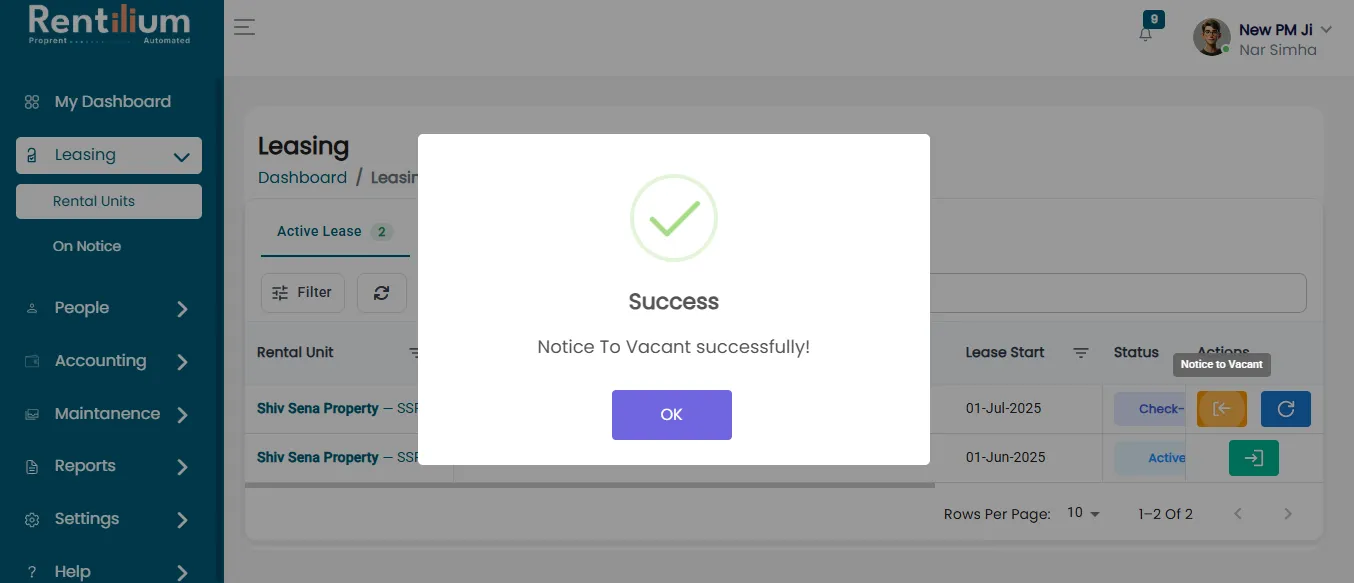
Success Confirmation
- After submitting, a success message appears: 'Tenant vacant successfully!'
- Click 'OK' to close the popup.
Updated Lease Status
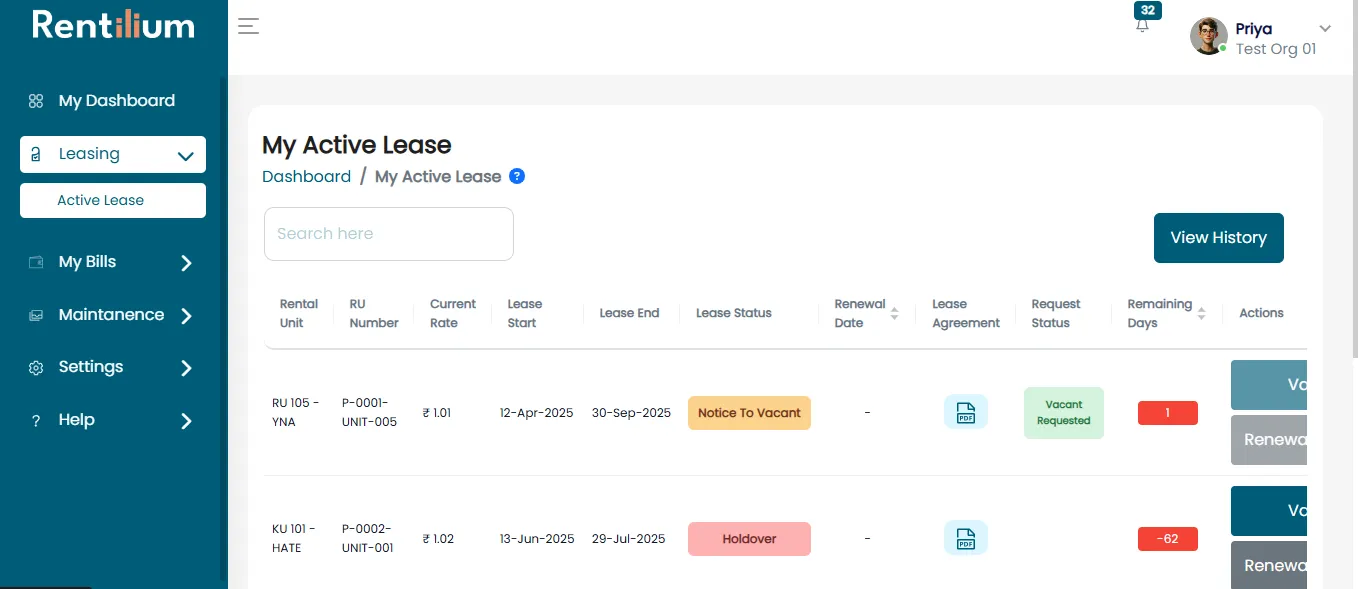
- The Request Status for the selected unit updates to 'Vacant Requested'.
- Tenants can revisit the Active Lease section to track the request’s progress.
Property Manager Review Process
- Once the request is submitted, the property manager receives a notification.
- The request is reviewed based on the lease agreement policies.
- Approval or rejection is communicated to the tenant via system notifications.
Possible Request Outcomes
- Approved: The move-out request is accepted, and the lease is updated to reflect the move-out date.
- Rejected: The request may be denied due to outstanding dues, insufficient notice period, or any other reasons.
- Pending Additional Information: The property manager may request further details before approval.