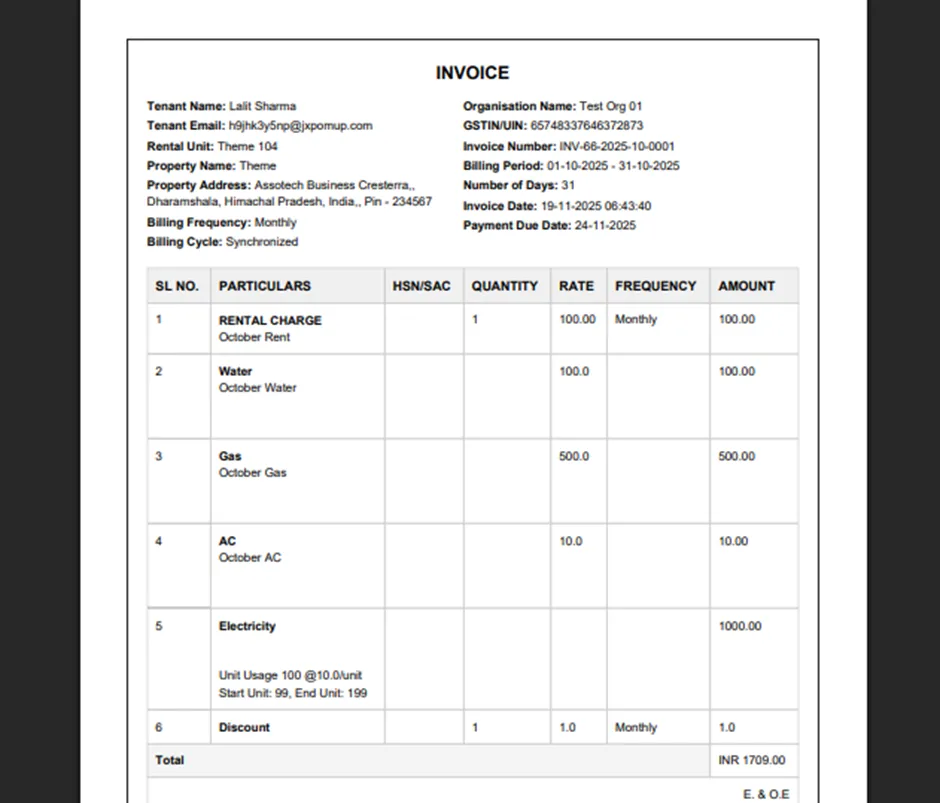
Utility Billing
This document explains how to record a tenant’s utility meter readings and generate their invoice in the system. It helps admins and property managers to monitor utility usage, keep accurate records, and create invoices efficiently. Follow the steps given below for utility updates.
Access the Utility Page
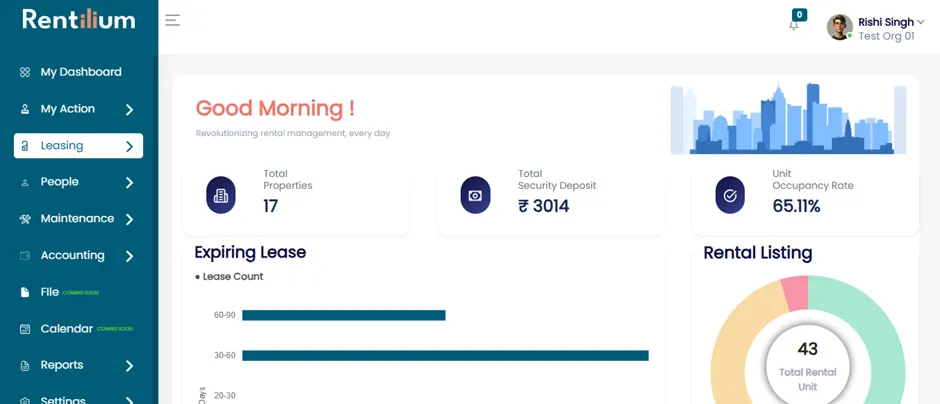
Log in to your account. After successful login, you will be redirected to the dashboard.
Now, click on the Leasing section.
Add Lease and Check-in Tenant
Now go to rental unit and add a lease.
Click on Active Lease and select Check-in for the tenant (e.g., Mr. Lalit Sharma).

After clicking on check-in button admin will get a notification that “Do you really want to check-in the tenant.
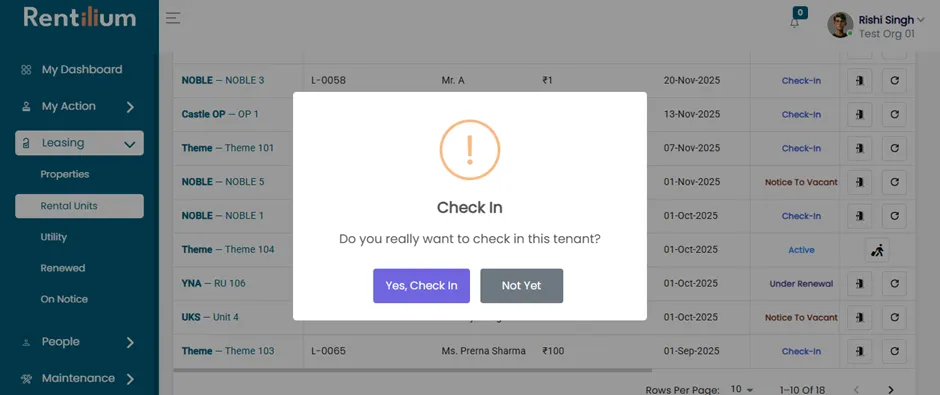
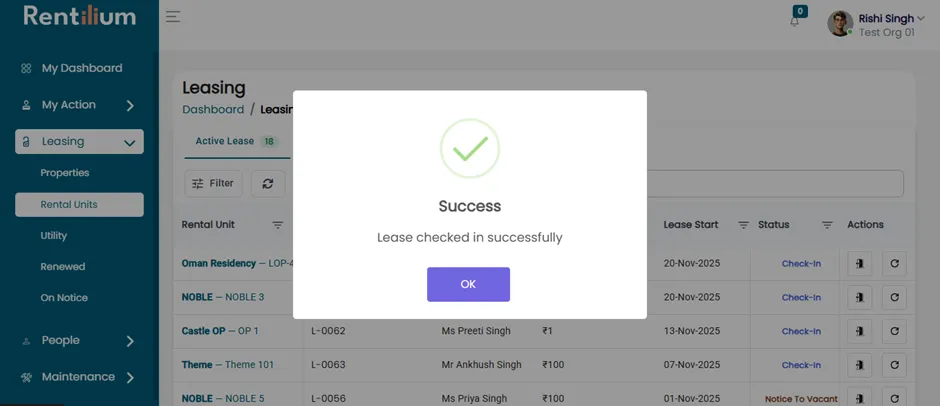
Click Yes, Check-in. The tenant will now be checked in successfully.
Update Utility Meter Reading
Now go to leasing in the main section and click on utility.
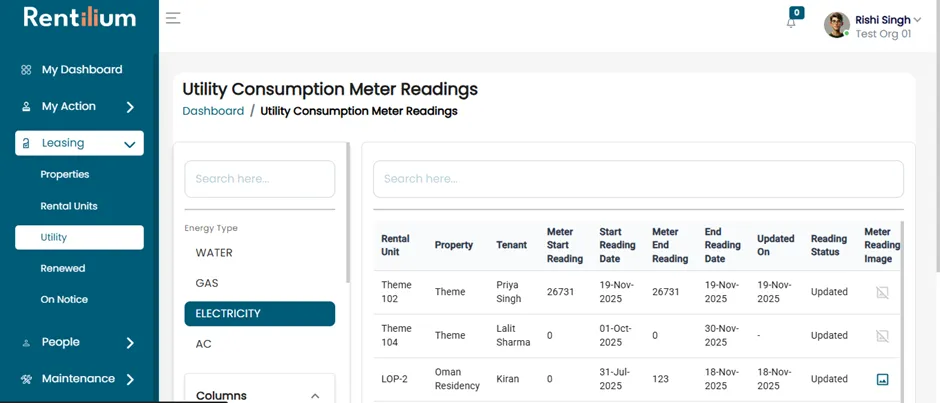
Now find the tenant’s name in the utility page and click on update button.
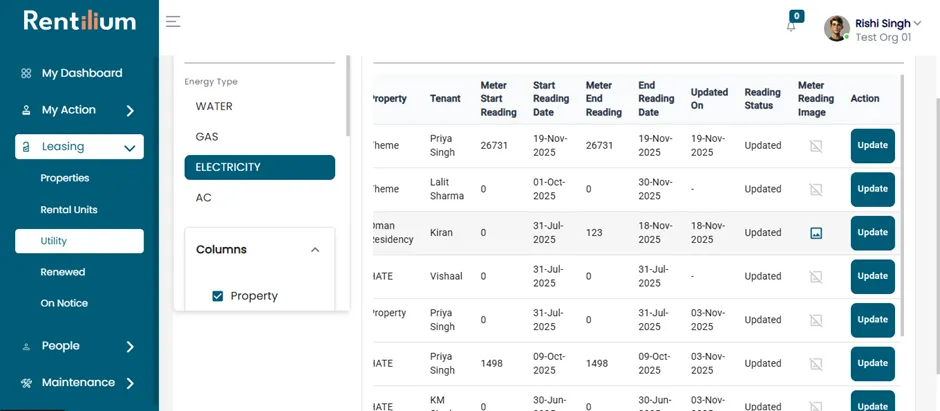
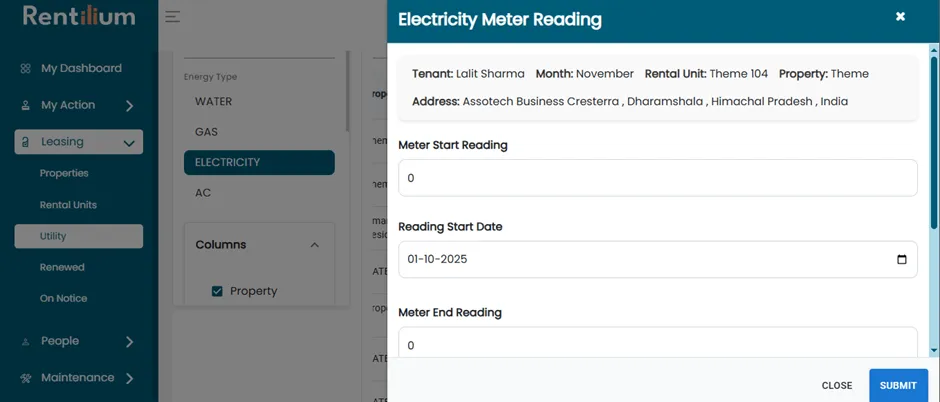
After clicking on update button. The Electricity Meter Reading page will open.
Fill in the given details and click Submit button.
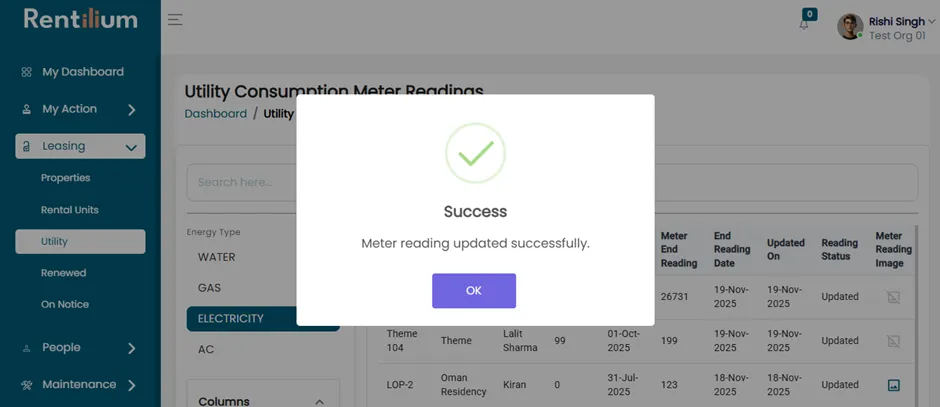
After clicking on Submit button meter reading will be updated successfully.
Generate Tenant Invoice
Now go to Accounting section and click on invoice button.
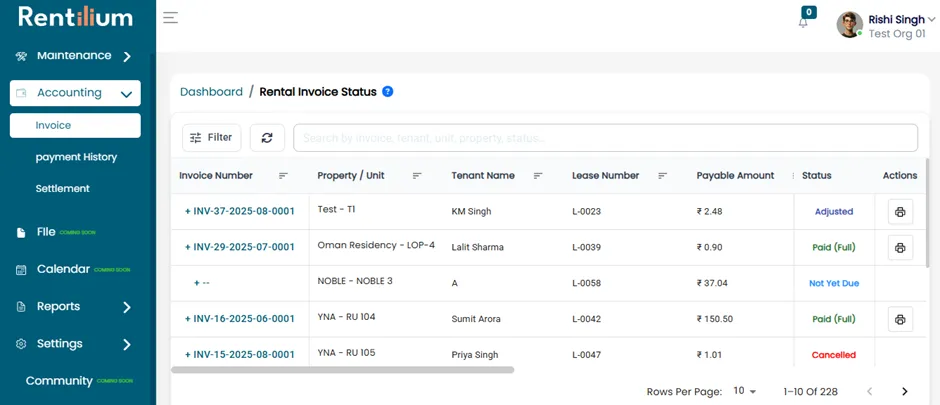
Now find the tenant name in the search bar and generate the invoice.

Click on action button to generate the invoice.
Click Generate again to confirm.
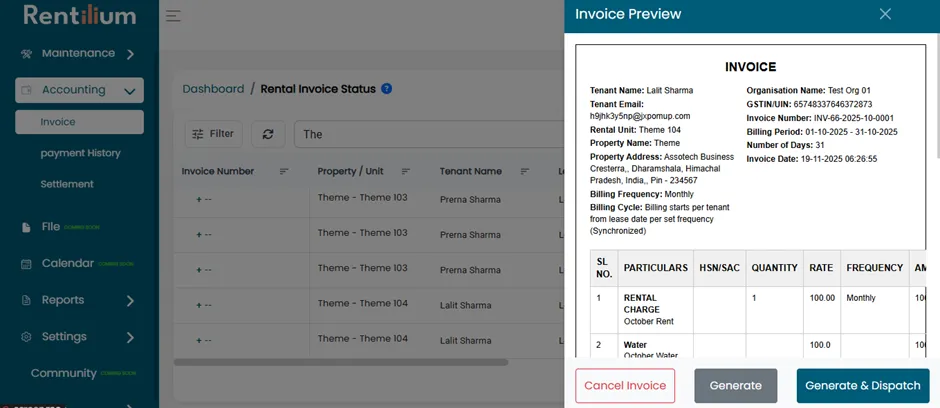
After clicking on generate button your invoice will be generated successfully.
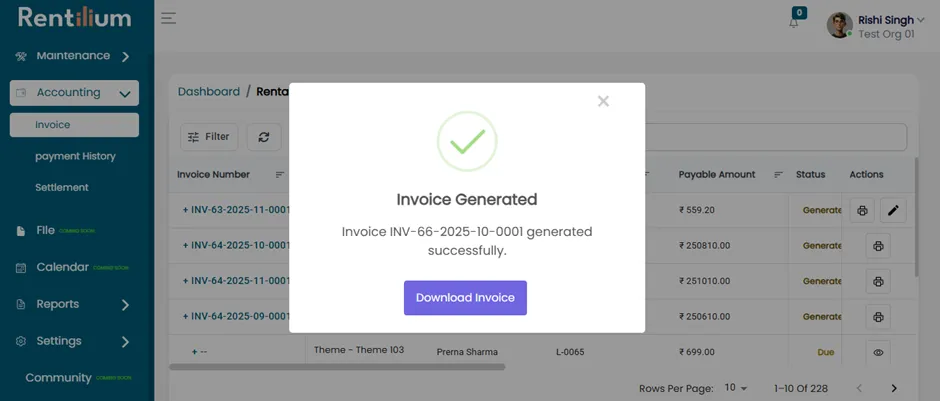
After successful generation, click Download Invoice.
View Utility Charges
- The downloaded invoice will show all utility charges.
- You can check the total amount the tenant needs to pay.