Tenants
4 min
Move To The Tenants Listing Page
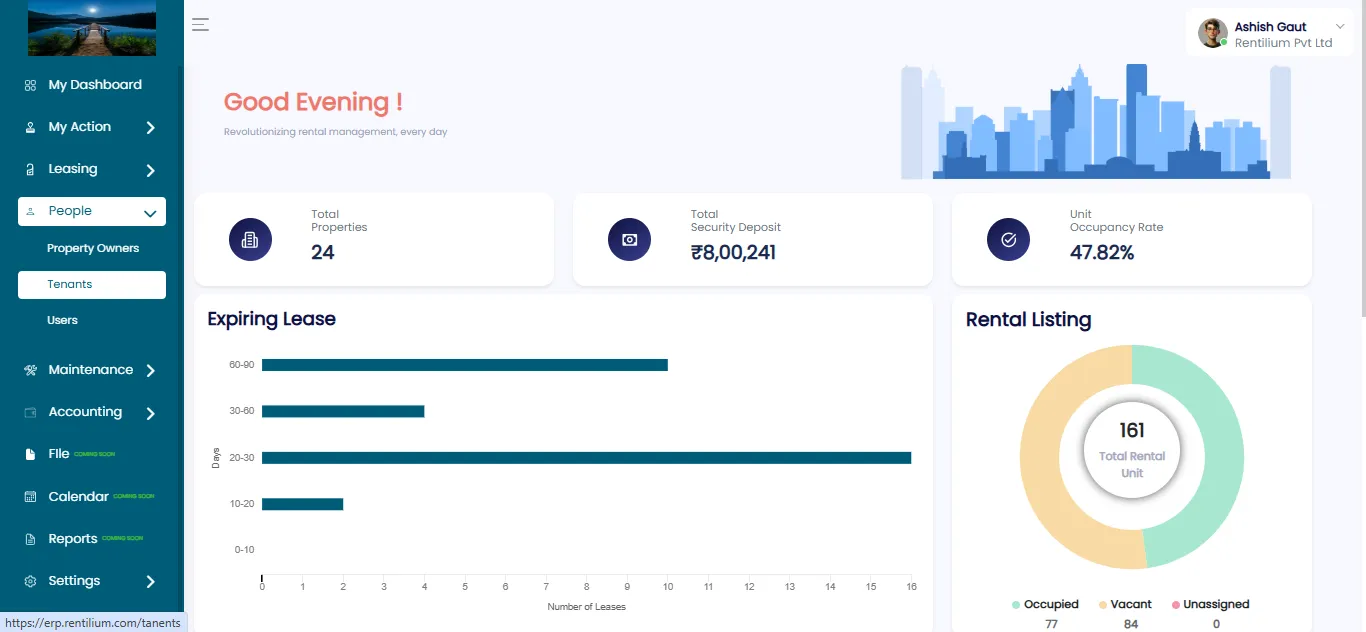
- The left-side menu includes various sections like My Dashboard, Leasing, Maintenance, Accounting, Reports, Settings, etc.
- Move to People > Tenants to access the Tenants Listing Page.
Viewing The Tenants List
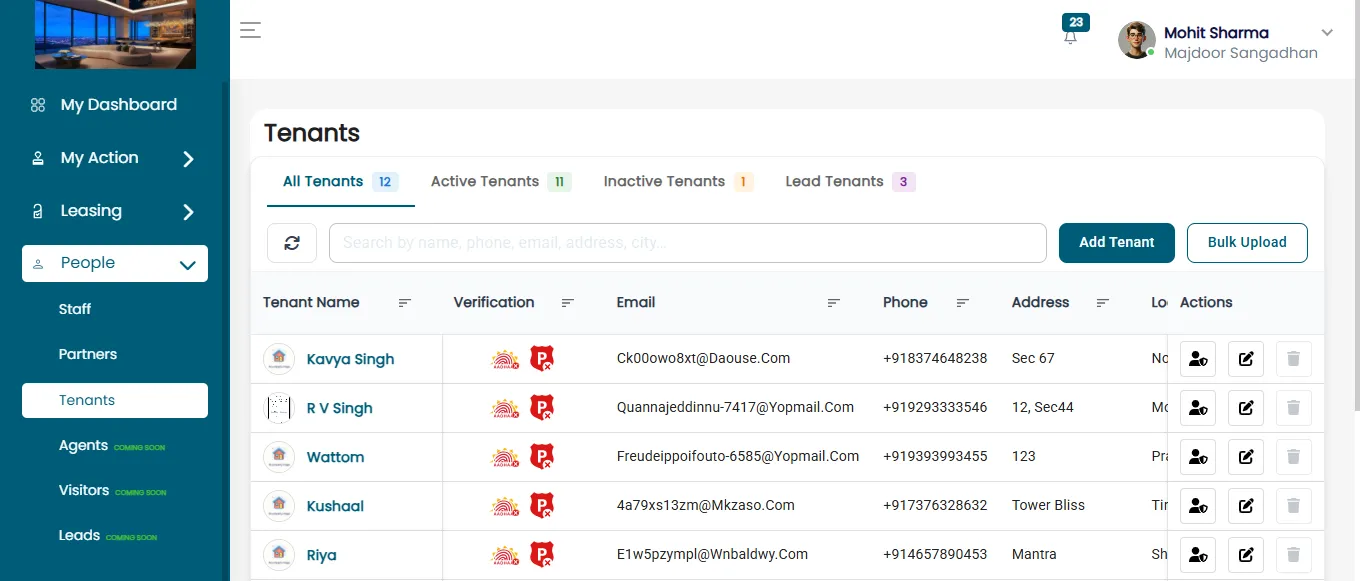
The Tenants Listing Page displays a table of tenants. The table contains multiple columns:
- Tenant Name – Displays the full name of the tenant.
- Email – This shows the registered email address of the tenant.
- Phone – Displays the contact number of the tenant.
- Address – The detailed address of the tenant.
- Location – The city and state where the tenant resides.
- The Search Bar at the top allows users to filter tenants quickly.
The page is divided into two sections:
- Leased Tenants
- Unleased Tenants
Users can switch between the tabs to view tenants based on their lease status.
Viewing Detailed Tenant Information
Opening The Tenant Details Modal
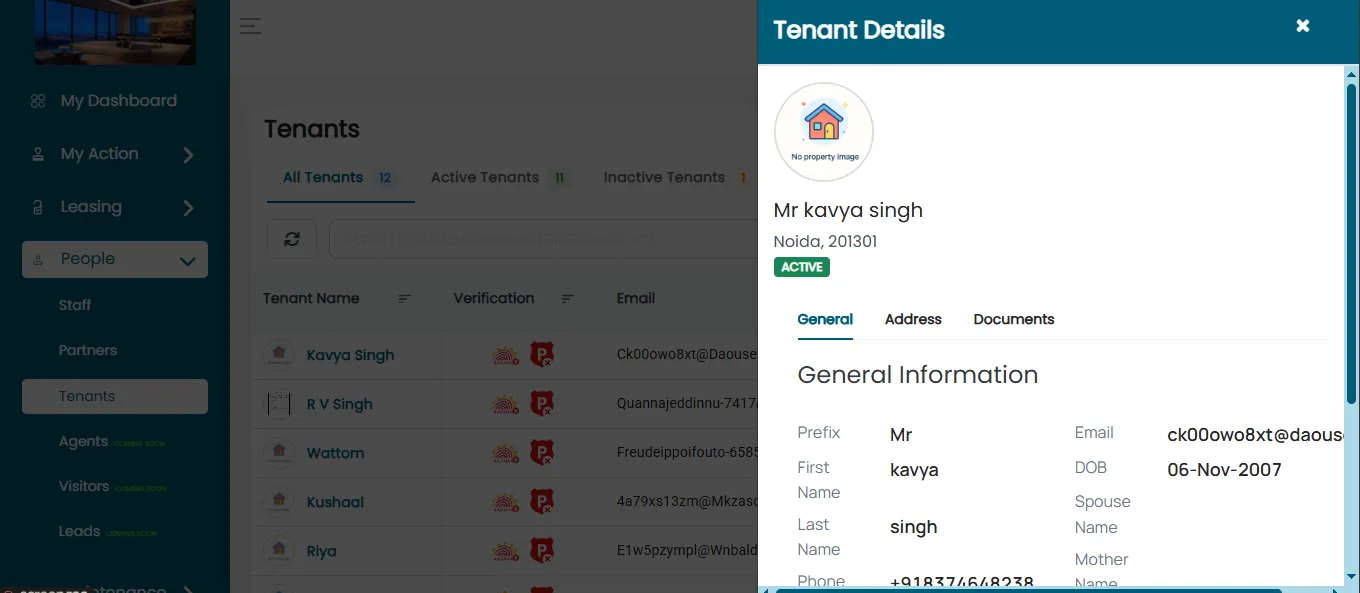
- Clicking on a tenant’s name in the listing opens the Tenant Details modal.
- The modal consists of two tabs:
- Info
- Documents
Info Tab
Displays basic tenant details:
- Tenant Name
- Email Address
- Phone Number
- Date of Birth
- Address Details:
- Address Line 1
- Locality
- City
- Zip Code
Move Back To The Tenants List
- After reviewing tenant details, click the Close button to return to the Tenants Listing Page.
- Users can continue searching, filtering, or selecting another tenant from the list.
- To access another section, use the left-side menu.