Rental Unit Creation
14 min
Move To Add Property Section
Login To Rentilium ERP
- Open the Rentilium ERP web portal.
- Enter your credentials (username and password) to log in.
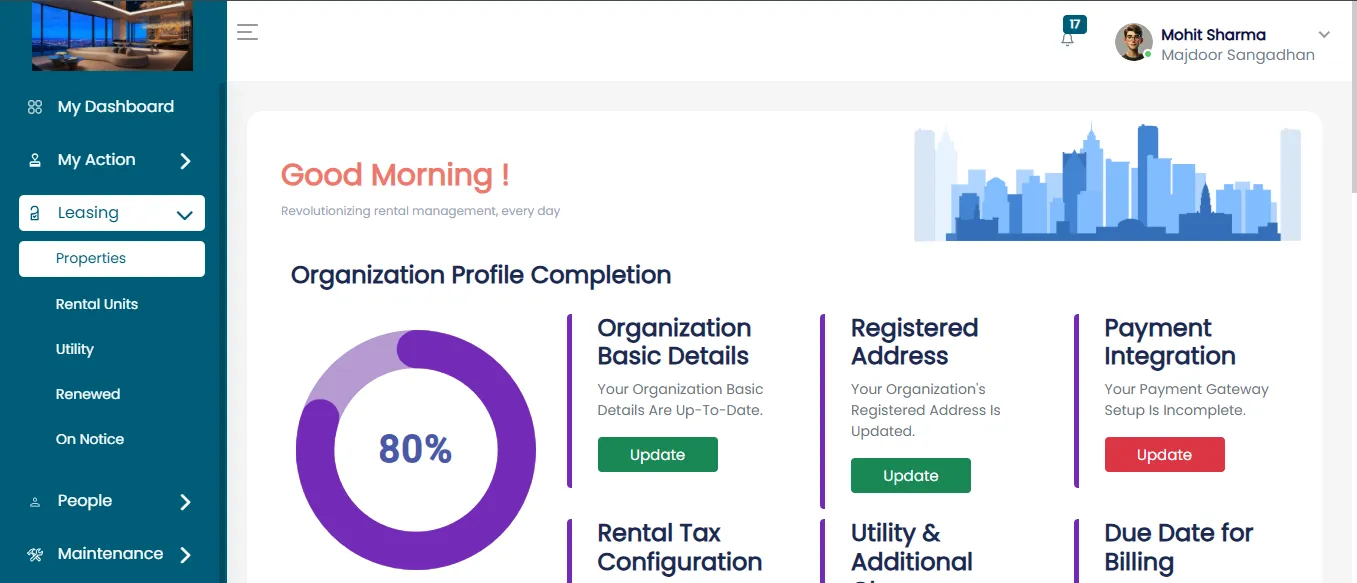
- After logging in, you will land on the Dashboard.
Go To Leasing Module
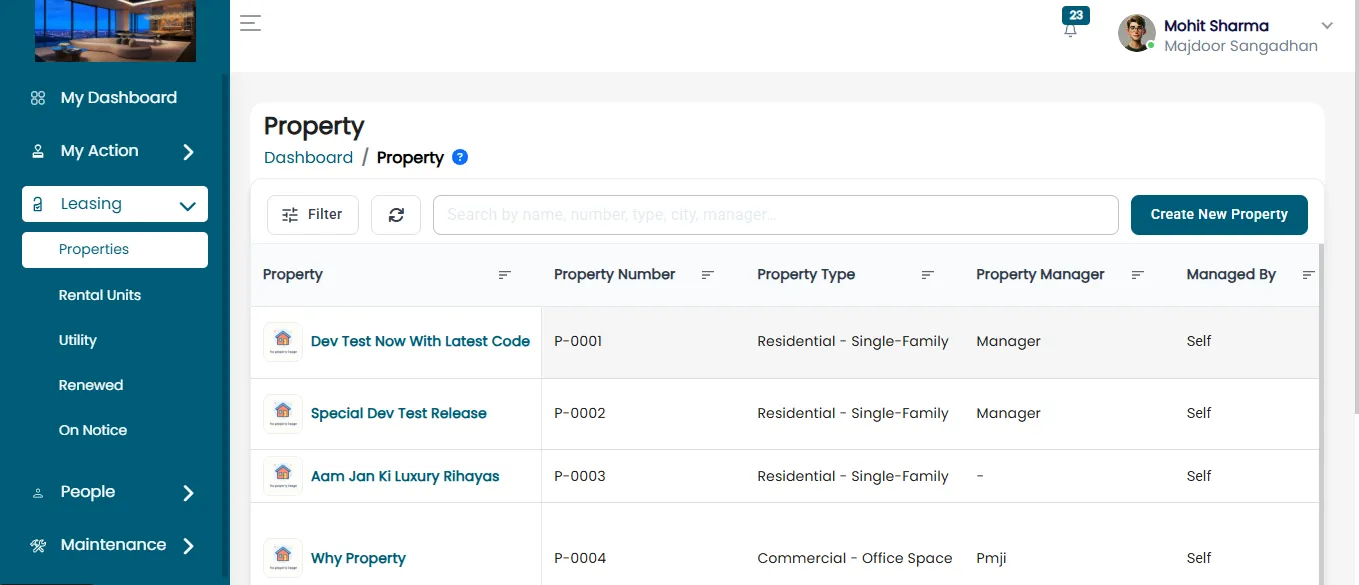
- On the left-hand sidebar, locate the 'Leasing' section.
- Click on the dropdown arrow to expand it.
Properties Section
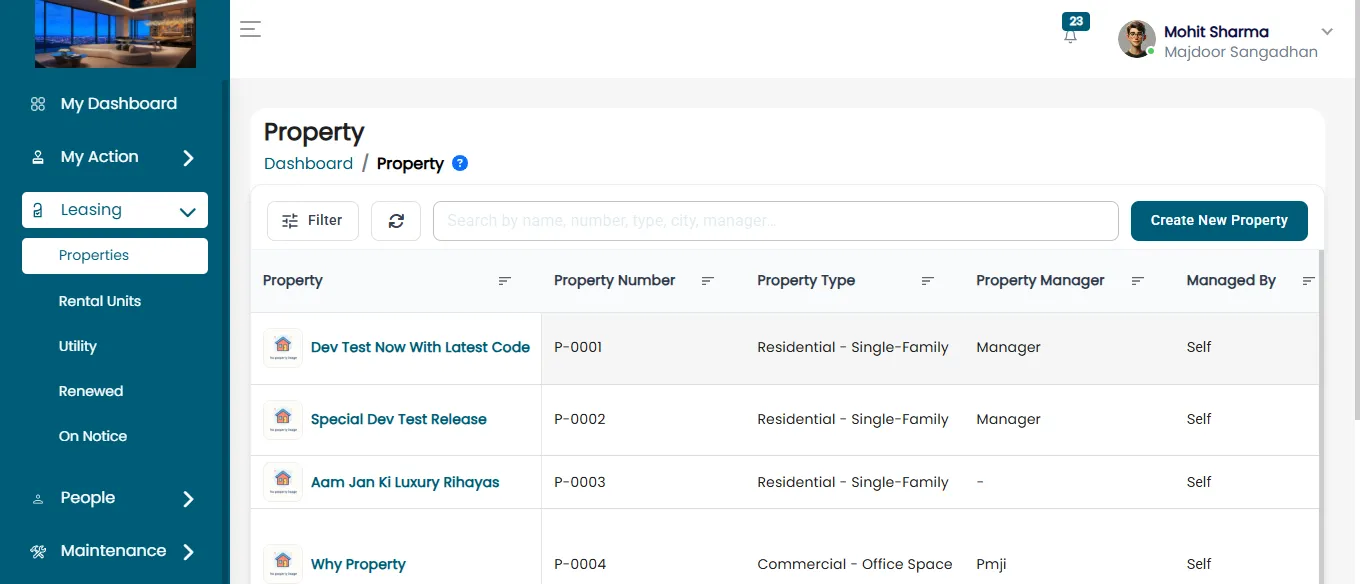
- Under the 'Leasing' module, select 'Properties'.
- Click the 'Create New Property' button located at the top right corner.
Go To Adding Rental Units Section
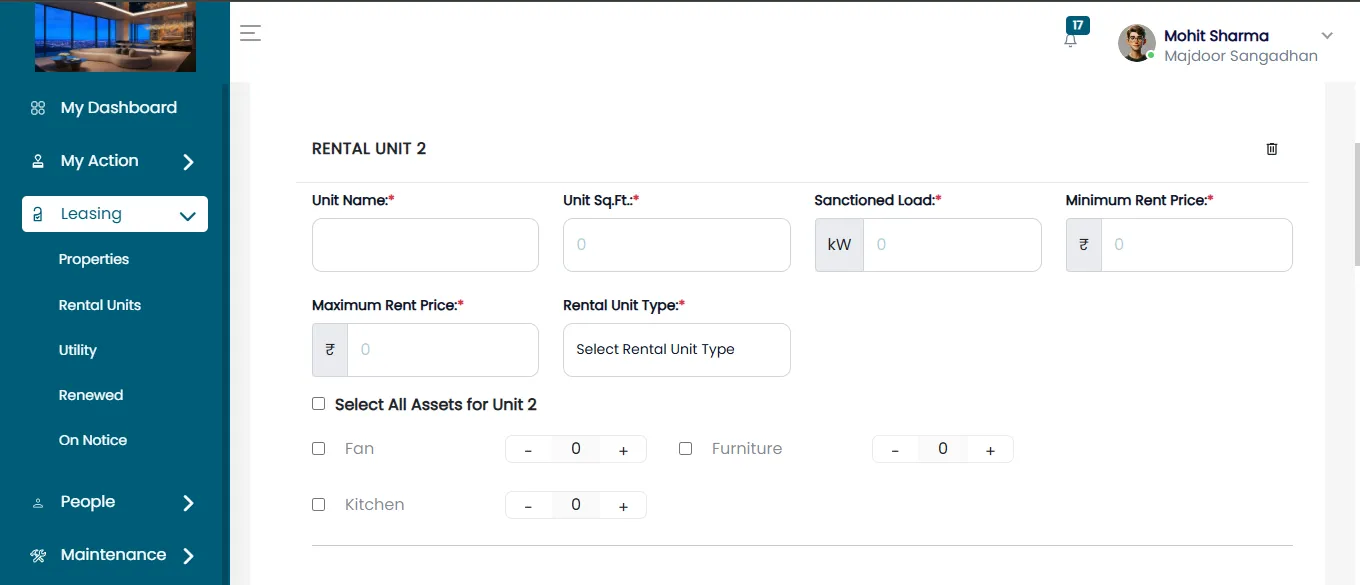
For Each Unit
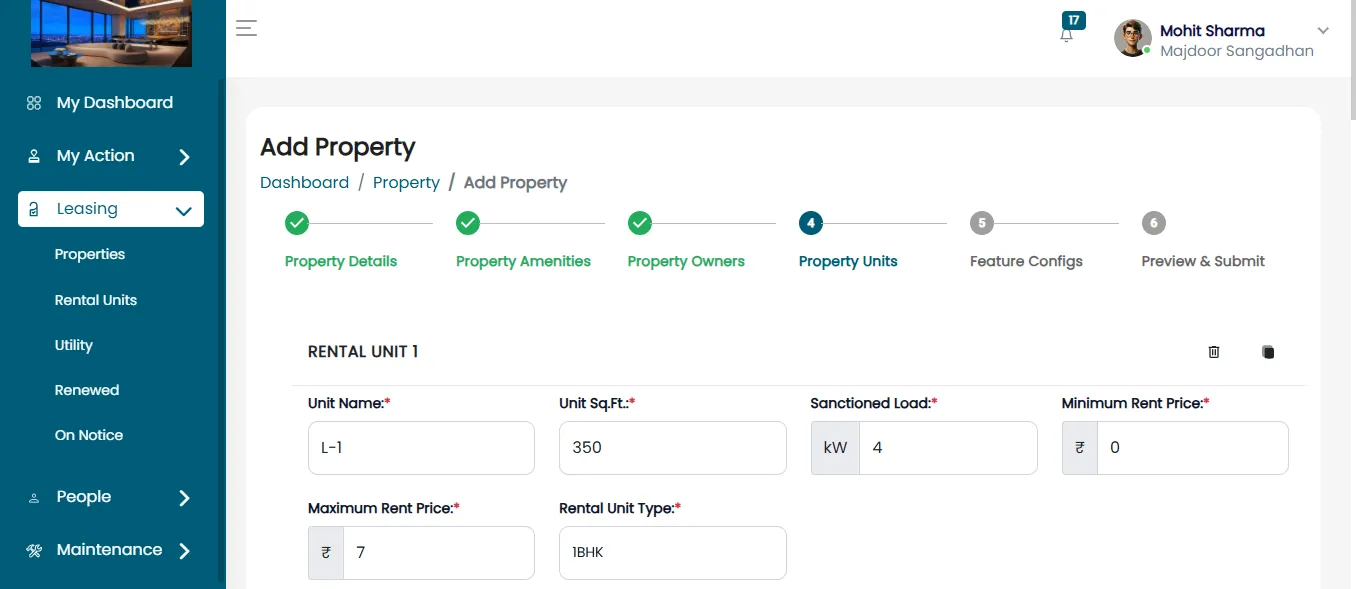
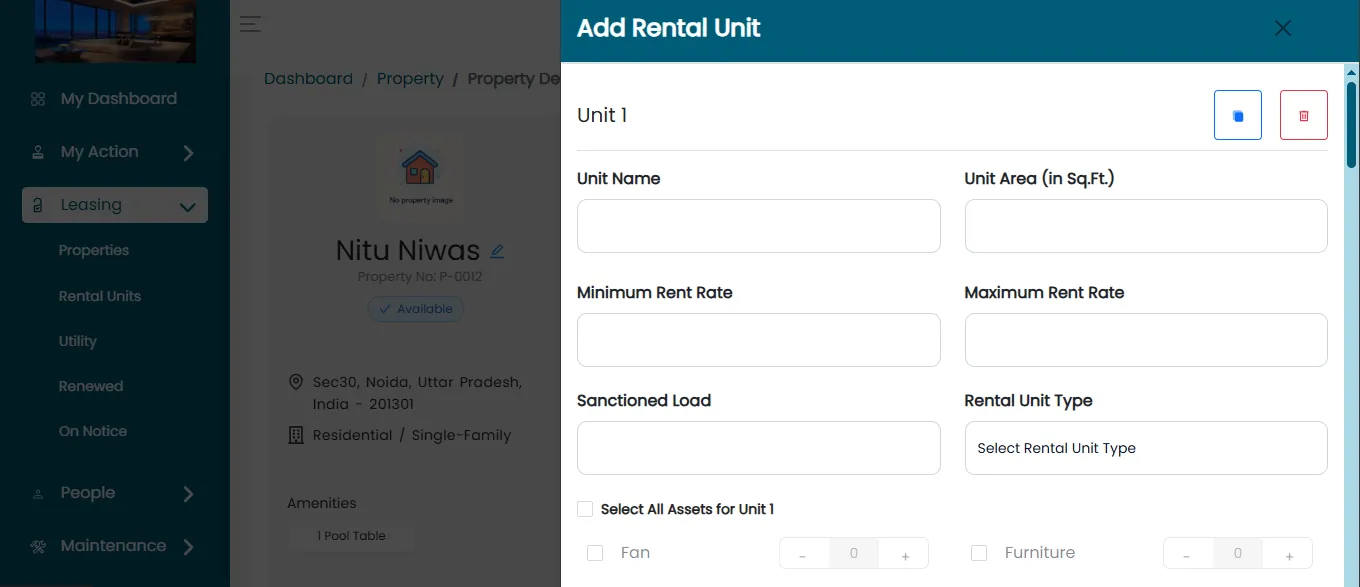
- Unit Name: Clearly name each unit for easy identification.
- Unit Area (Sq.Ft): Enter the area in square feet.
- Sanctioned Load: Mention the sanctioned load in kW.
- Minimum Rent Rate: Input the minimum acceptable rent.
- Maximum Rent Rate: Specify the maximum rent.
- Rental Unit Type: Select the appropriate unit classification.
- Managing Assets:
- Check 'Select All Assets' if applicable to the unit.
- To assign specific assets, click on 'Manage Assets' and select from the available list.
- Adding/Deleting Units:
- Use the '+' button to add new units.
- Use the trash icon to delete units if necessary.
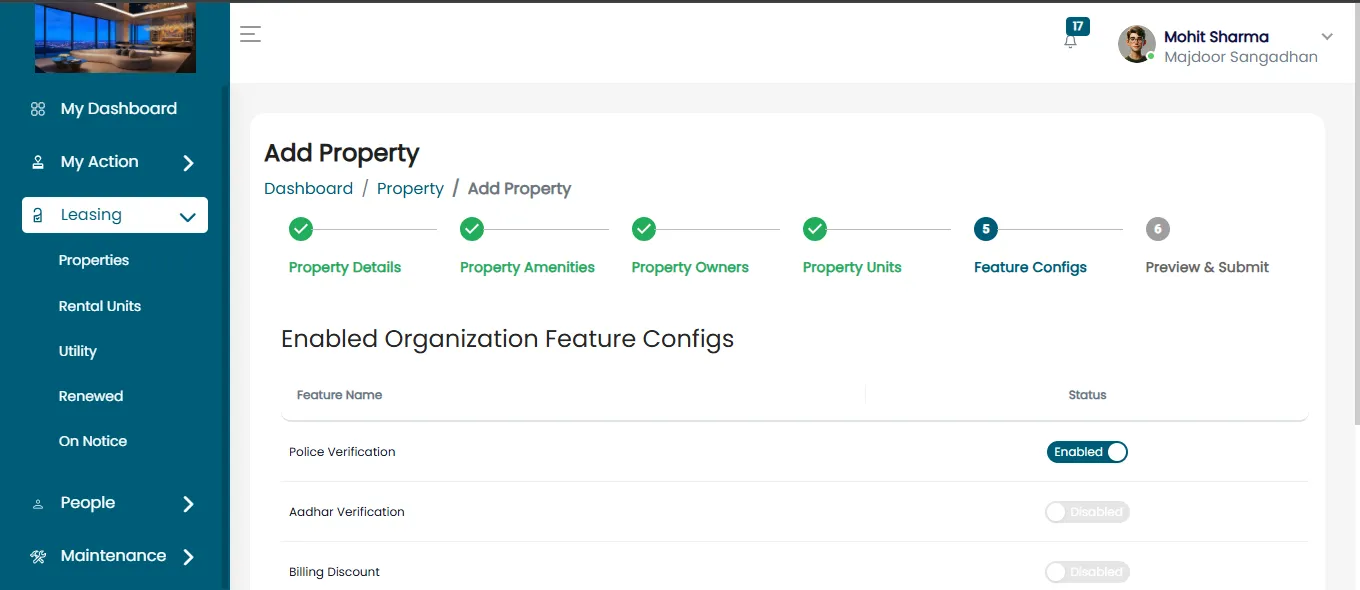
Feature config
The next step involves feature configuration, where the admin or property manager can enable or disable specific features such as Police Verification, Aadhaar Verification, Billing Discounts, Digital Agreements, and Notice Period Policies.
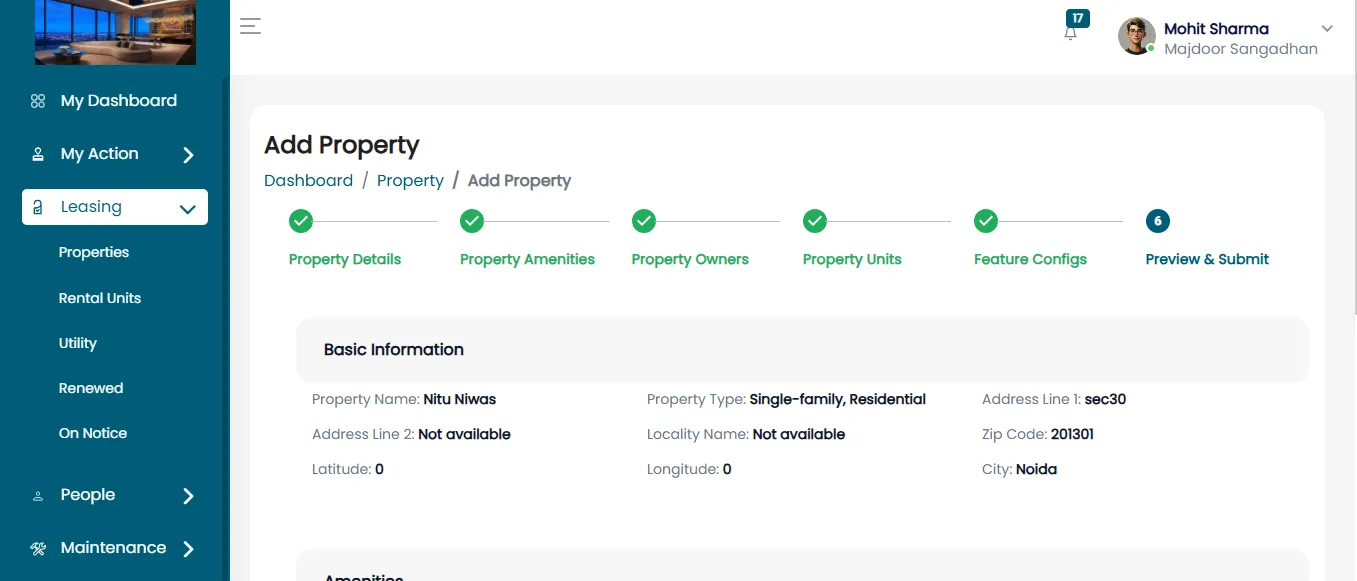
Preview & Submit
Review All Entered Details
- Personal Information
- Amenities
- Owner Information
- Unit Details
Final Review
- Expand each section to verify the information.
- Edit if any discrepancies are found.
Submission
- Click 'Next' to proceed to submission.
- Once confirmed, click 'Submit'.
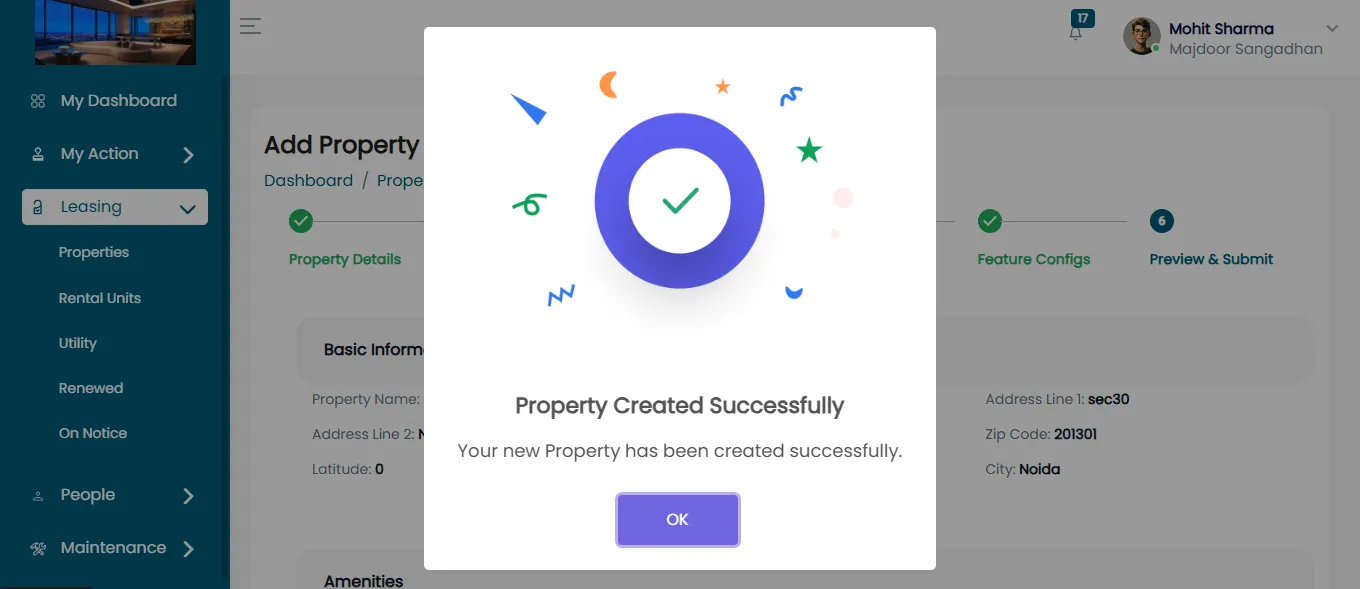
Confirmation
- A pop-up will appear stating 'Property Created Successfully'.
- Click 'OK' to finalize the process.
Viewing Property Details
Navigate Back To Properties
- Go to the 'Properties' section.
- Locate your newly added property in the list.
View Details
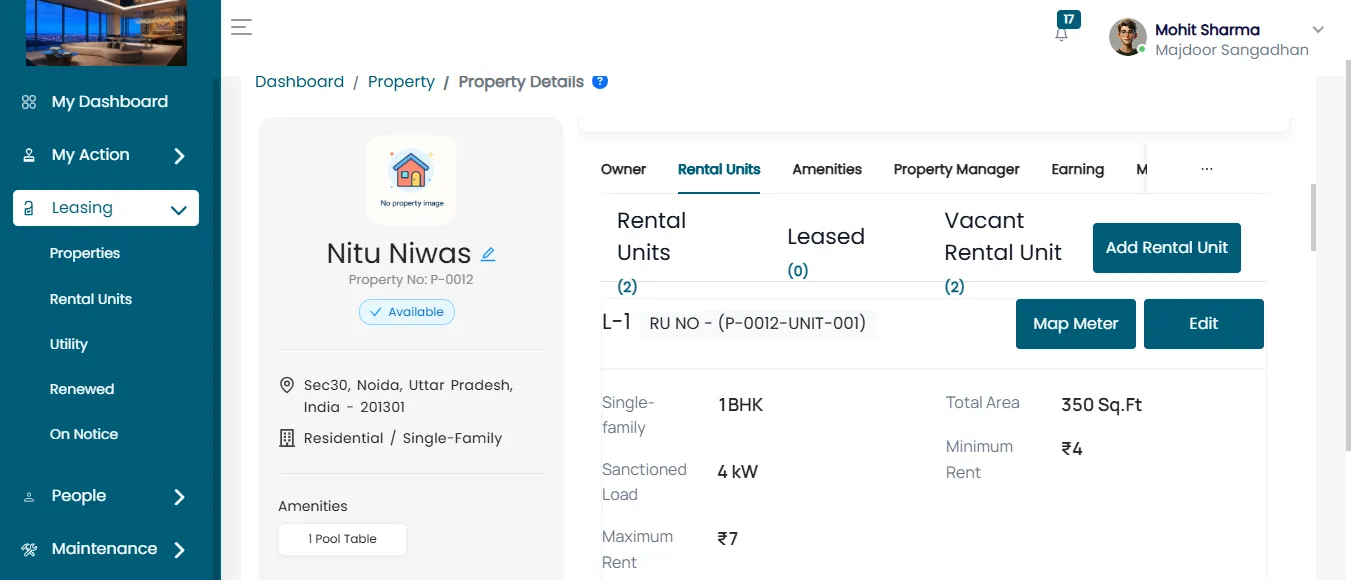
Click the property name to open detailed information.
Tabs will display:
- General Information
- Owners
- Rental Units
- Amenities
- Property Manager
Search & Filter
- Use the search bar to quickly locate specific properties.
- Apply filters for refined results.
Managing Rental Units
Add Rental Unit
- Inside the property details page, click 'Add Rental Unit'.
- Fill in the rental unit form with all required details.
Editing Units
- Click the edit icon beside each unit to modify details.
Deleting Units
- Select the delete icon to remove unwanted units.
Success Confirmation
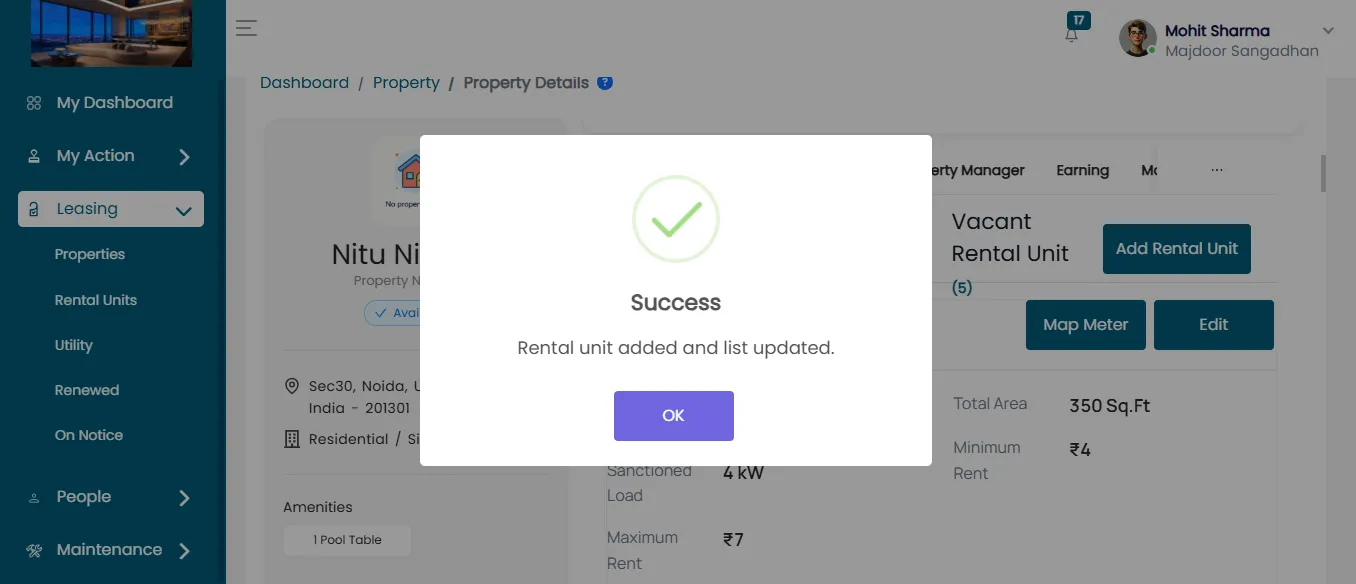
- After any update, a pop-up will confirm 'Rental Unit Added and List Updated'.