Settlement Invoice Generation
This document serves as a step-by-step guide for managing the tenant check-out process, covering key tasks such as issuing a notice to vacate, generating settlement invoices, updating payments, and confirming the property's vacancy.
It is designed to help admin users smoothly manage the process of moving a rental unit from occupied to vacant, making sure tasks like creating invoices, updating payments, and completing the final settlement are done correctly and on time.
Login to Admin Account
- Log in using your Admin credentials.
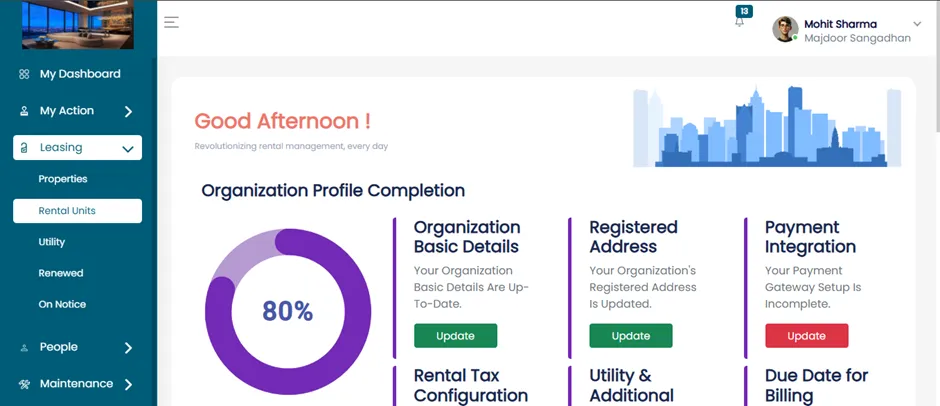
- After login, you will be directed to the Admin Dashboard.
- Navigate to the Leasing Section from the dashboard. Click on Rental Units.
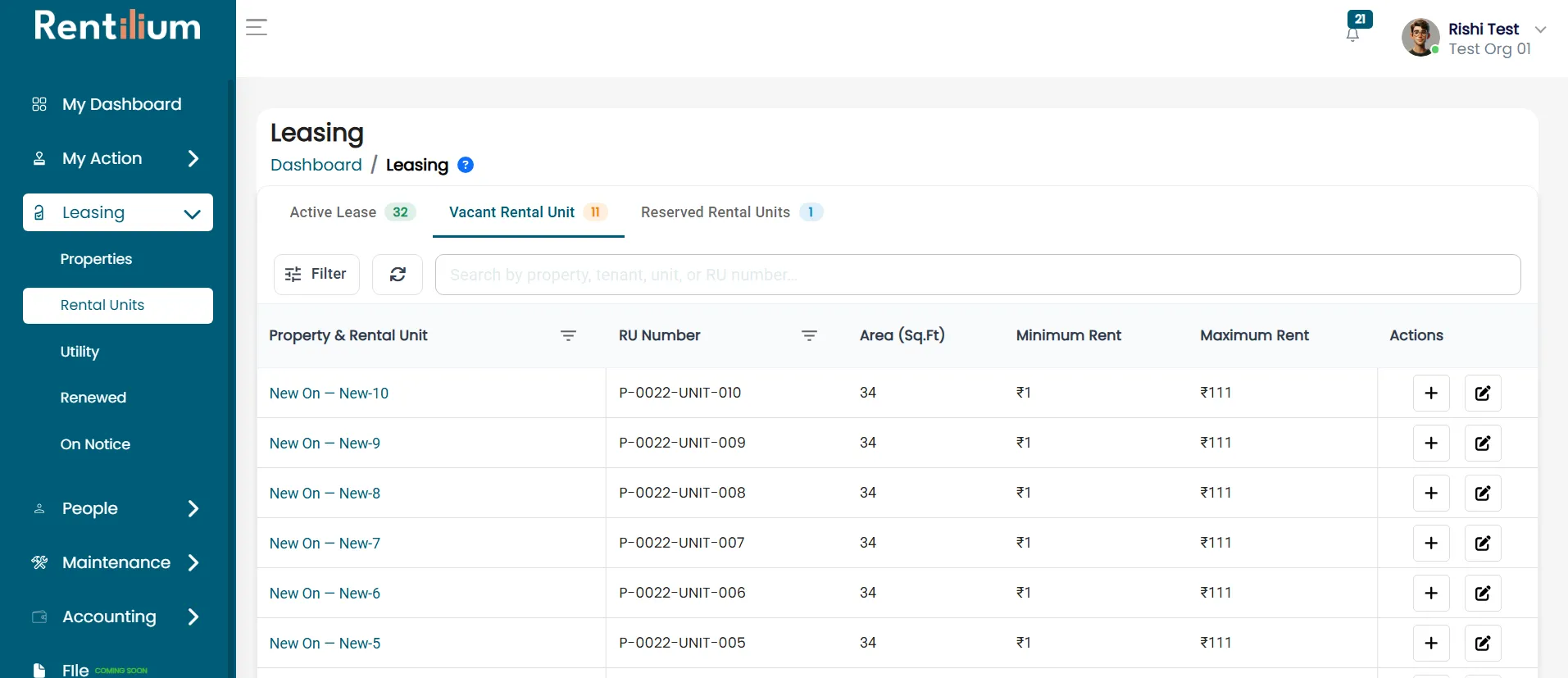
There are three categories under Rental Units:
Active Lease – Units that currently have active leases.
Vacant Rental Units – Units that are vacant or available for lease.
Reserved Rental Units – Leases that are saved but not activated yet.
Initiating Notice to Vacate
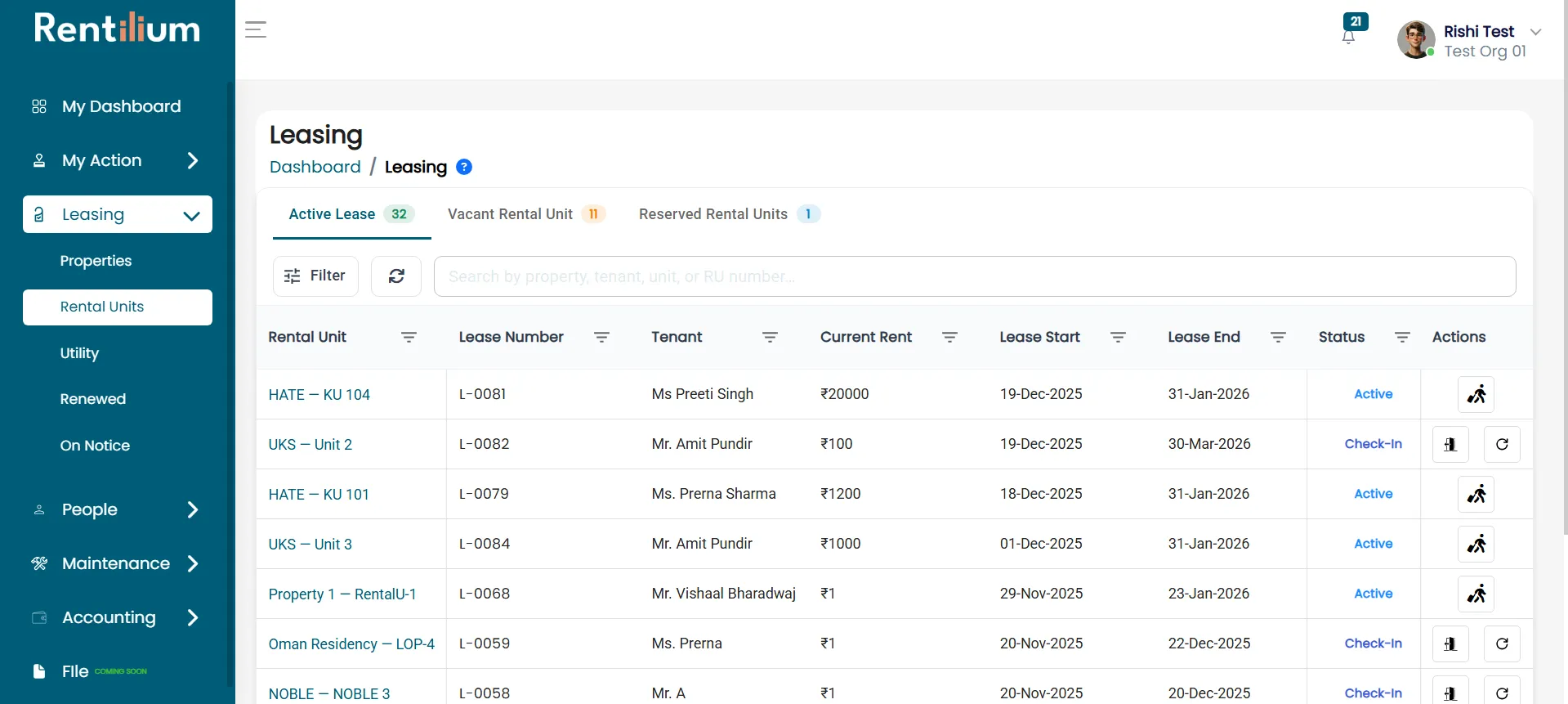
From the Leased Rental Units, select the unit with the active lease.
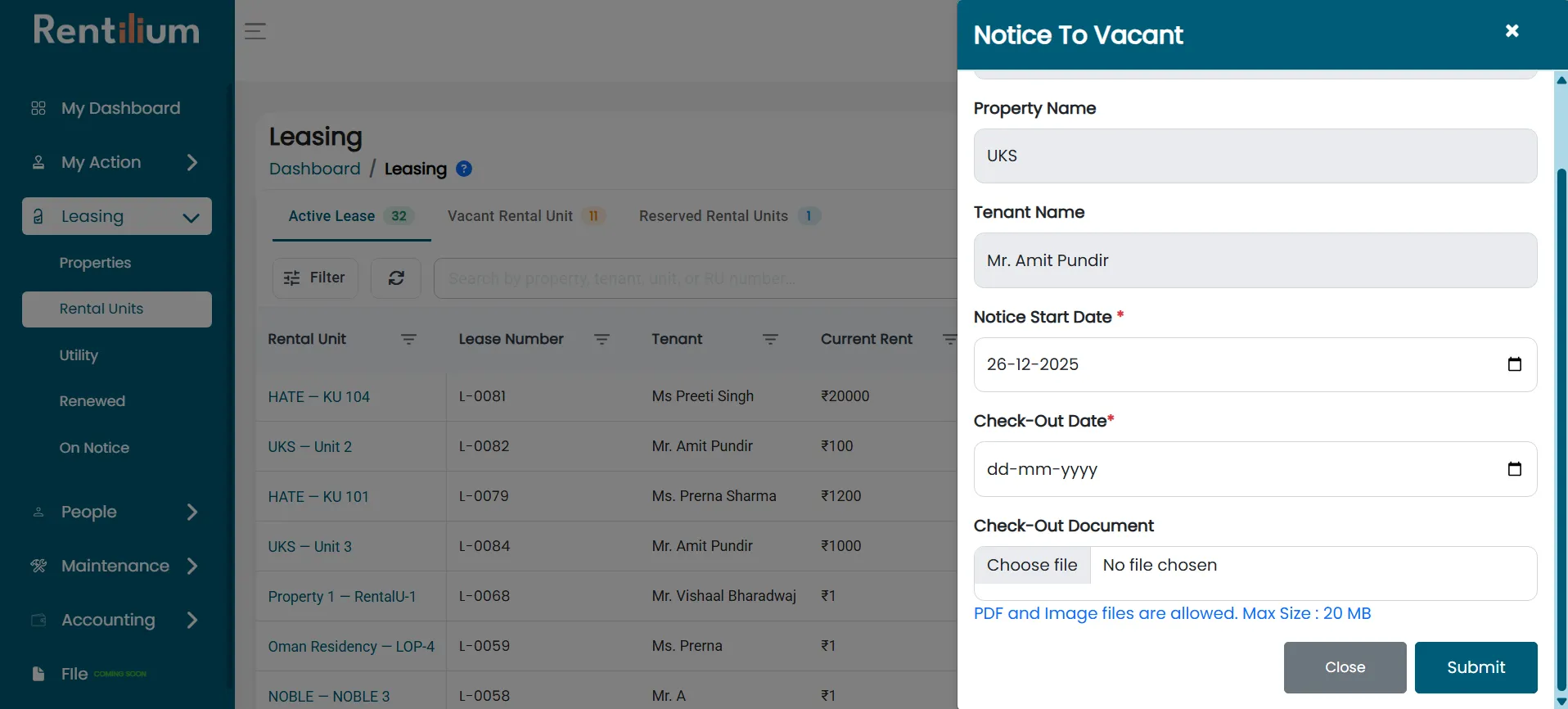
Click on the "Notice to Vacant" button.
Filling the Notice Details
Click the "On Notice" button to open the notice form. Fill in the required details:
Unit Name
Property Name
Tenant Name
Notice Start Date
Check-out Date
Upload Agreement Document (PDF or scanned copy)
Once completed, click Submit.
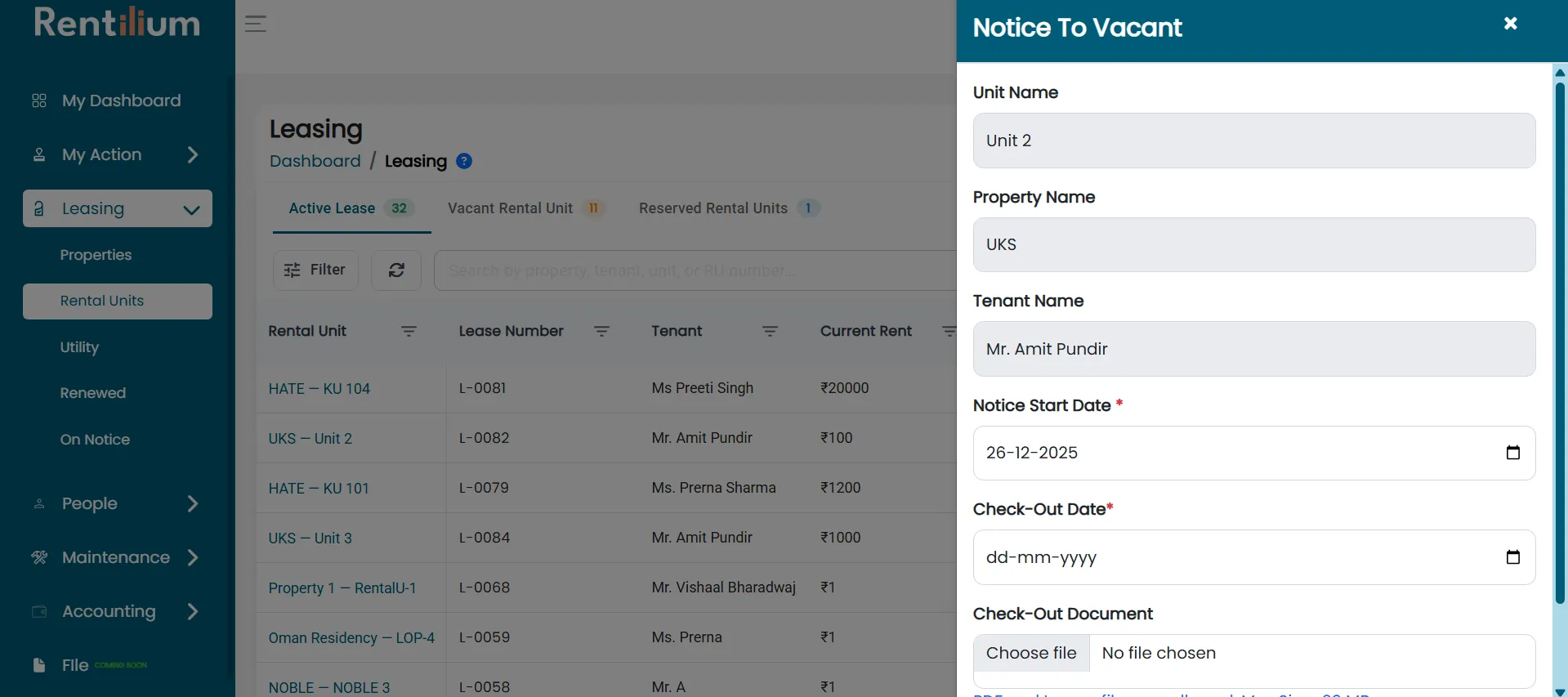
After filling all the information upload agreement and click on submit button.
Viewing Tenants on Notice
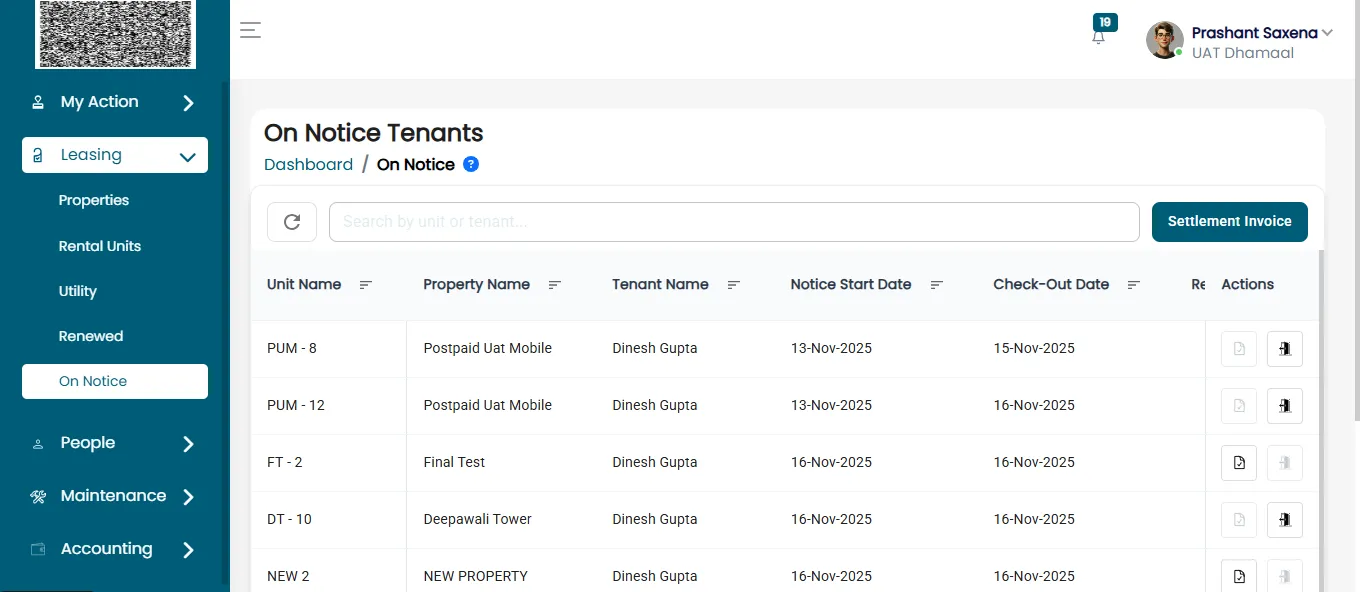
Click on On Notice section to view all tenants currently under notice.
Example: Unit Name: DT 9, Tenant Name: R.V Singh
Final Settlement Process
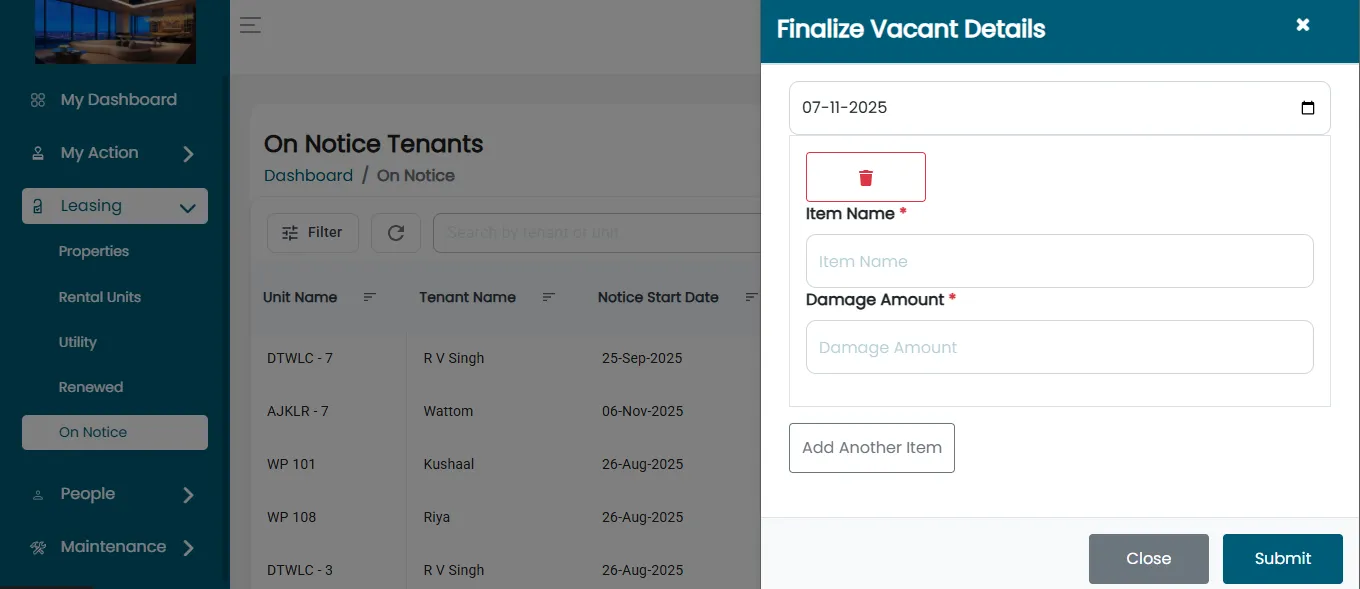
Click on the "Settlement" button next to the tenant's name.
The Finalize Vacant Detail page will open. Click on submit button.
Generate Pending Invoices
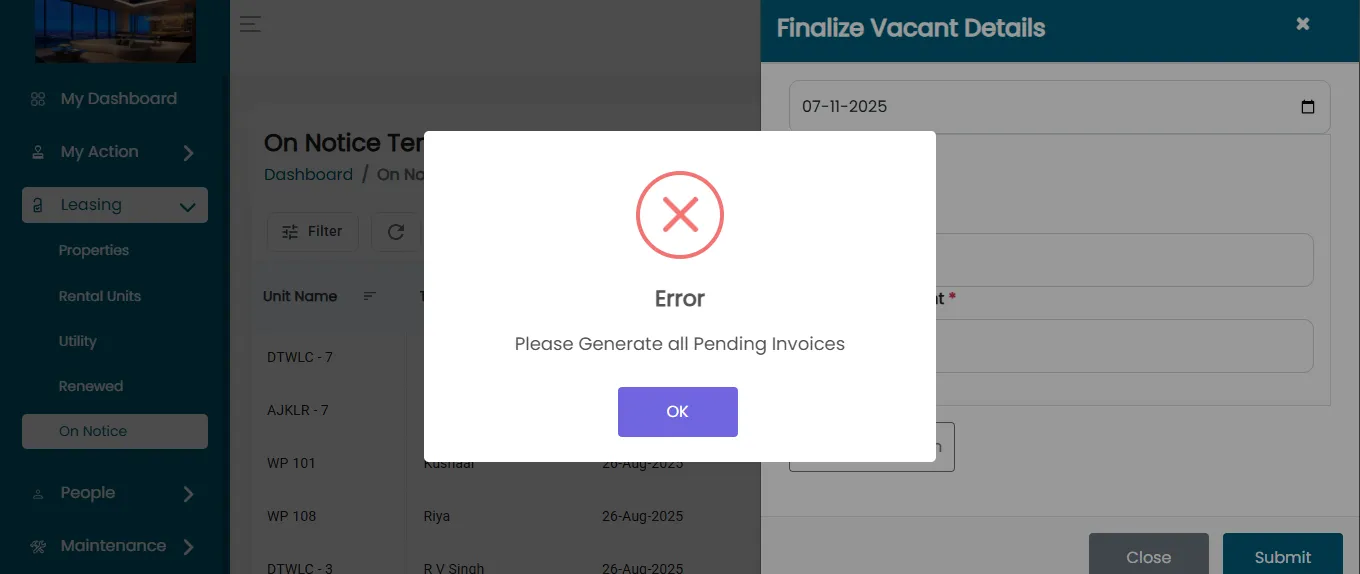
Once the vacant details are submitted, you will see a message: Please generate all pending invoices.
Update Tenant Payment
Now go to Accounting section and click on payment option
Update the payment of tenant R.V Singh- Unit is DT 9.
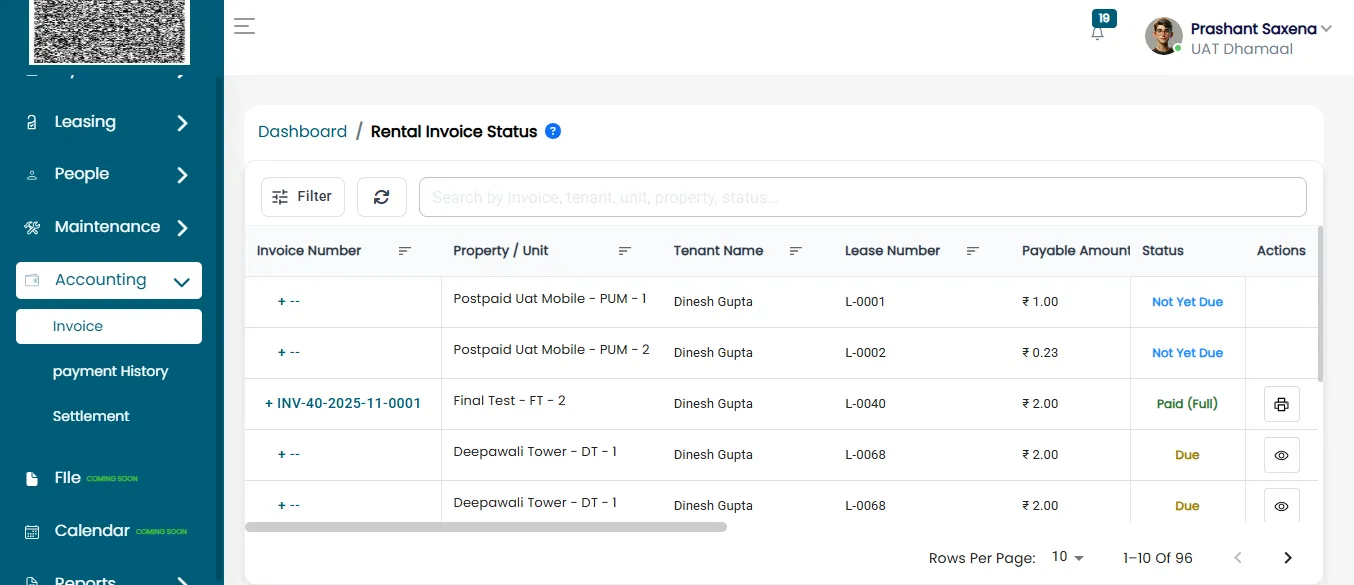
Now firstly generate all the pending invoice of tenant R.V Singh.
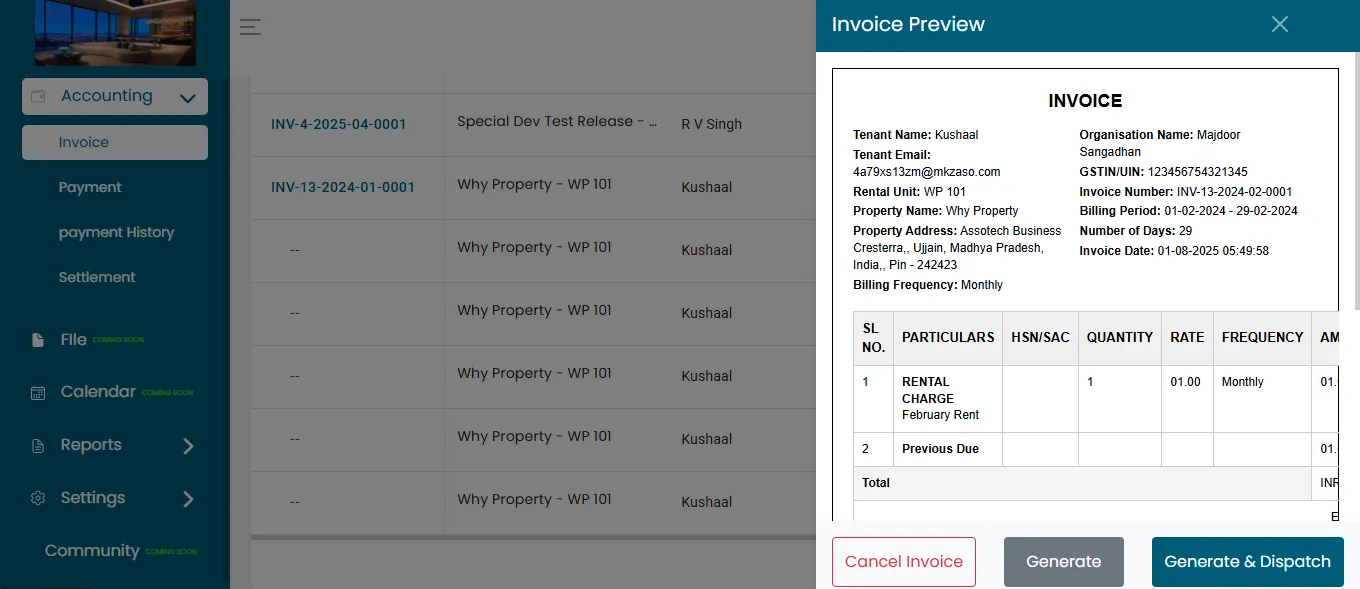
Now click on generate button.
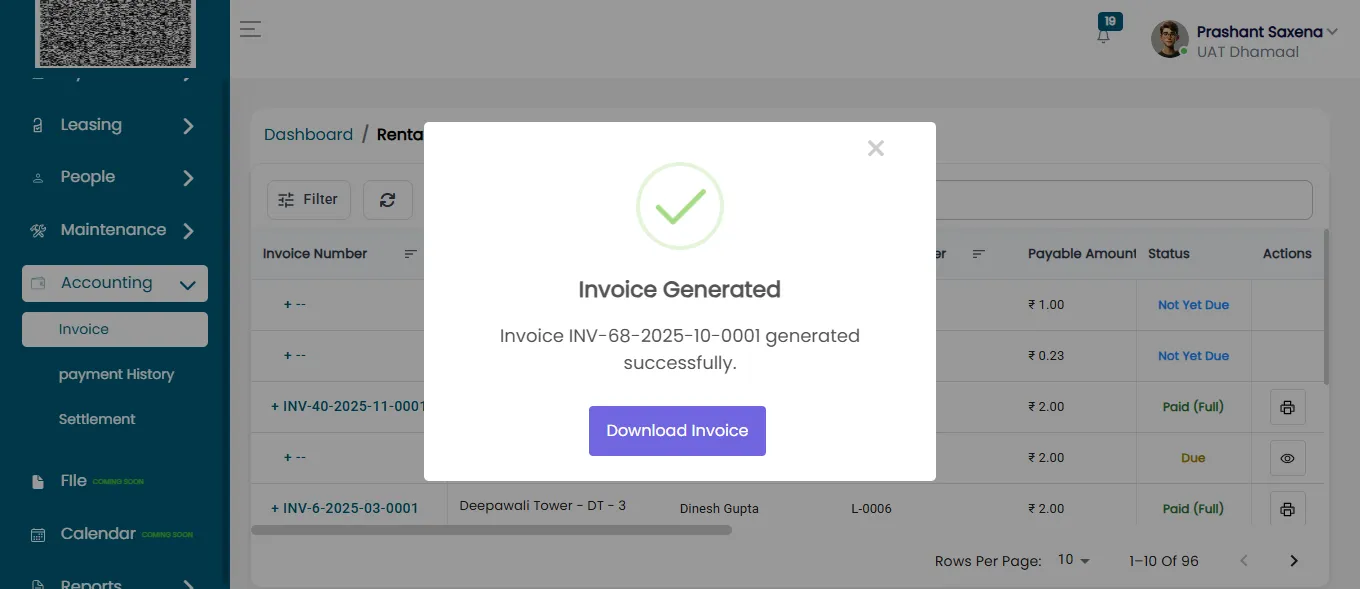
Now the invoice will be generated successfully.
Final Settlement Confirmation
Return to the On Notice section.
Open the Finalize Vacant Details form again if needed.
After verifying all data, click Submit.
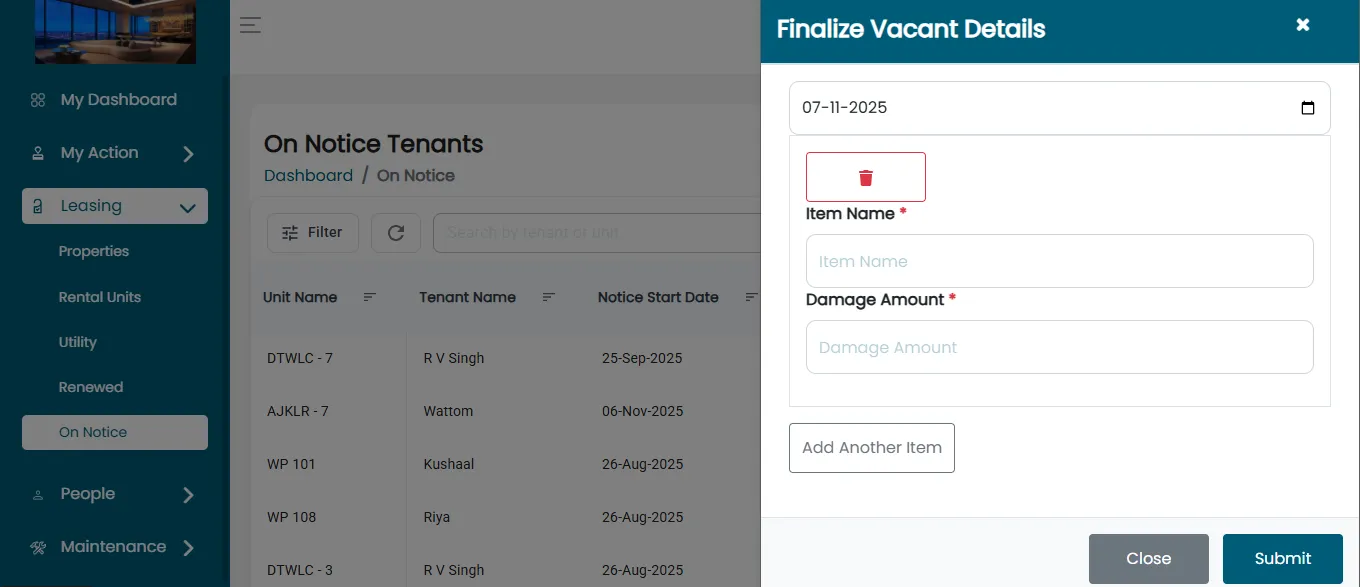
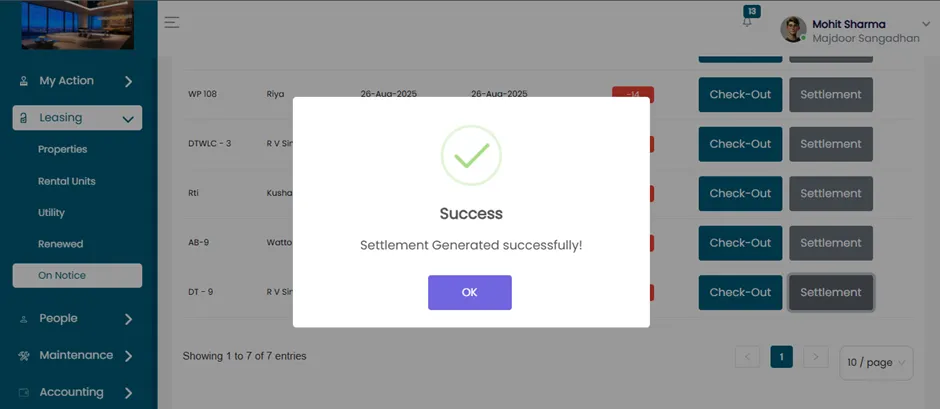
- A notification will confirm that the Settlement has been successfully generated.
Tenant Check-Out Process
Click on the "Check-Out" button for the tenant.
- A confirmation message will appear: “Do you want to vacate this property?”
- Click “Yes Vacant”.
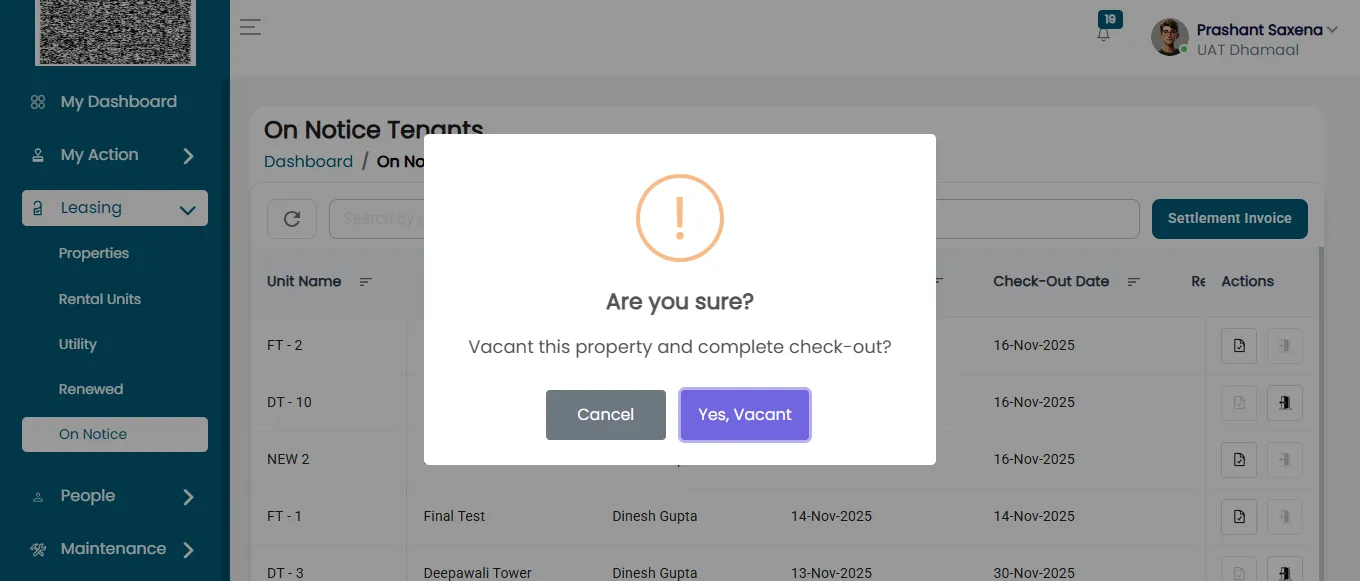
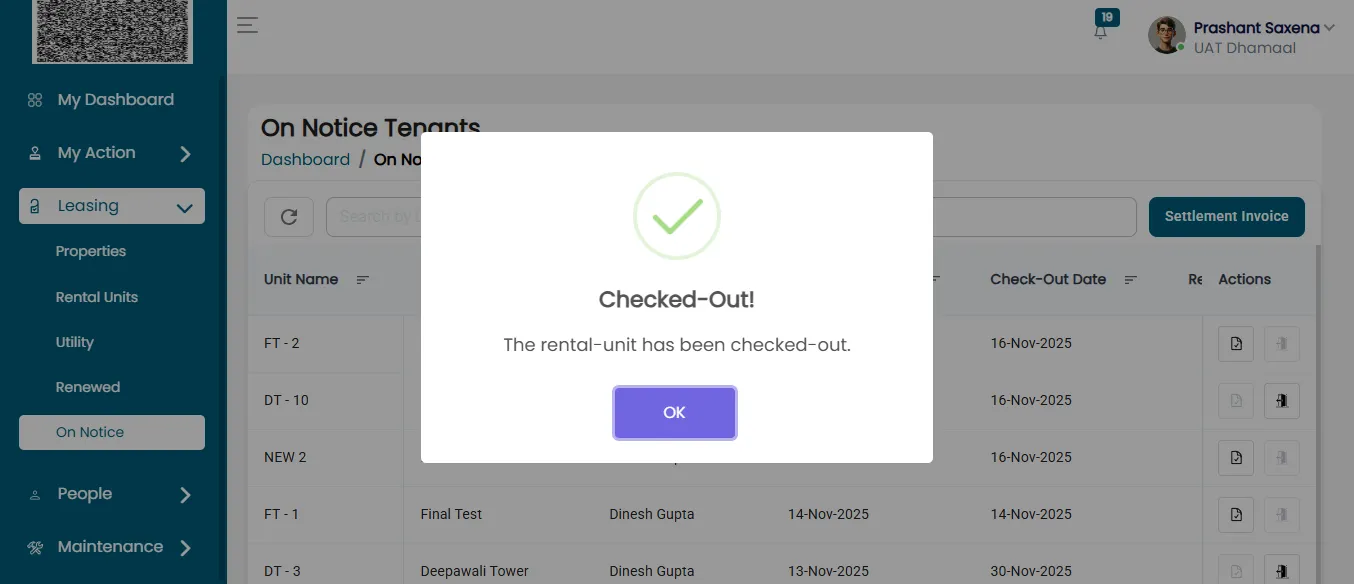
- Upon confirmation, the tenant will be successfully checked out, and the property status will be updated as vacant.
By following these steps, admin users can complete the tenant check-out process accurately and efficiently, ensuring all payments are settled and the unit is ready for the next lease.