On Notice
17 min
This document helps the admin manage tenants who want to move out. It shows how to review their notices, handle final payments, create any unpaid invoices, and complete the check-out process.
These steps ensure that everything is done correctly and the rental records of the property are up to date. This makes the move-out process smooth for both property managers and tenants.
View Tenants On Notice
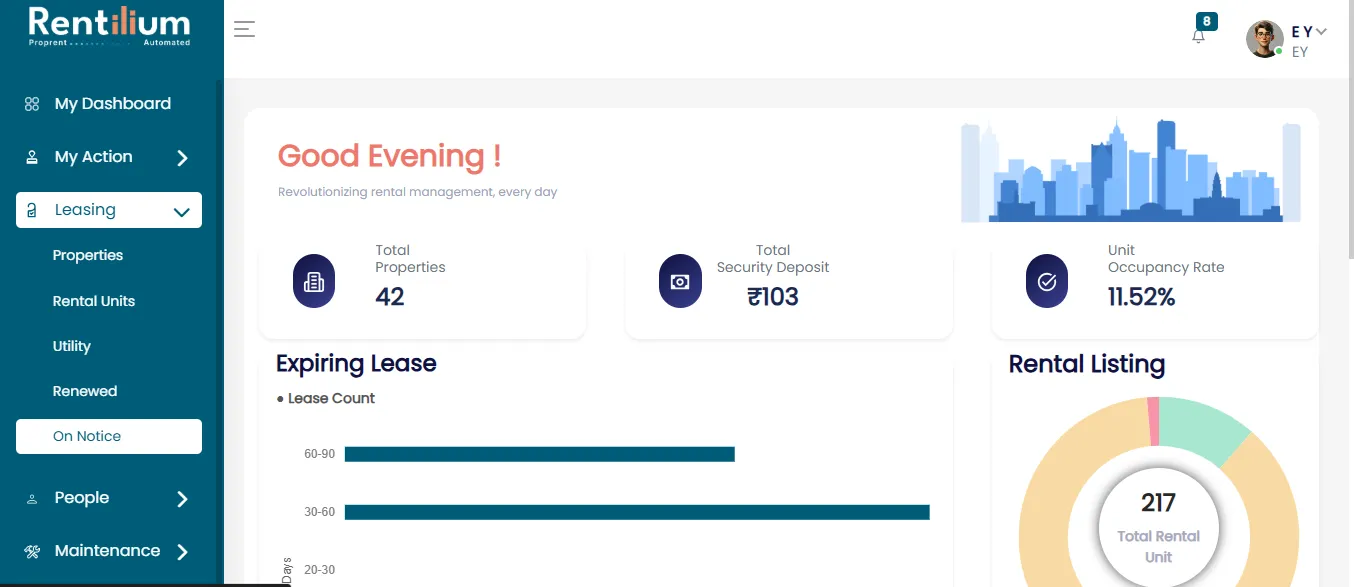
- From the dashboard, click on the Leasing section.
- Inside the Leasing section, click on the "On Notice" tab.
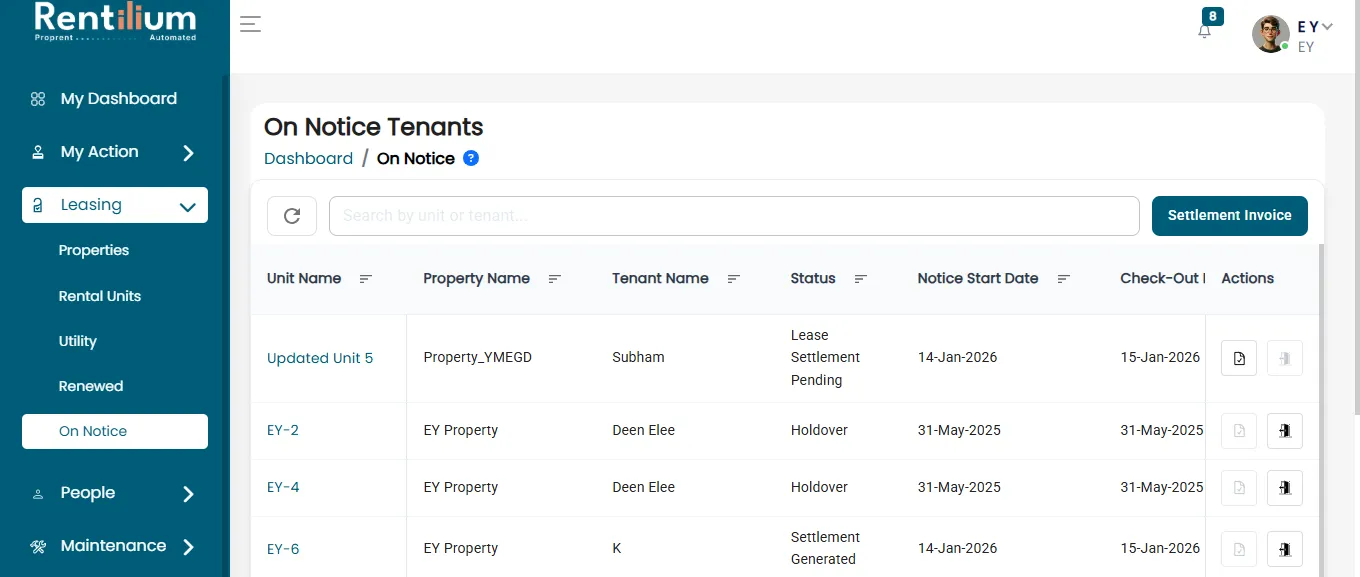
This section displays all tenants who have submitted a notice to vacate their units.
Example:
- Unit Name: DT 9
- Tenant Name: R.V. Singh
Begin Final Settlement Process
- Find the tenant (e.g., R.V. Singh for Unit DT 9). Click the "Settlement" button.
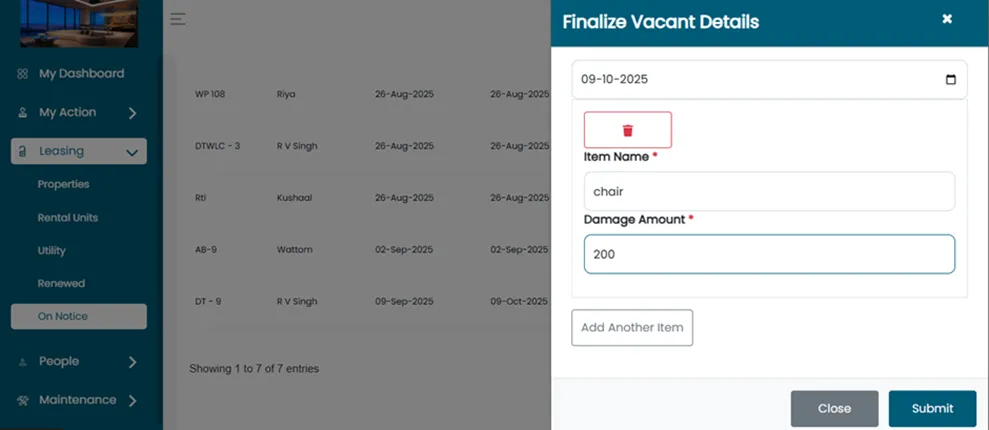
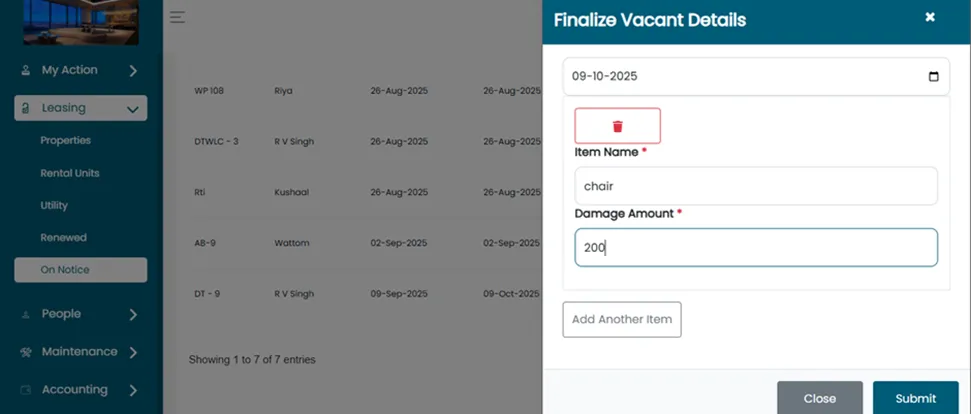
- The Finalize Vacant Detail page will open. Click on the submit button.
Generate Pending Invoices
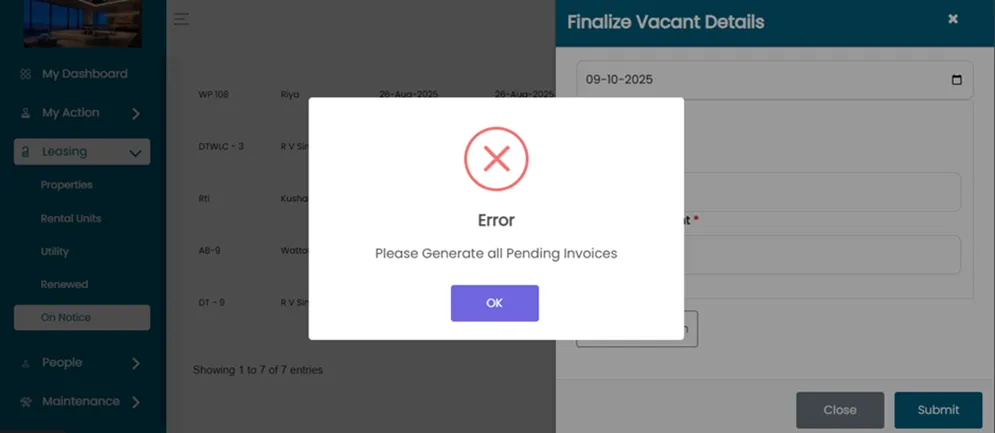
- After submitting the vacant details, you will see a message "Please generate all pending invoices."
- To continue, proceed to generate the invoices for the tenant.
Update Tenant Payment Information
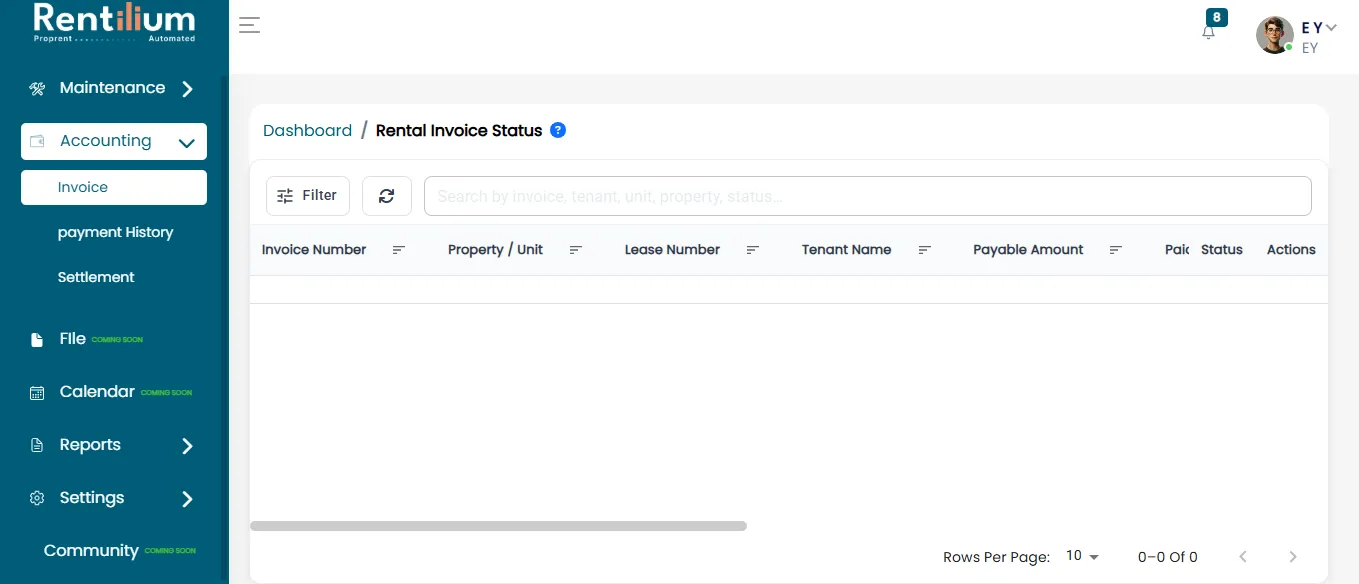
- Go to the Accounting section from the main menu.
- Click on the “Payments” option.
- Locate the tenant R.V. Singh (Unit DT 9) in the list.
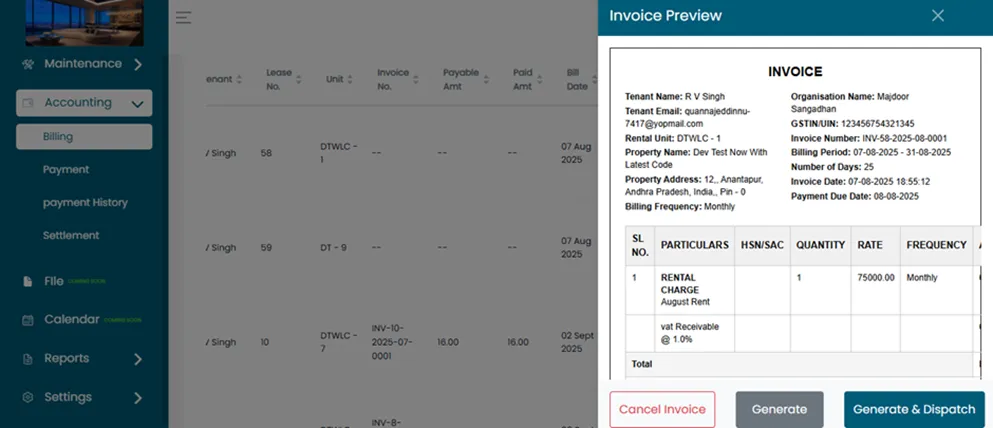
- Now generate all the pending invoices of tenant R.V Singh.
- Click the “Generate” button.
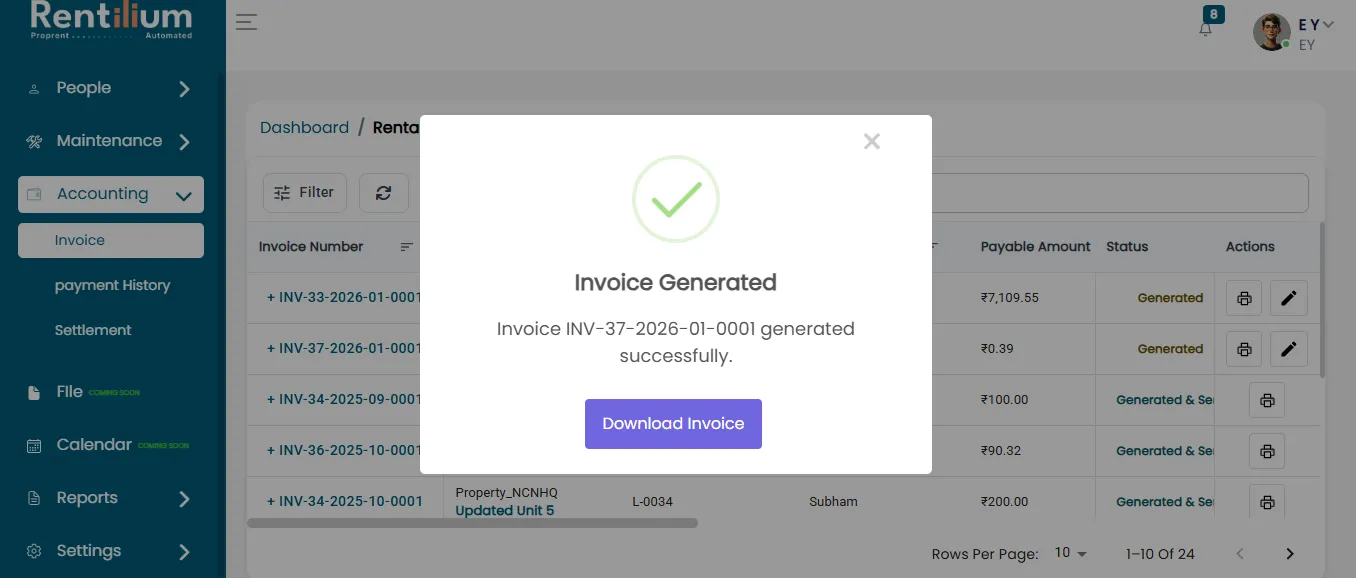
- A confirmation will appear once the invoices are generated successfully.
Confirm Final Settlement
- Return to the On Notice section.
- If needed, re-open the Finalize Vacant Details form.
- Review all information carefully. Once everything is verified, click Submit to finalize the settlement.
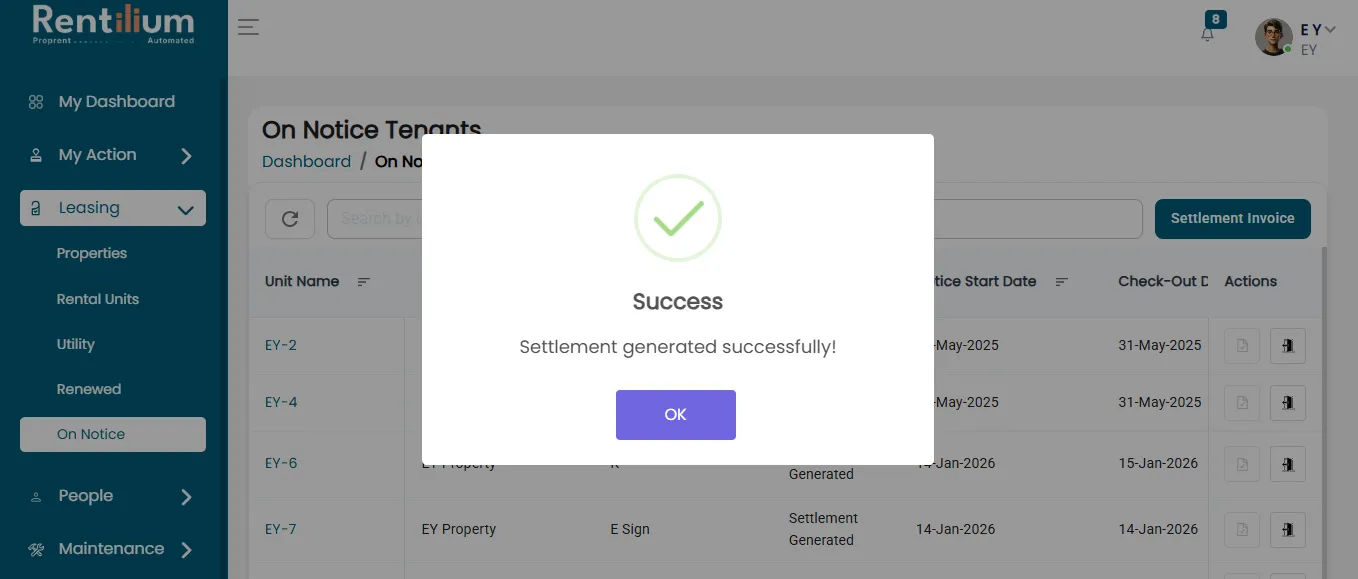
- A confirmation message will appear: “Settlement has been successfully generated.”
Complete Tenant Check-Out
- In the On Notice section, click the “Check-Out” button for the tenant.
- A confirmation message will appear: “Do you want to vacate this property?”
- Click “Yes, Vacant” to proceed.
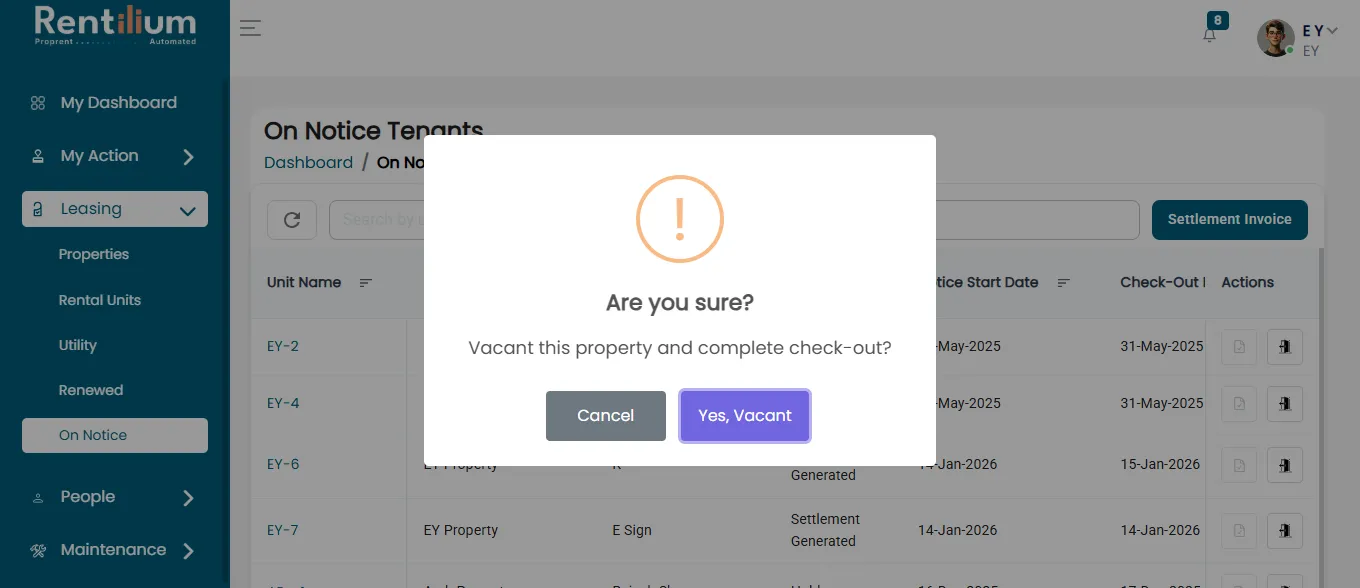
- Once confirmed, the tenant can be successfully checked out, and the status of that particular property will reflect as vacant.
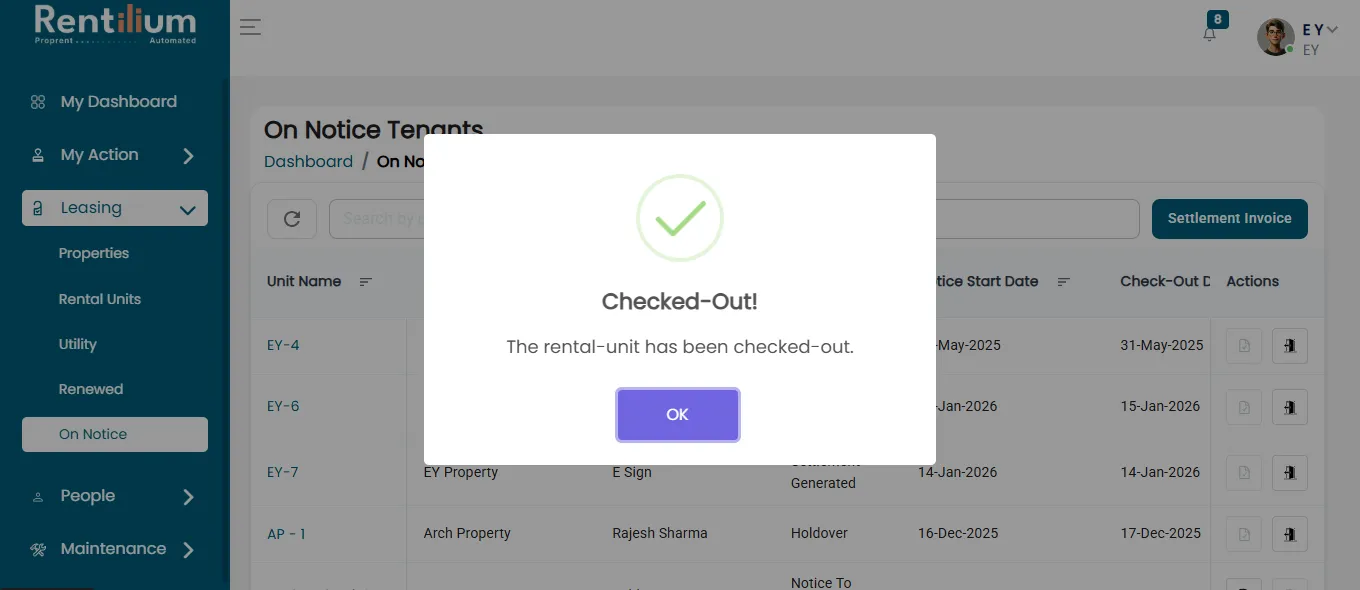
This makes sure tenants are well checked out and all payments made. It also updates the unit status to vacant, keeping records accurate and up to date
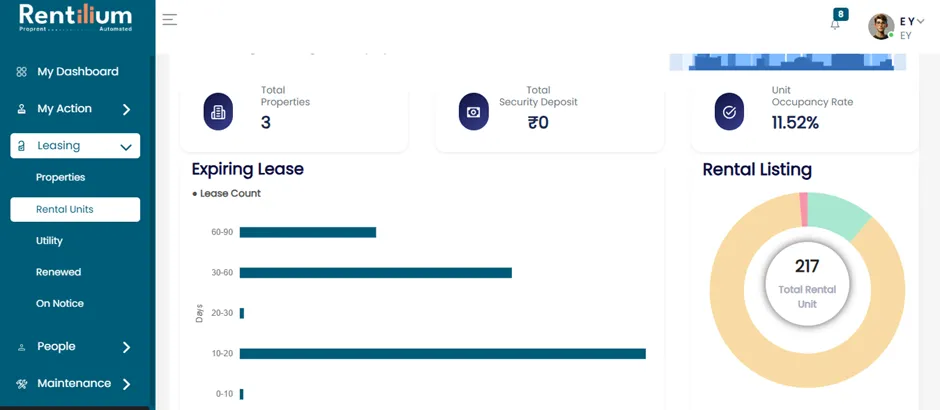
Navigate to Leasing
- Go to the Leasing section.
- Click on Rental Unit.
Open Active Lease
- From the Rental Unit page, navigate to Active Lease.
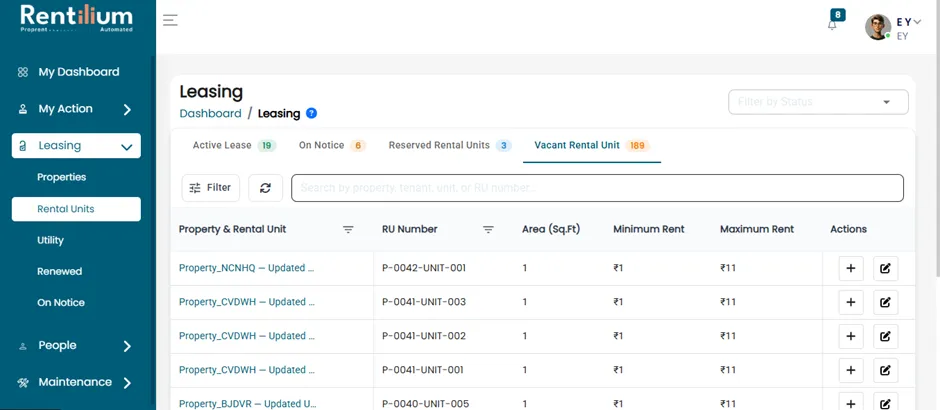
- In Active lease check-in one tenant
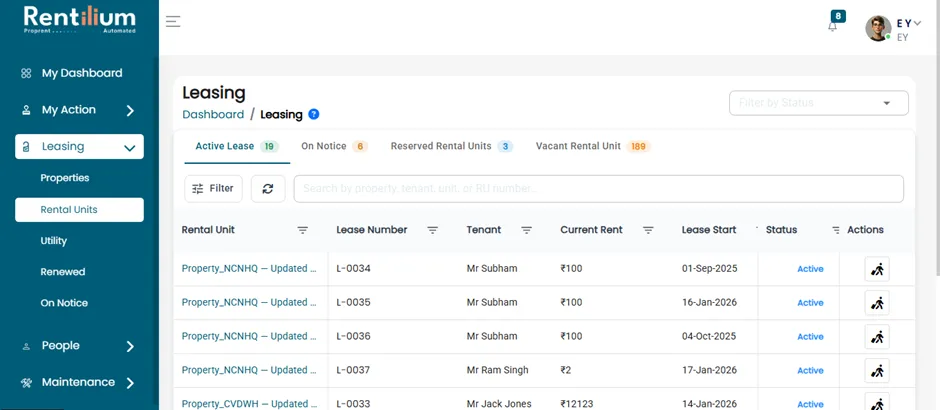
Tenant Check-In
- Select a tenant to check in (for example: Lease ID – L-0034).
- Click on the Action button for the selected lease.
- A confirmation message will appear: “Do you want to check-in the tenant?”
- Click Yes, Check-In.
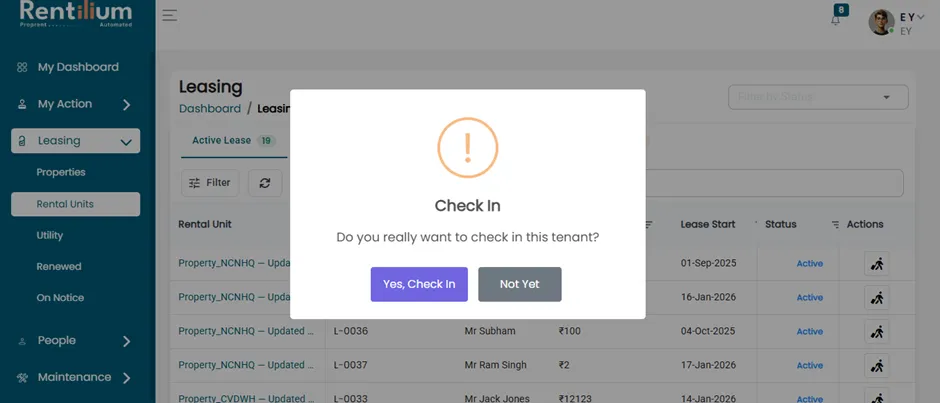
- The lease will be checked in successfully.
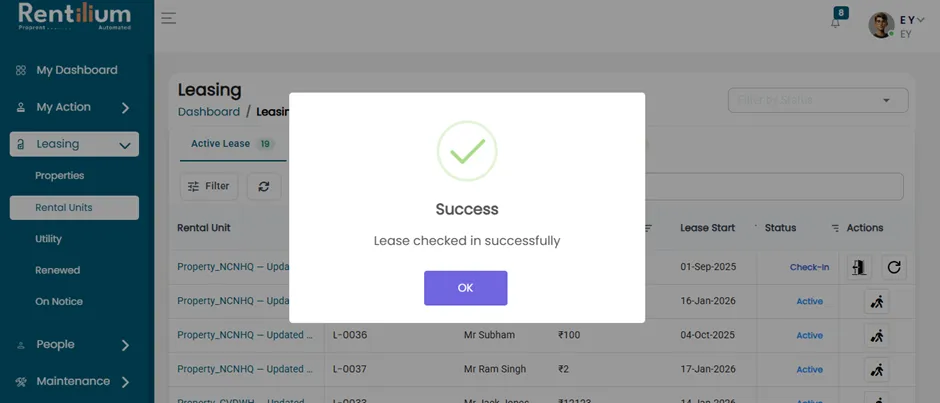
Post Check-In Actions
After successful check-in, two action buttons will be enabled:
- Notice to Vacant
- Renew Lease
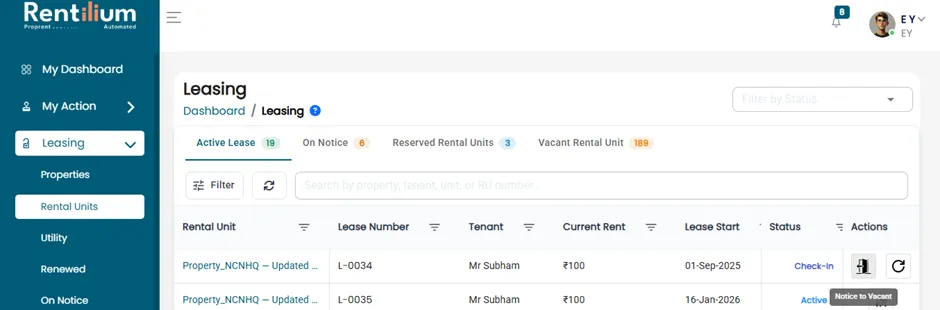
Initiate Notice to Vacant
- To proceed with tenant, move-out, click on Notice to Vacant.
- The Notice to Vacant page will open.
- Fill in all the required details.
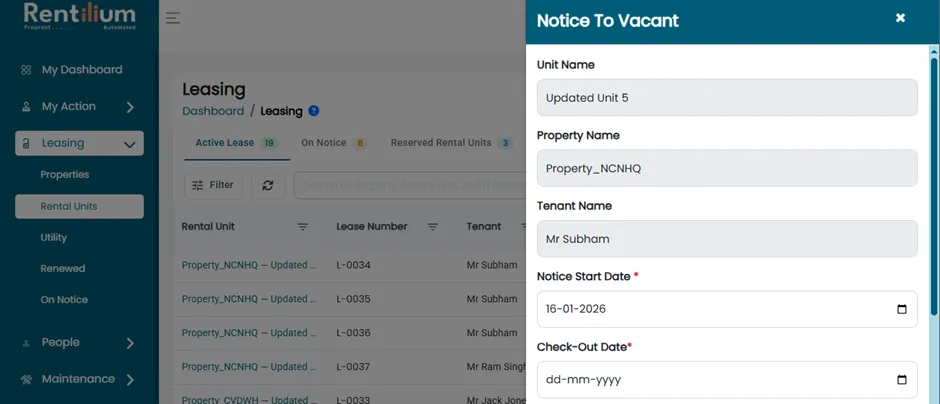
- Click on the Submit button.
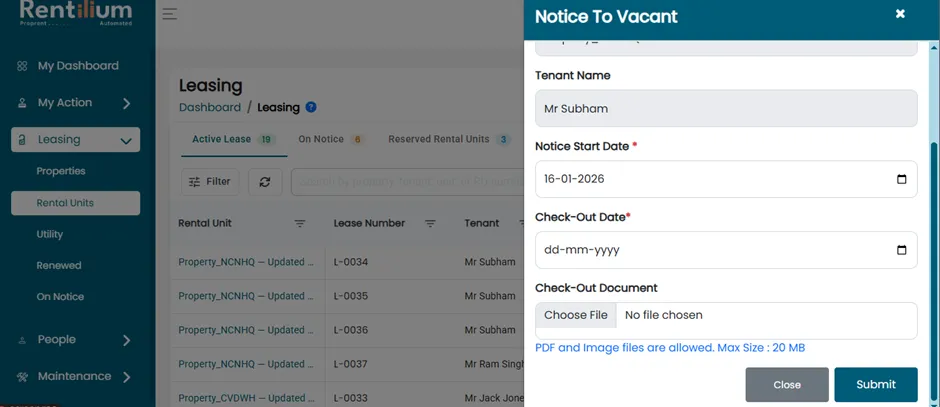
- A confirmation notification will appear: “Notice to Vacant submitted successfully.”
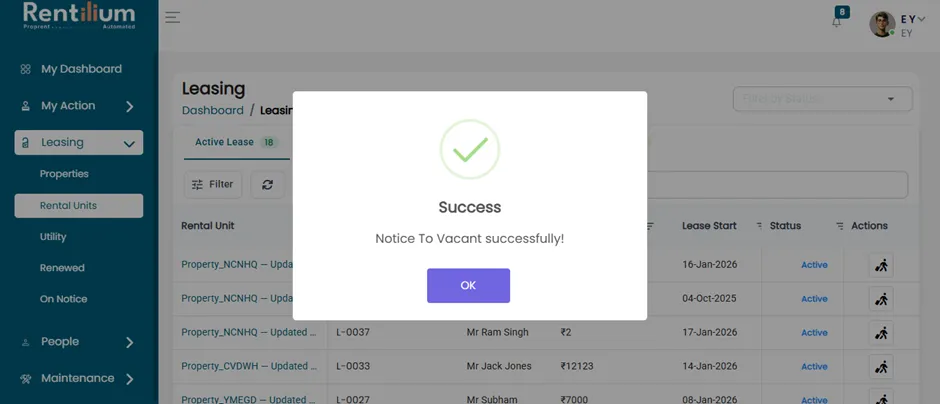
View On-Notice Tenants
- Navigate to the On-Notice section.
- You will see the list of tenants who are currently on notice.
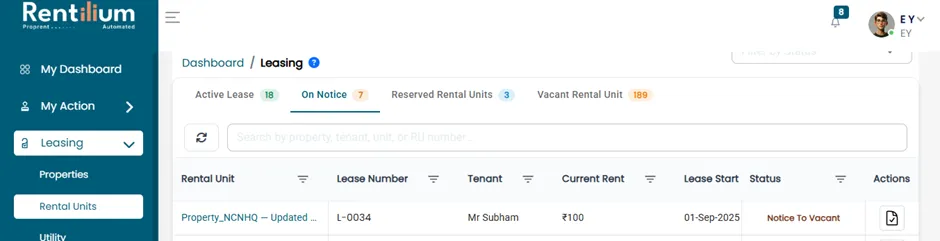
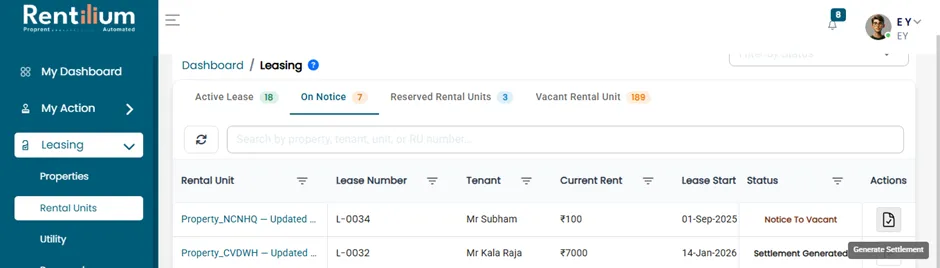
Generate Settlement
- Select the tenant on notice.
- Click on the Generate Settlement button.
- Generate all pending invoices.
- After clicking Generate Settlement, the Finalize Vacant Detail page will open.
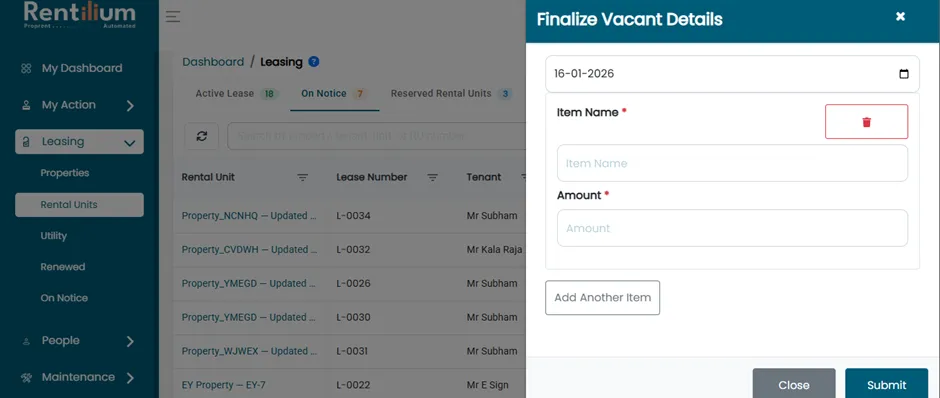
- Review the details and click on Submit.
- The settlement will be generated successfully.
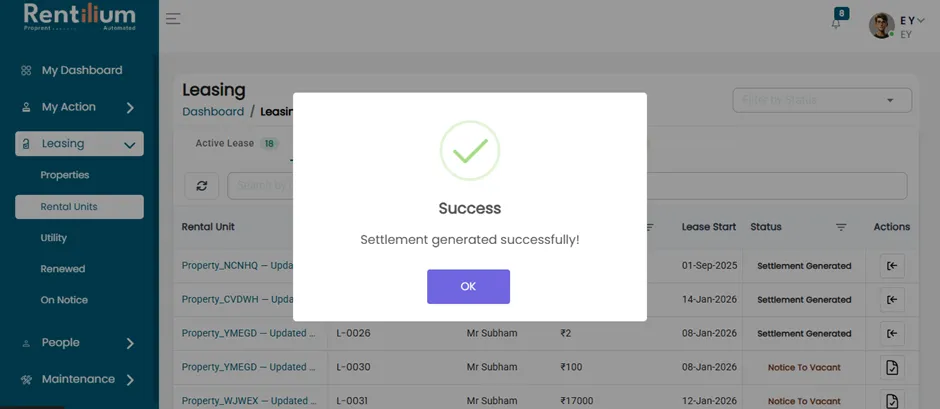
- The lease status will now change to Settlement Generated.
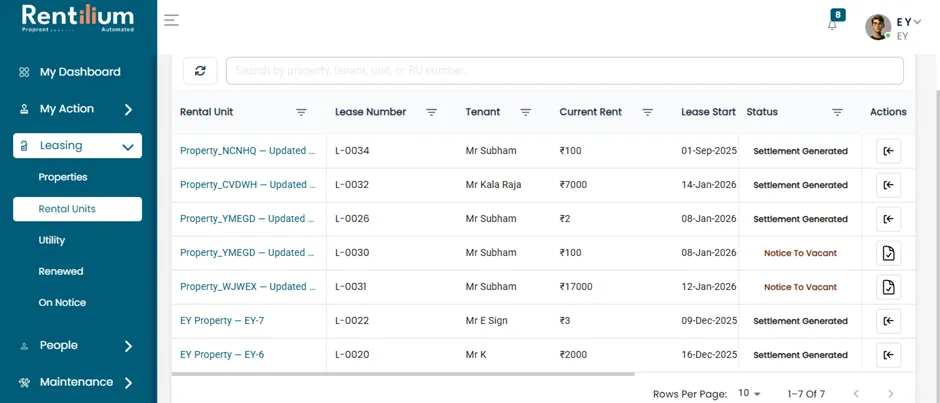
Tenant Check-Out (Vacating the Unit)
- Click on the Arrow button to proceed with the check-out process.
- A confirmation message will appear: “Are you sure you want to vacate the property and complete check-out?”
- Click Yes, Vacant.
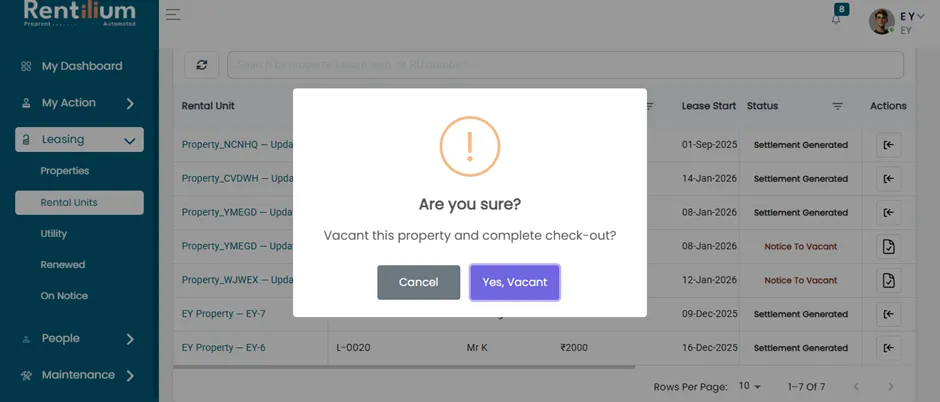
- The unit will be vacated successfully.
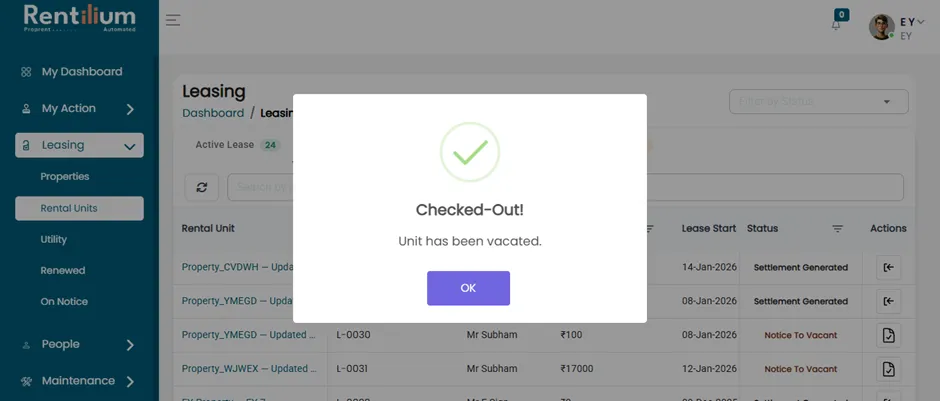
View Vacated Unit History
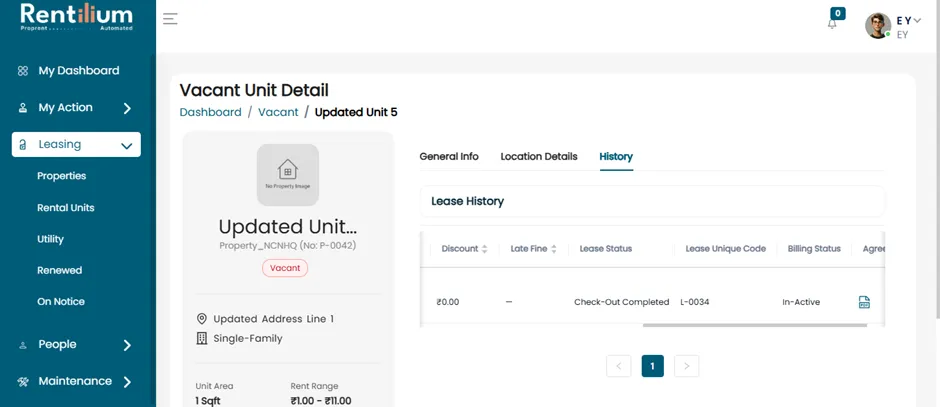
- After completion, all historical records of the vacated unit can be viewed in the Rental Unit section.