Rental Unit Edit
5 min
This document explains how to edit Rental Units in an ERP. It explains the process of accessing the rental unit dashboard, updating unit details, and saving changes to ensure all information is accurate.
Admin Dashboard Page
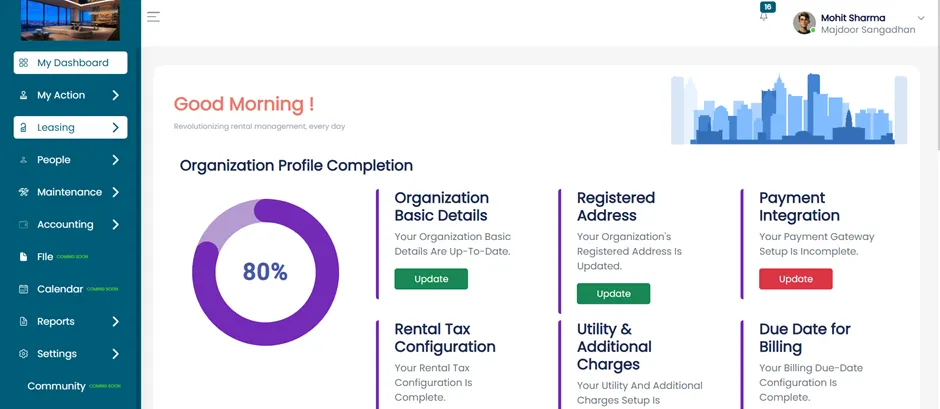
- After logging into the Admin Account, you will be directed to the Admin Dashboard.
- Now go to the Leasing section.
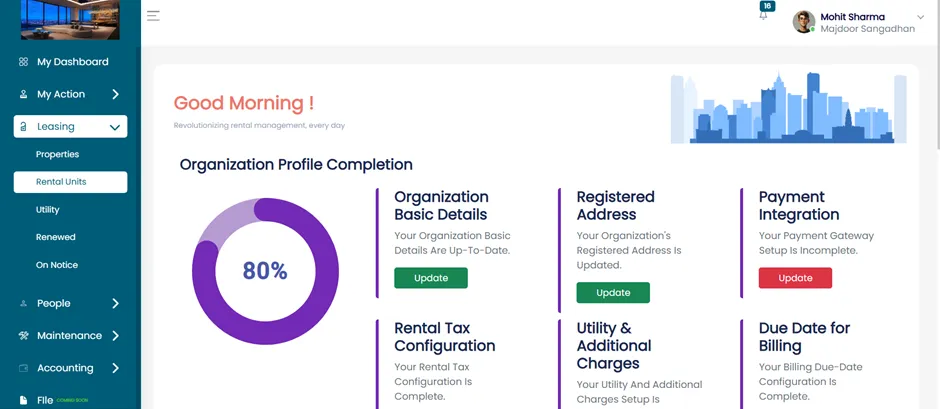
Rental Units
- Click on “Rental Units” under the Leasing section.
View Rental Unit Detail Page
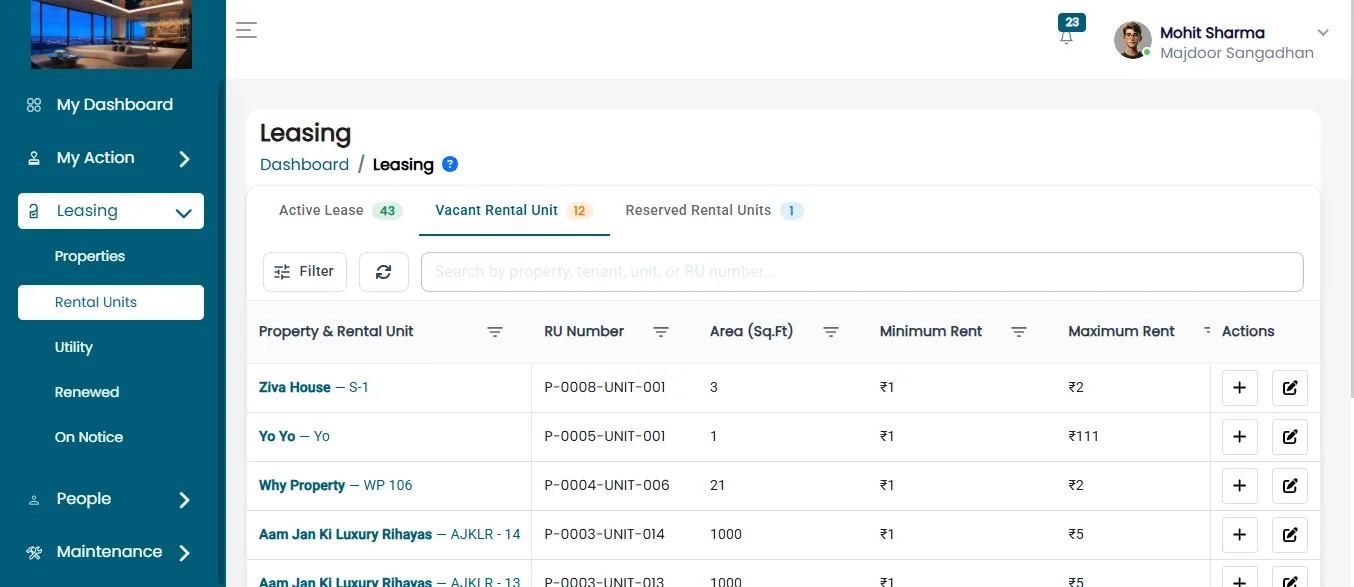
After clicking on the rental unit, the rental unit detail page will open. The detail page displays three main categories:
- Active Lease
- Vacant Rental Units
- Reserved Rental Units
Edit A Rental Unit
On the Rental Unit Dashboard, you will see two buttons:
- Add Lease
- Edit
Click on the edit button to edit the rental unit.
Update Rental Unit Details
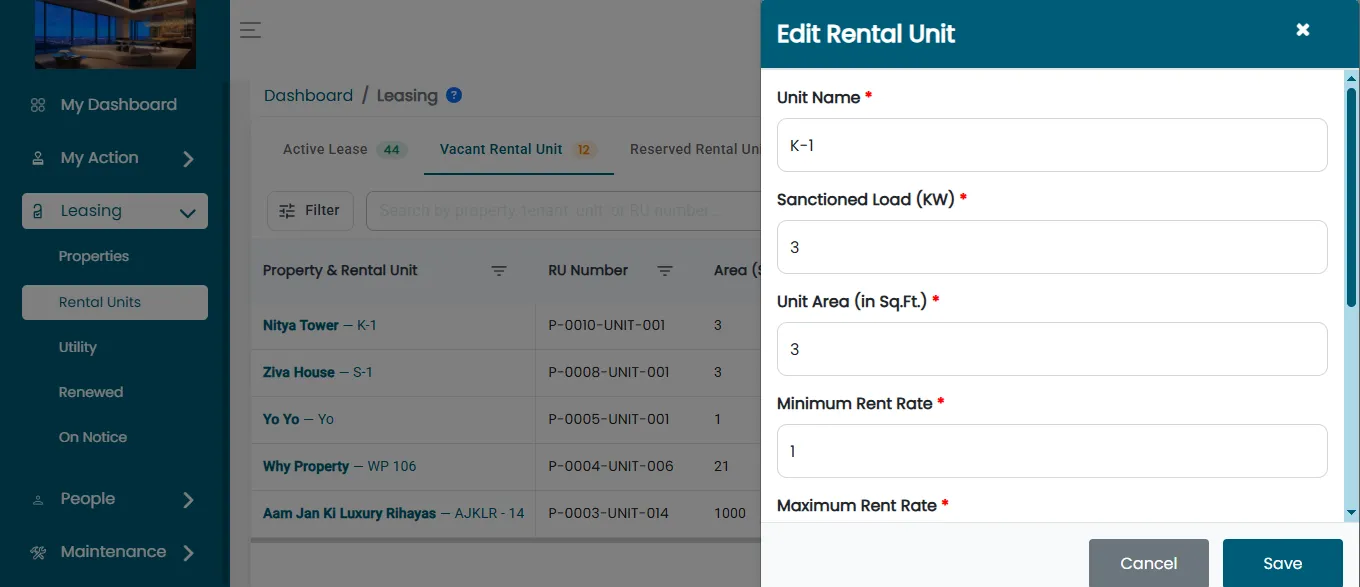
Once you click on the edit button, the edit rental unit page will open, which includes
- Unit Name – Name of the rental unit.
- Sanctioned Load – Load
- Unit Area – Total area of the unit
- Maximum Rent – Max Rent
- Minimum Rent – Min Rent
- Rental Unit Type –Unit types
Fill all the required information accurately.
Save Changes
- After updating all the information, click the “Save” button.
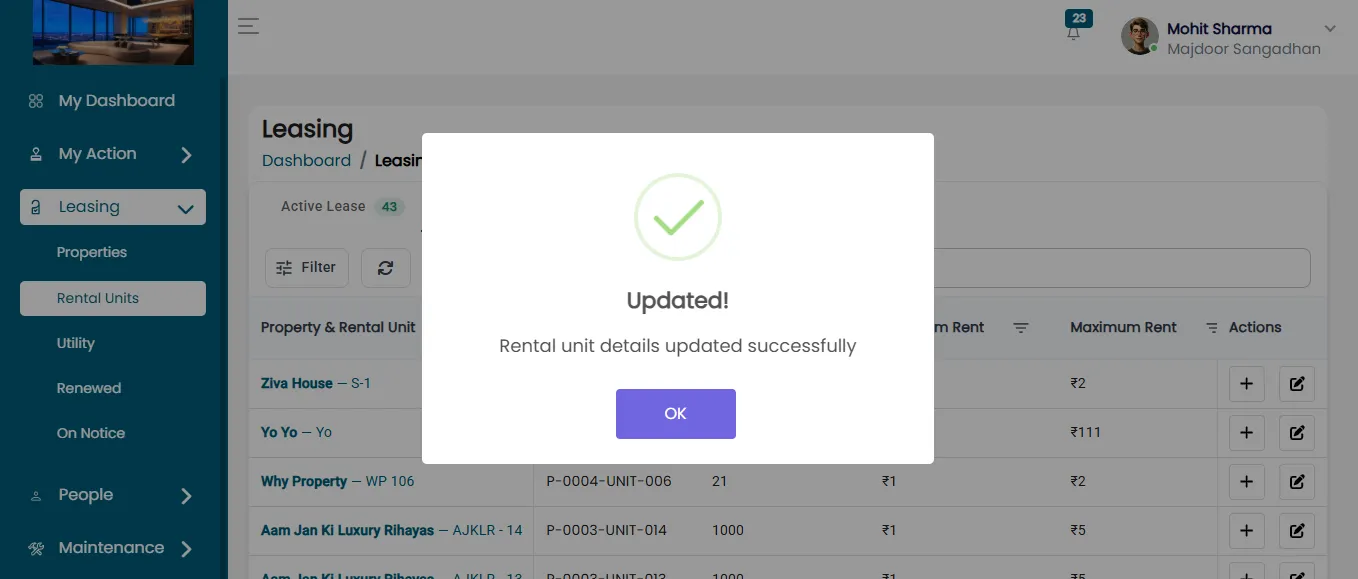
- A confirmation message will appear that the Rental Unit details have been updated successfully.
By following this process, you can easily update rental unit details as needed. This ensures accurate information for smooth leasing and property management.