Subscription Invoice Mail
5 min
This document provides a step-by-step guide for Super Admins to view and manage subscription invoices within the ERP system. Once an invoice is generated, it is automatically sent to the Super Admin’s registered email. The process simplifies invoice tracking, downloading, and management for better financial control. Follow the given steps to view, download, and manage invoices.
Log in to Your Account
- Log in to your Account. You will be directed to the dashboard.
Go to the Settings Section
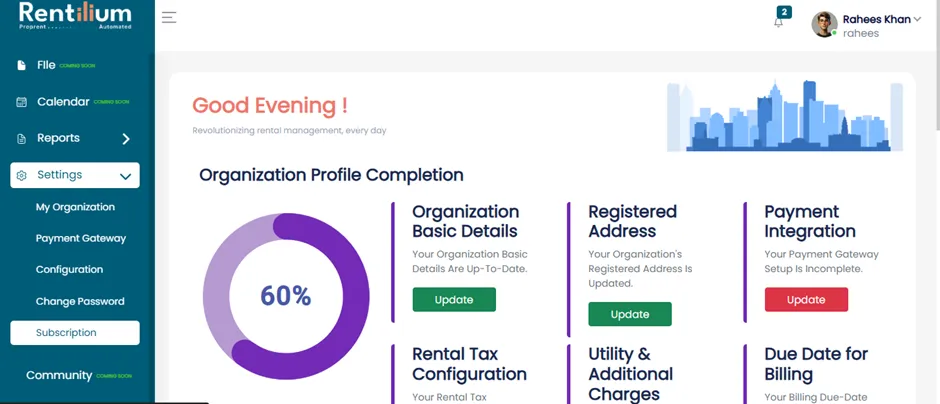
- On the dashboard menu, go to the “Settings” section.
- Click on the “Subscription” tab.
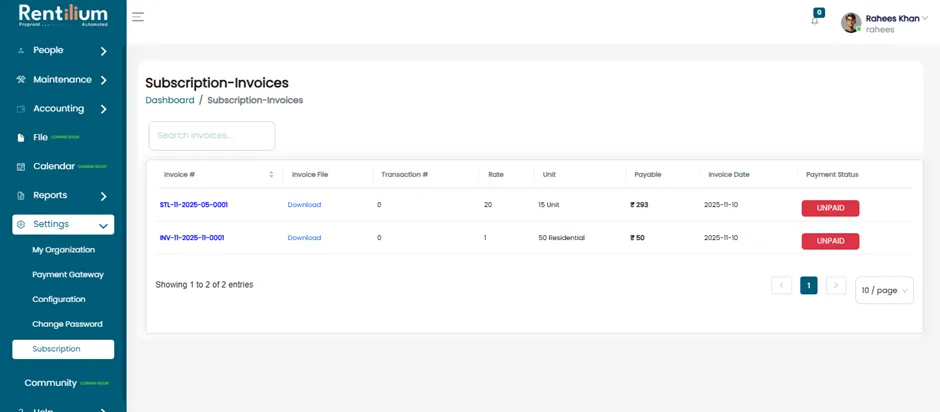
Here, the admin can view all details related to subscription invoices.
- Invoice # – The unique identification number.
- Invoice File – The downloadable file.
- Transaction – Reference to the payment transaction linked to the invoice.
- Rate – Amount charged for the subscription.
- Unit –Unit
- Payable – The total payable amount.
- Invoice Date – The date when the invoice was generated.
- Payment Status – Shows invoice is Paid, Pending, or Overdue.
Accessing the Invoice from Registered Email
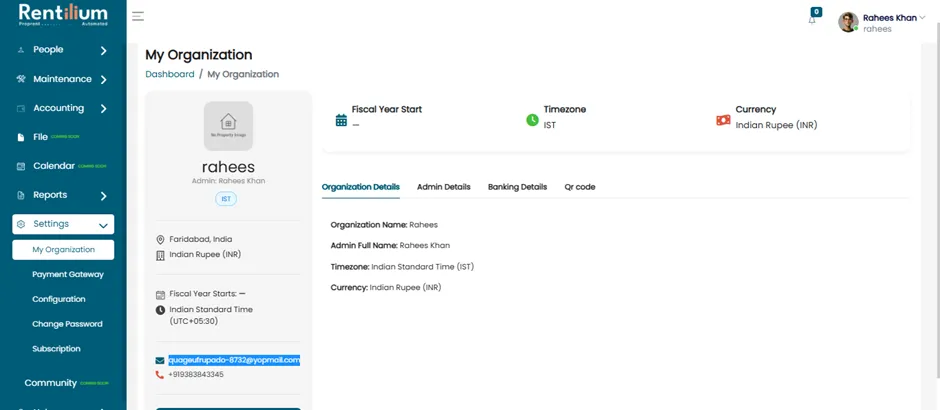
- In the Settings section, click on “My Organization.”
- From this section, copy your organization’s registered email address.
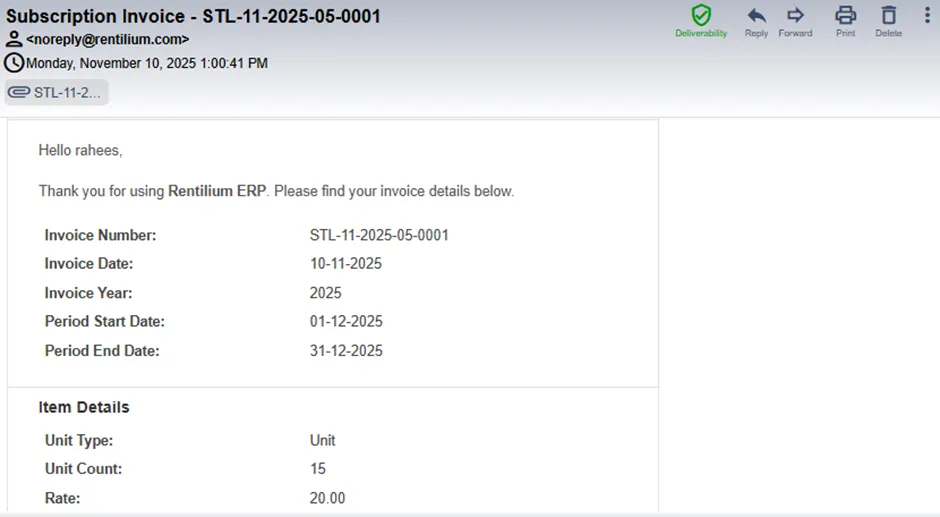
- Log in to your email account using that email ID. You will find a new email from the ERP system containing the invoice details.
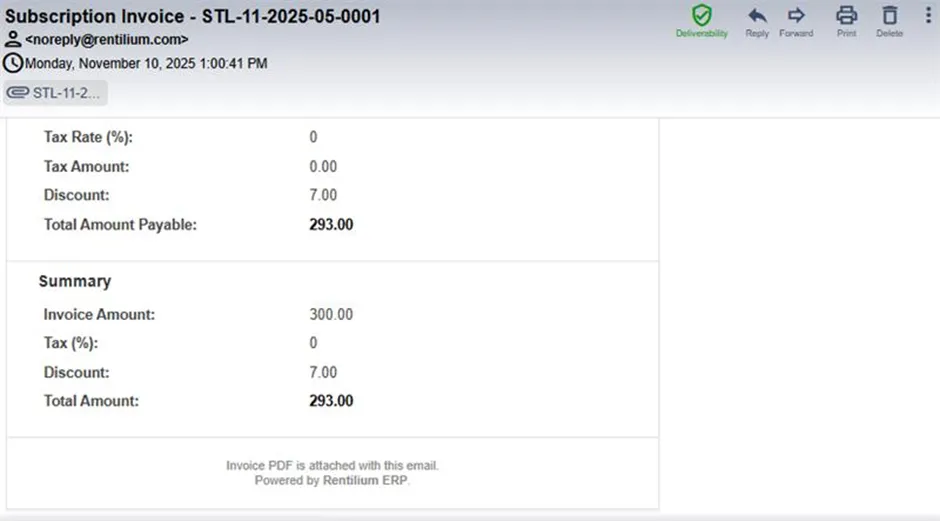
Downloading the Invoice from Email
- Open the email received from the ERP system.
- Click Download to save the invoice to your device.
Viewing Recent Uploads
- At the right-hand side on the top corner you can able to view a pin like icon
- Click on this icon to quickly access your most recently upload invoices.
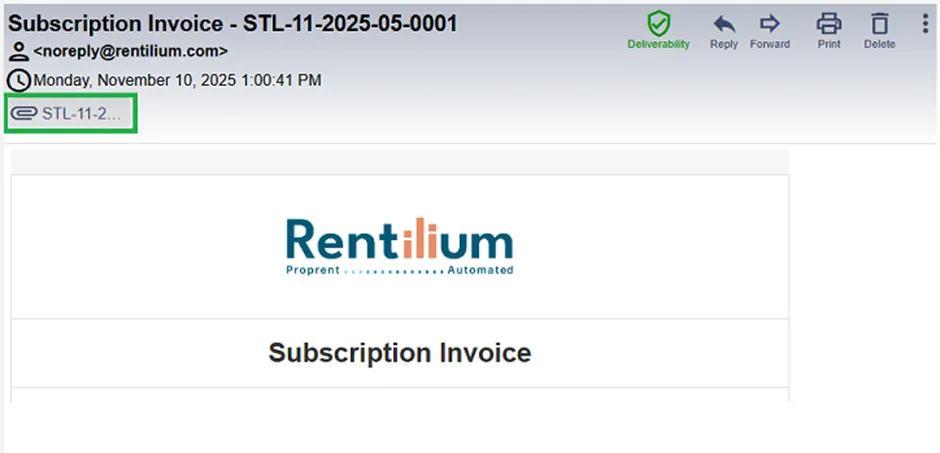
- Invoice is automatically emailed to the Super Admin upon generation.
- Admin can view all invoice details under Settings → Subscription.
- The pin icon on the dashboard provides quick access to recent uploads.