Add Account User
An Account User is a finance member responsible for handling financial operations such as rent collection, invoice management, payment tracking, and reporting. To give such users access to only the relevant parts of the system, organizations can add them with a specific "Account" role through the User Management section.
This user role ensures that finance-users are not exposed to unrelated administrative functions. The process to add an Account User is simple and centralized under Settings > Configuration > User Management, where user roles and permissions are controlled.
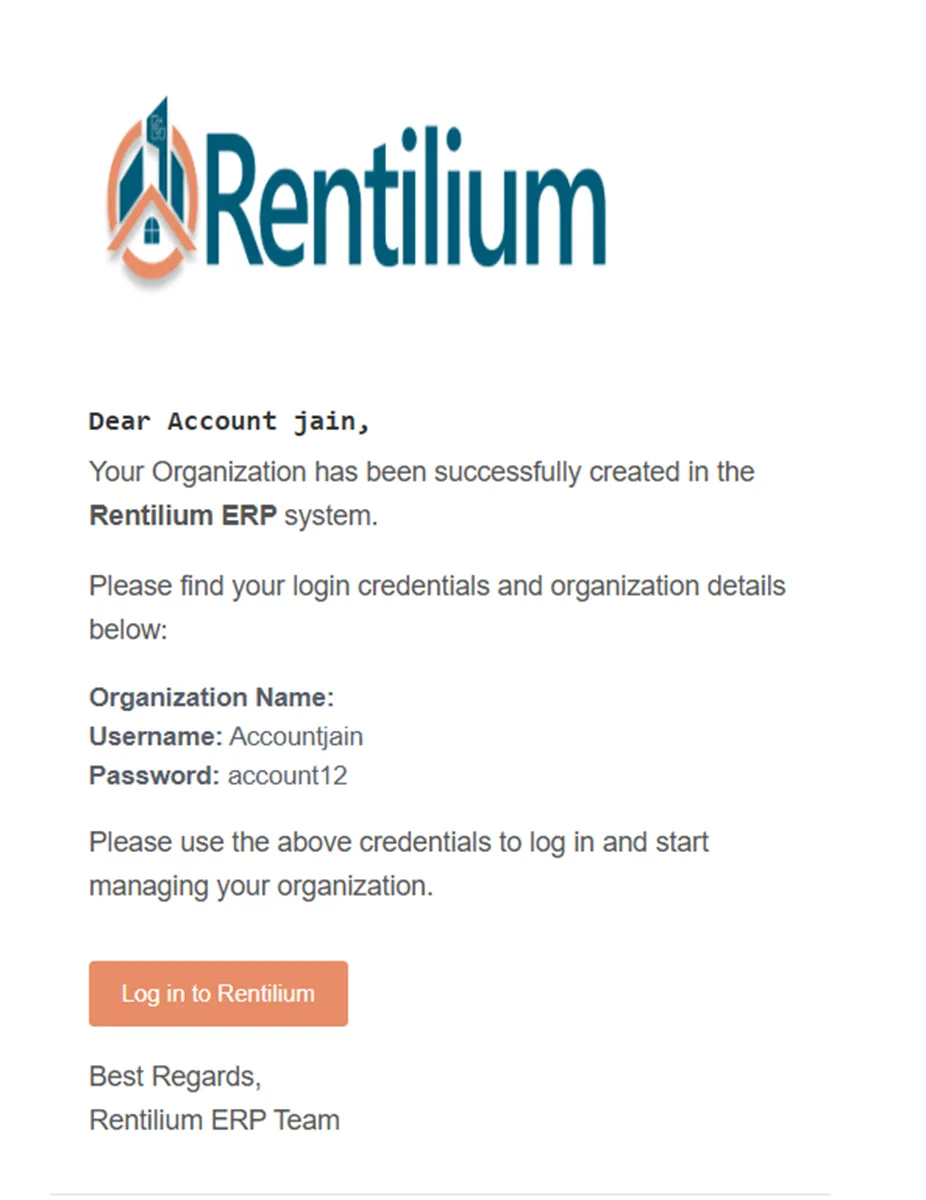
Once added, the Account User will receive system-generated login credentials, enabling them to securely access the platform and perform their assigned duties.
Log In To Your Admin Account
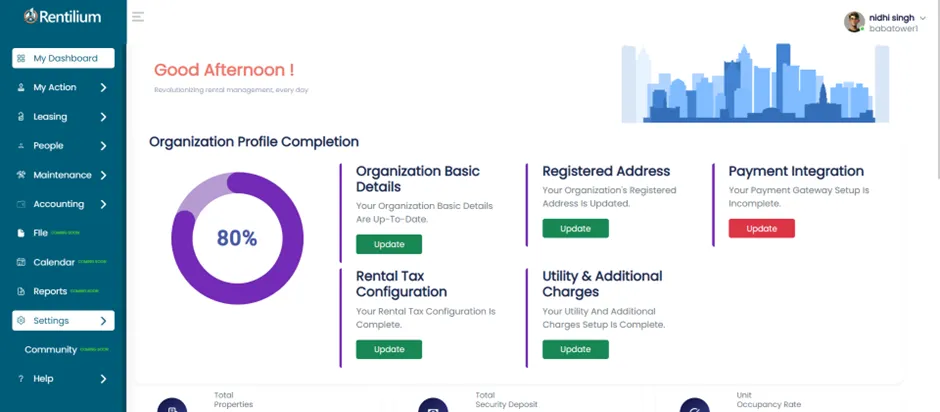
- After successful login, you’ll be directed to the Admin Dashboard.
- Now go to the Settings section.
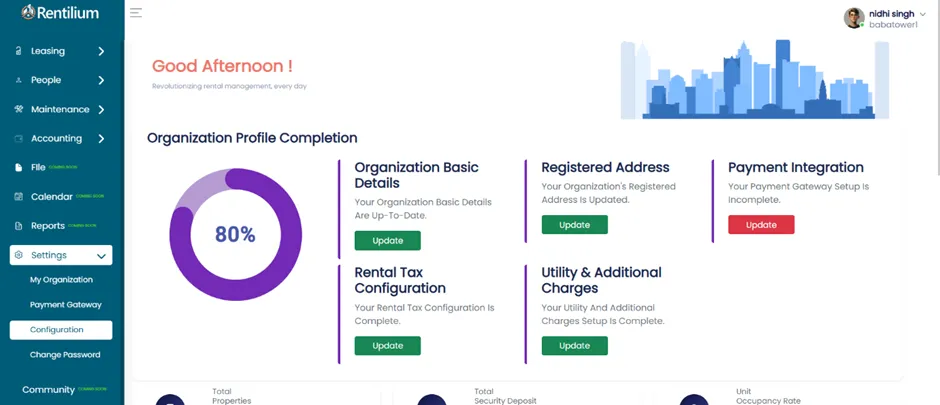
Access The Configuration Tab
Now select the Configuration tab.
Open The User Management Section
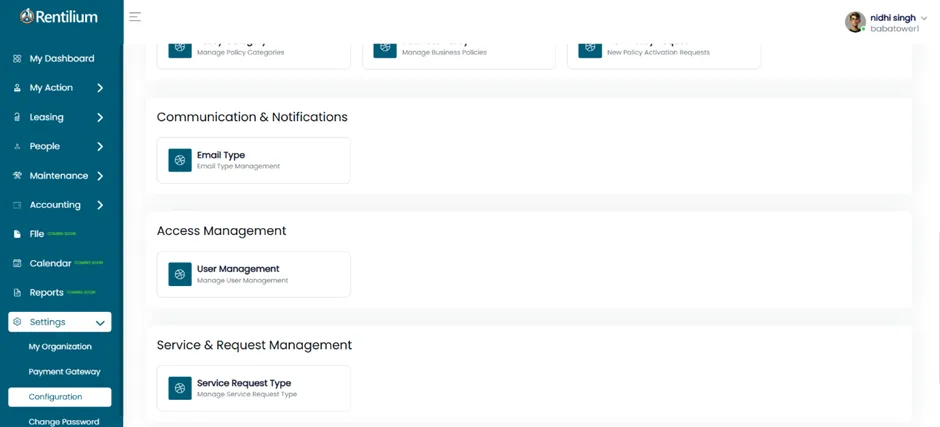
- Scroll down through the Configuration page.
- At the bottom, you’ll find a User Management section
- Click on the User Management tab.
Add A New User
On the User Management page, you’ll see a table with columns like Like Username, Email, First Name, Last Name, Phone Number, Role and Action.
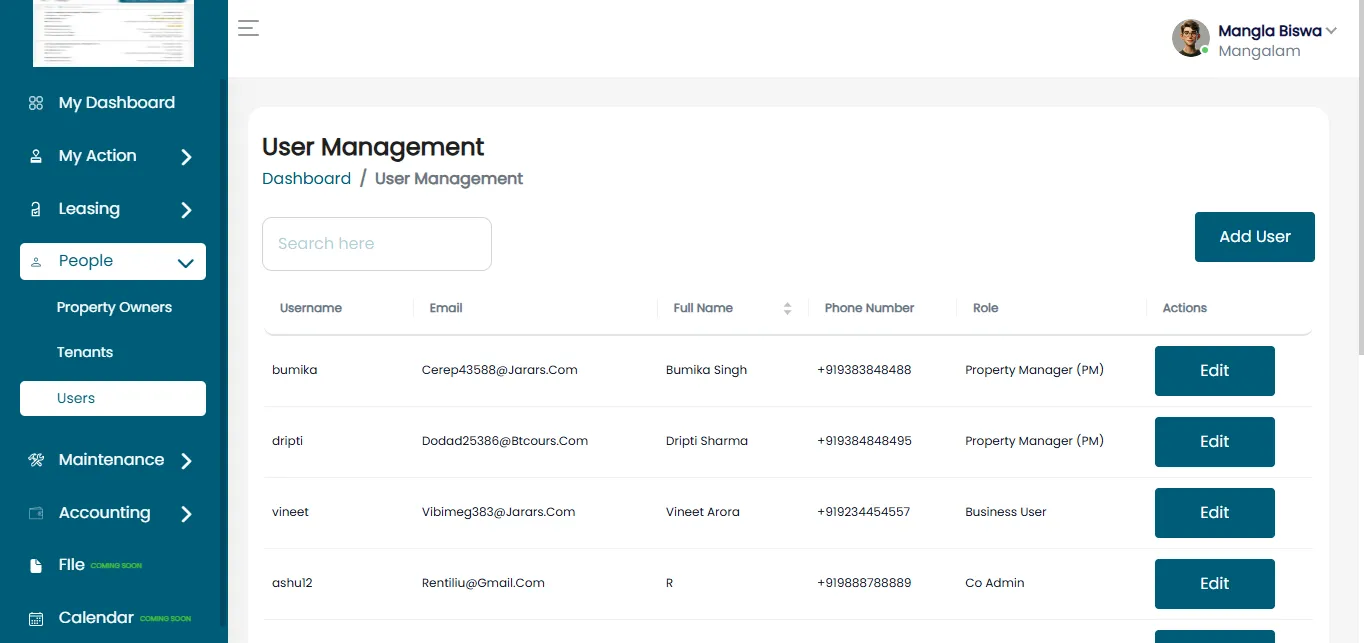
Click On The Add User button
Now click on the "Add User" button and complete the following details:
- Username: New username for login.
- Password: Set a strong, secure password.
- Email: Enter the email id.
- First Name: Enter first name.
- Last Name: Enter last name.
- Role: Assign the role of Account.
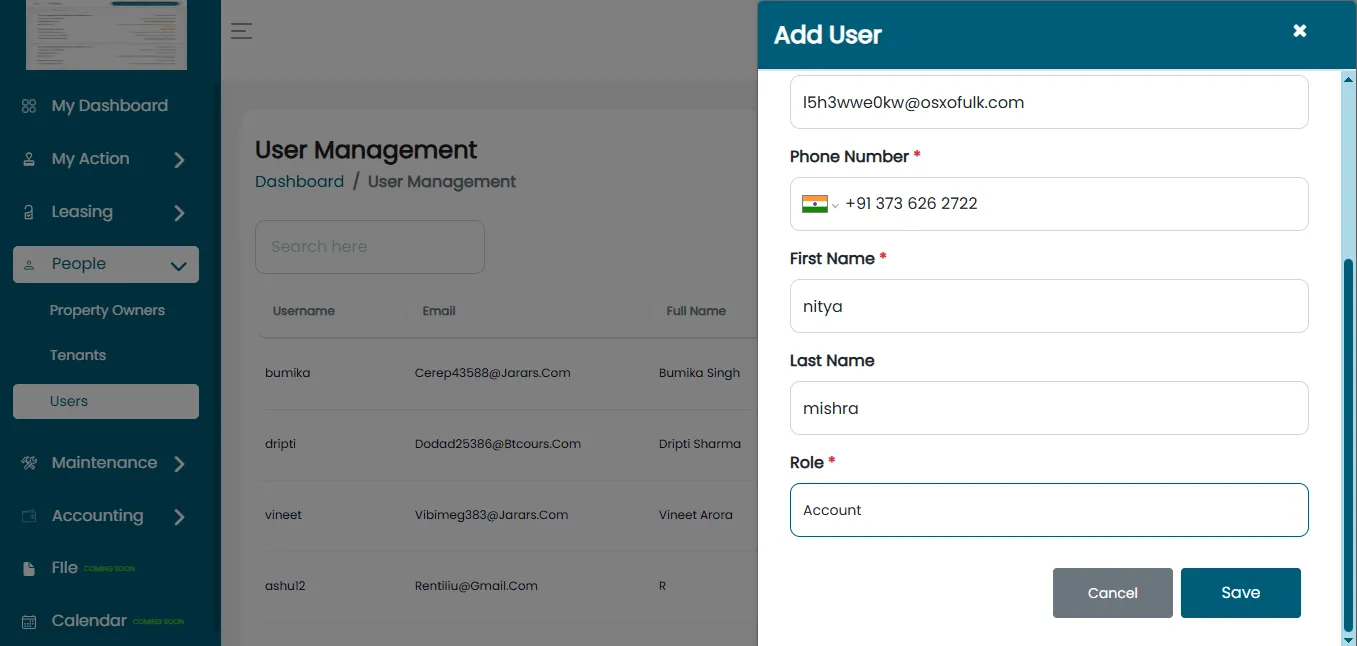
Save And Confirm
After filling all details, click on Save Changes.
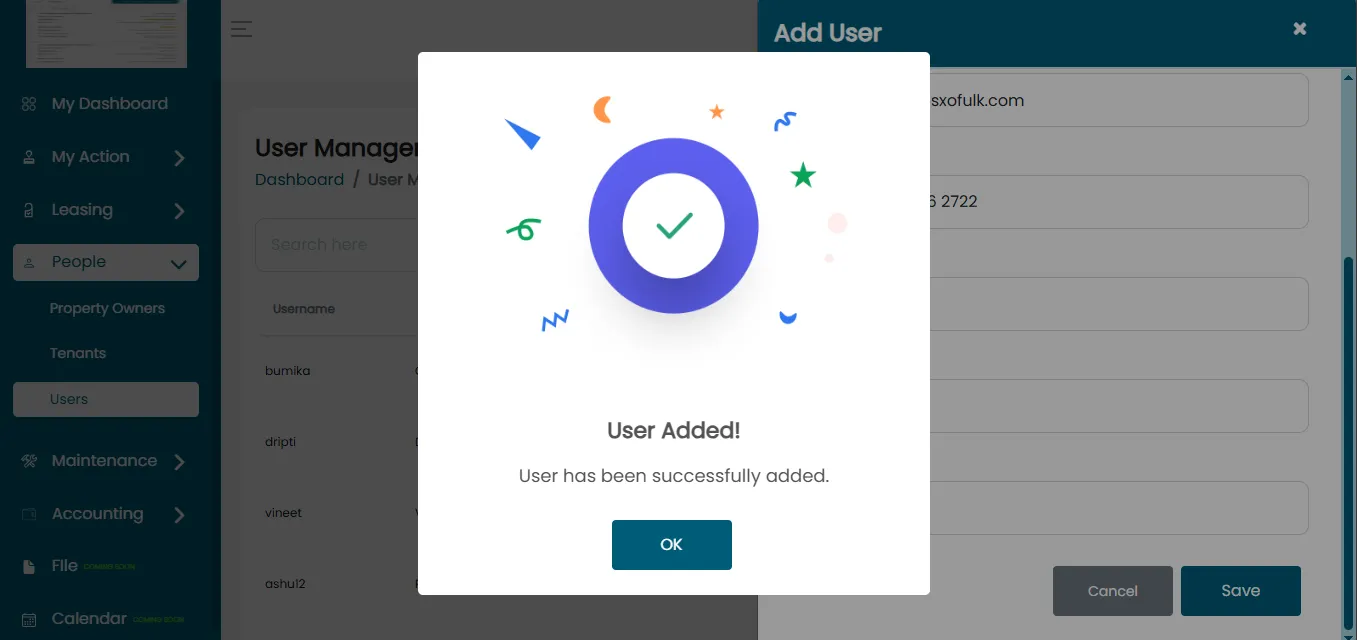
Credentials Successfully Created
Your new Account User is now active and integrated into the Organisation. They can log in using their credentials and perform tasks based on their assigned role.