Add Property Manager
Property Manager (PM) plays an important role in handling day-to-day tenant issues, overseeing maintenance, and ensuring smooth operations for assigned properties. To delegate these responsibilities effectively, organizations can add Property Managers directly through Rentilium's User Management configuration, found under Settings > Configuration > User Management.
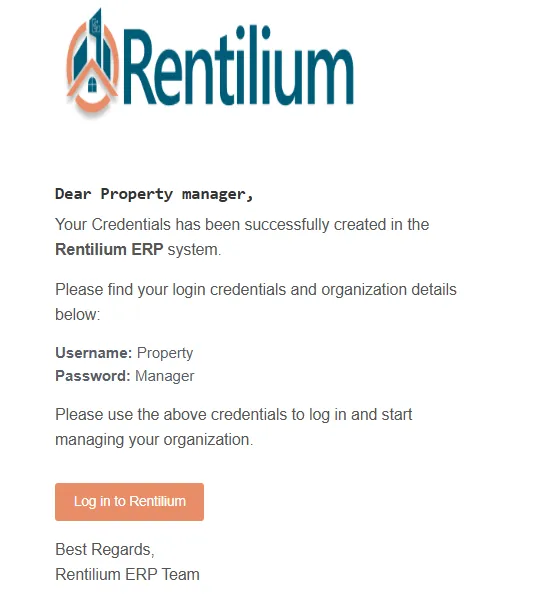
This process allows organization admins to onboard and assign PMs with the appropriate role. Each Property Manager added through this method receives login credentials via an auto-generated email, enabling them to start managing properties immediately.
Login To Your Account
- Enter your credentials (username and password).
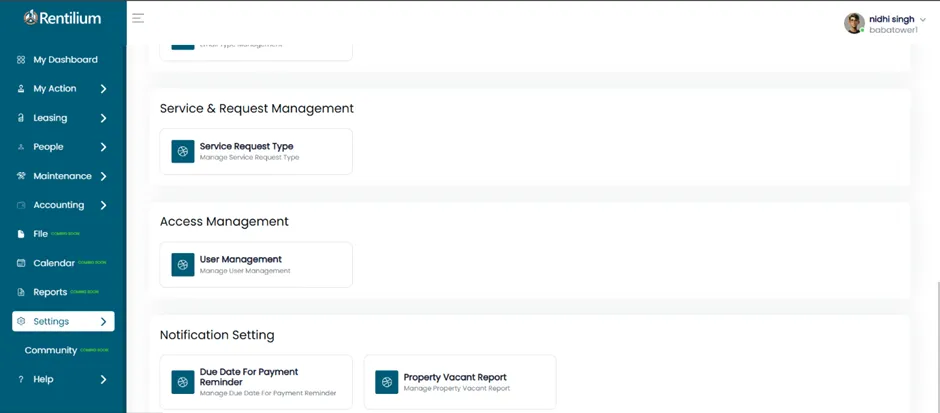
- From the Dashboard, go to the Settings section.
Open The Configuration Tab
- From the Settings section, click on the Configuration tab.
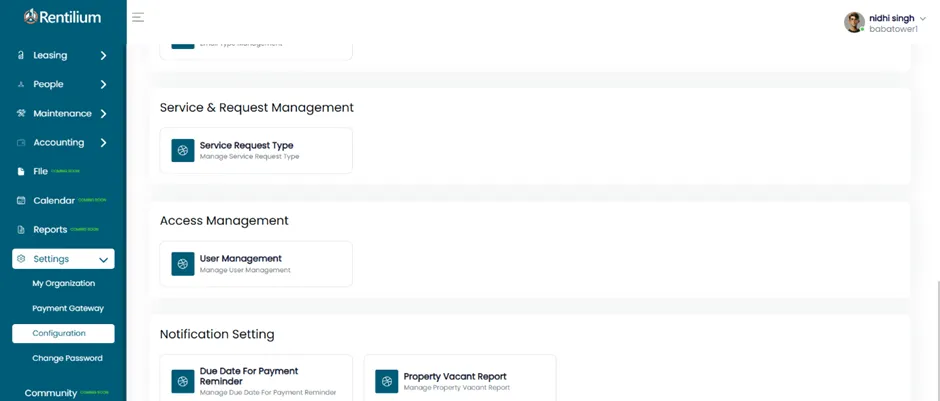
Go To User Management
- Go to the Configuration page.
- Click on the User Management tab.
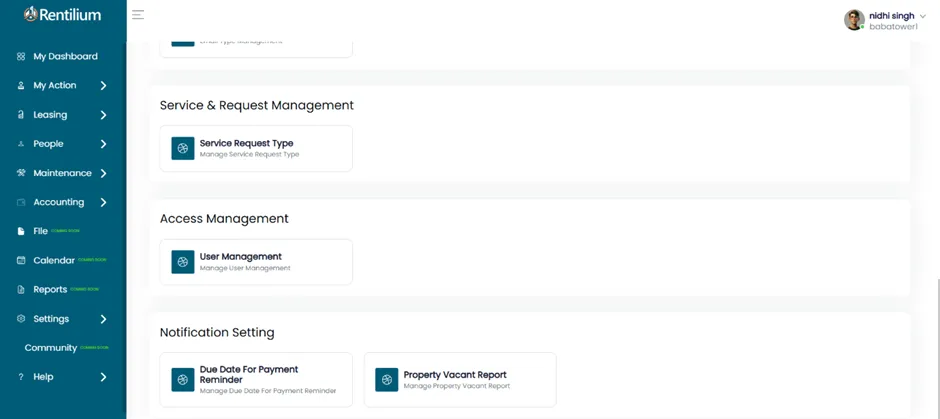
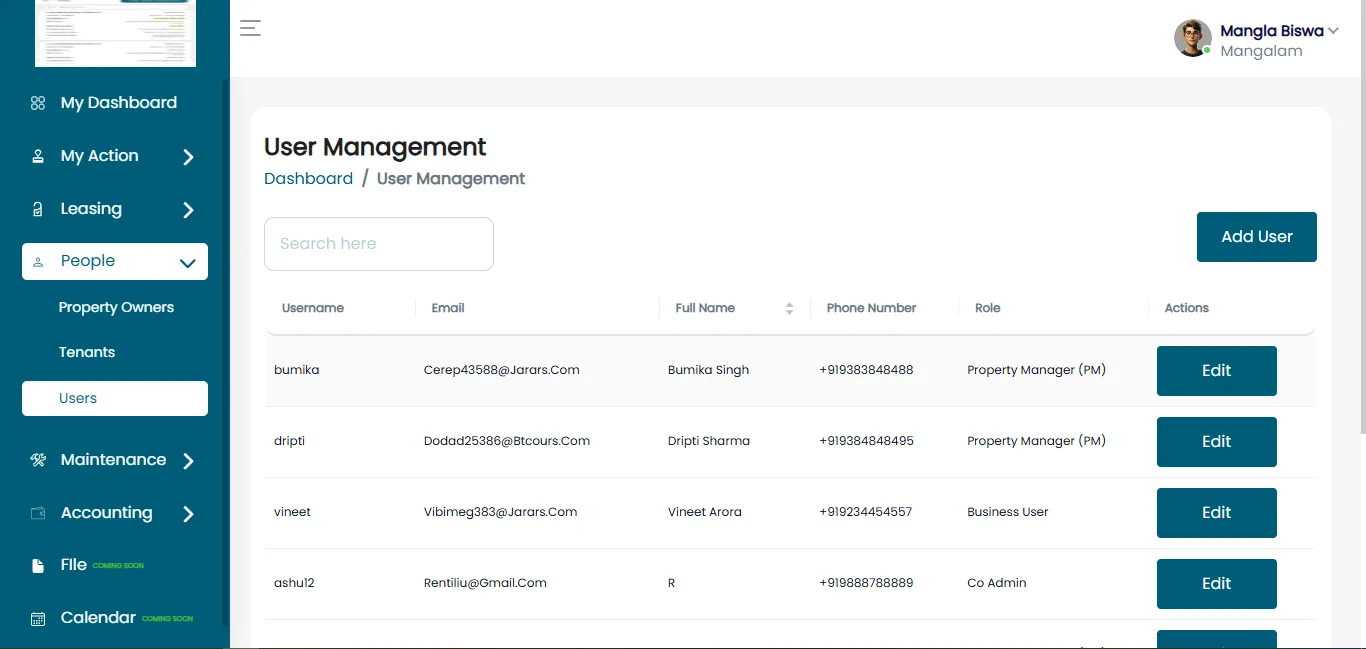
The User Management page will open after clicking on the User Management tab, showing a list of existing users. You’ll see columns like:
- Username
- Email
- First Name
- Last Name
- Phone Number
- Role
- Action
Add A New User
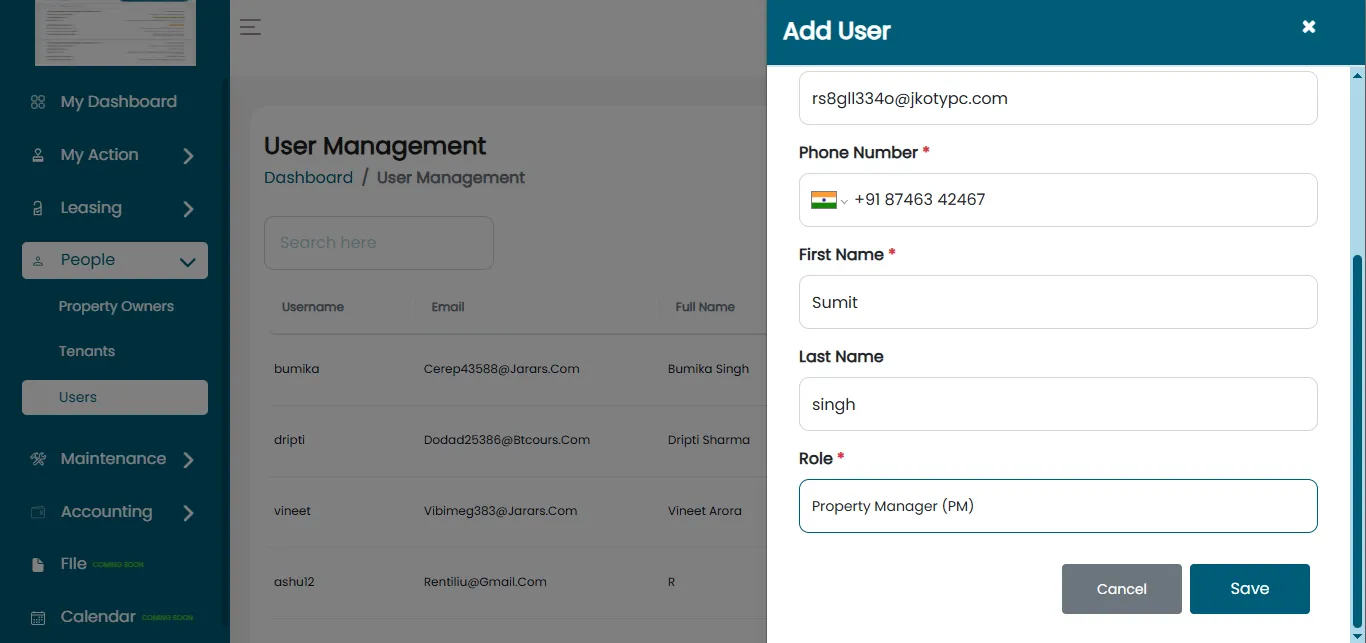
Click on the Add User button. A form will appear where you need to enter the following details:
- Username: Enter username.
- Password: Set a secure password.
- Email: Enter the user’s email address.
- First Name: Write the user’s first name.
- Last Name: Write the user’s last name.
- Phone Number: Enter a contact number.
- Role: Select or assign the role of Property Manager.
Save The User
- After completing the form, click on the Save Changes or Submit button.
- After submitting, the user will be added successfully.
- Now, click on save changes, and the User will be added successfully.
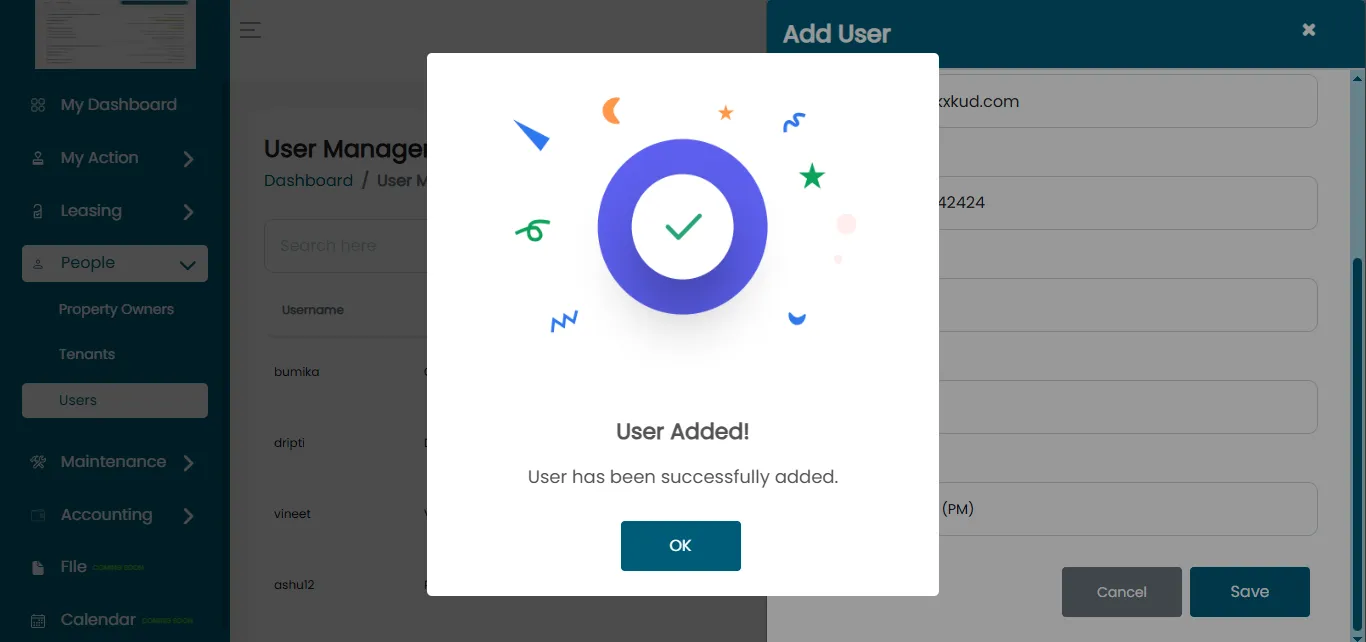
- At the end, the user created will receive an auto-generated email with the credentials.