Feature Configuration (Enable/Disable per Organization)
The Enable & Disable feature provides Organization Admins with the flexibility to control which functionalities are accessible within the ERP system. This capability allows them to customize the platform to meet their organization’s specific requirements and operational workflows.
Features such as Police Verification, Aadhaar Verification, and Billing Discounts can be effortlessly enabled or disabled through this setting.
- When a feature is enabled, it becomes fully functional and accessible to users within the system.
- When a feature is disabled, it is either hidden or restricted, ensuring that users cannot access or utilize it.
This selective activation of features helps maintain a clean and efficient user interface, minimizes distractions, and ensures that only essential tools are available to users.
How to Manage Features and Invoices
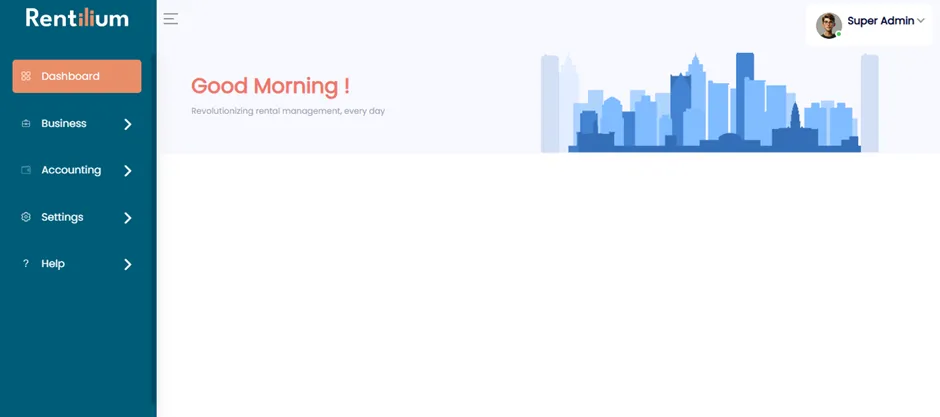
Log in to the Admin Dashboard
Start by logging in using your administrator credentials to access the dashboard.
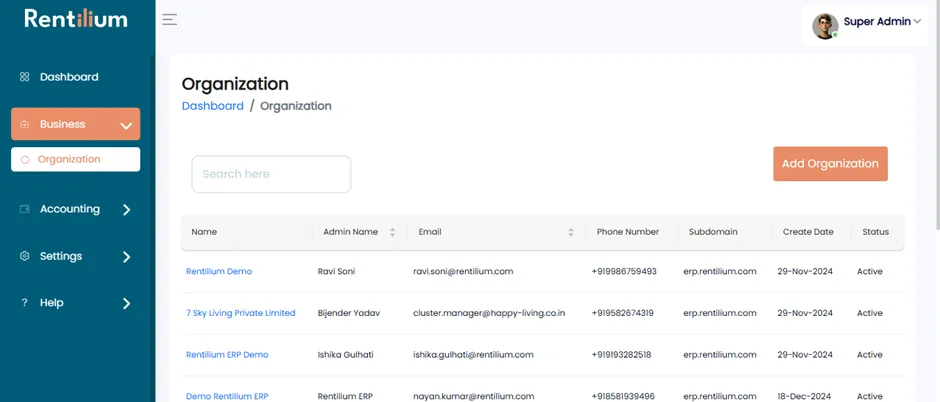
Select the Organization
From the business options, click on "Organisation."
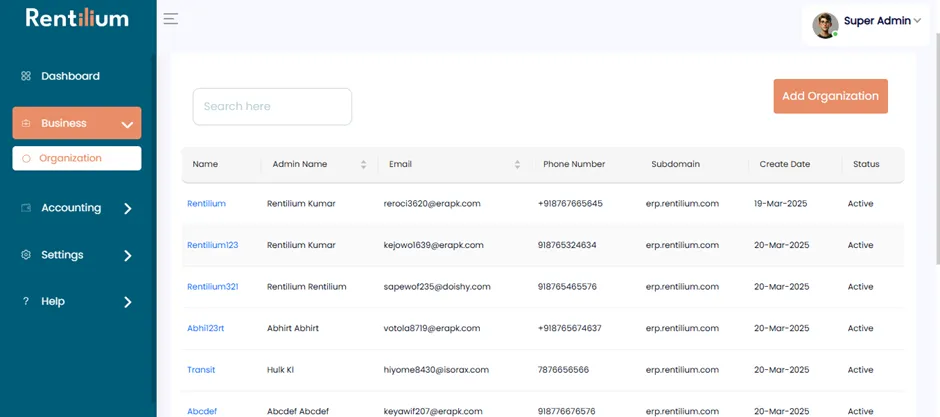
Then, select the specific organization name (e.g., Rentilium) and the admin name (e.g., Rentilium Kumar).
View Organization Details
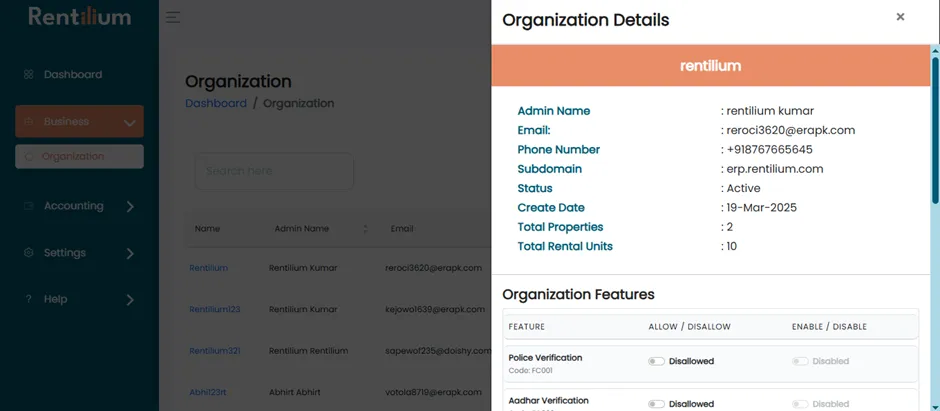
once you select the organization, the Organization Details page will open. This page includes key information such as:
- Admin Name
- Email Address
- Phone Number
- Subdomain
- Status
- Creation Date
- Total Properties
- Total Rental Units
Manage Organization Features
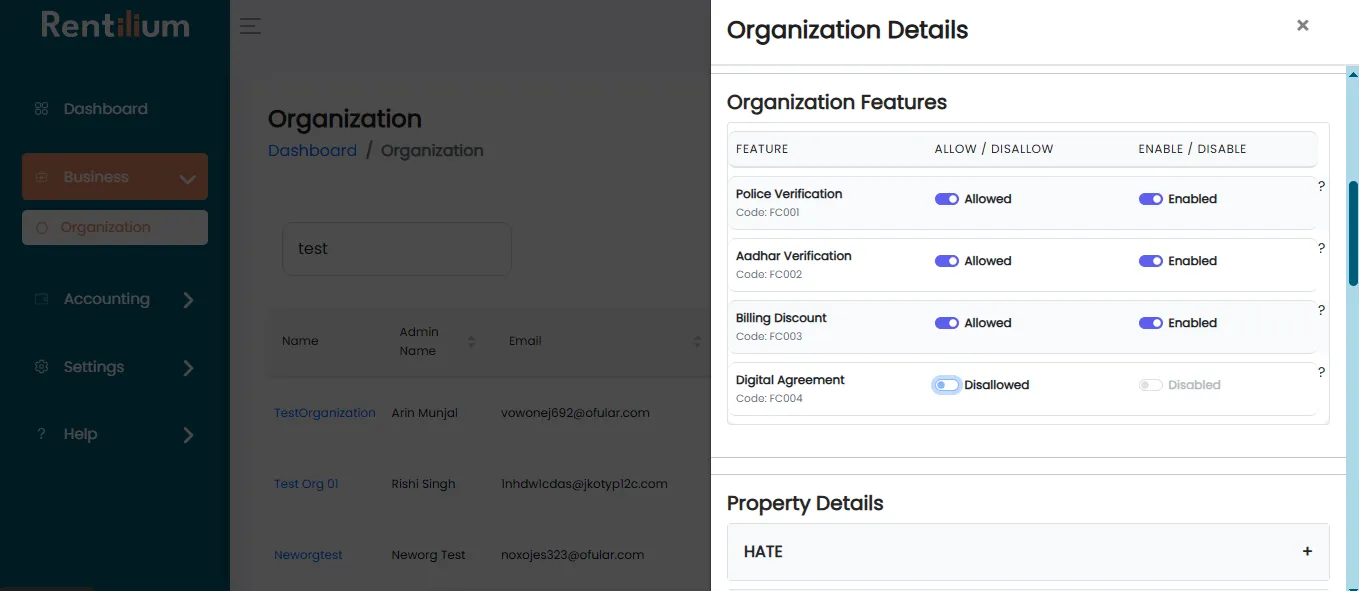
Within this section, you’ll find a list of features, including:
- Police Verification
- Aadhaar Verification
- Billing Discounts
- Digital Agreement
As a Super Admin, you can:
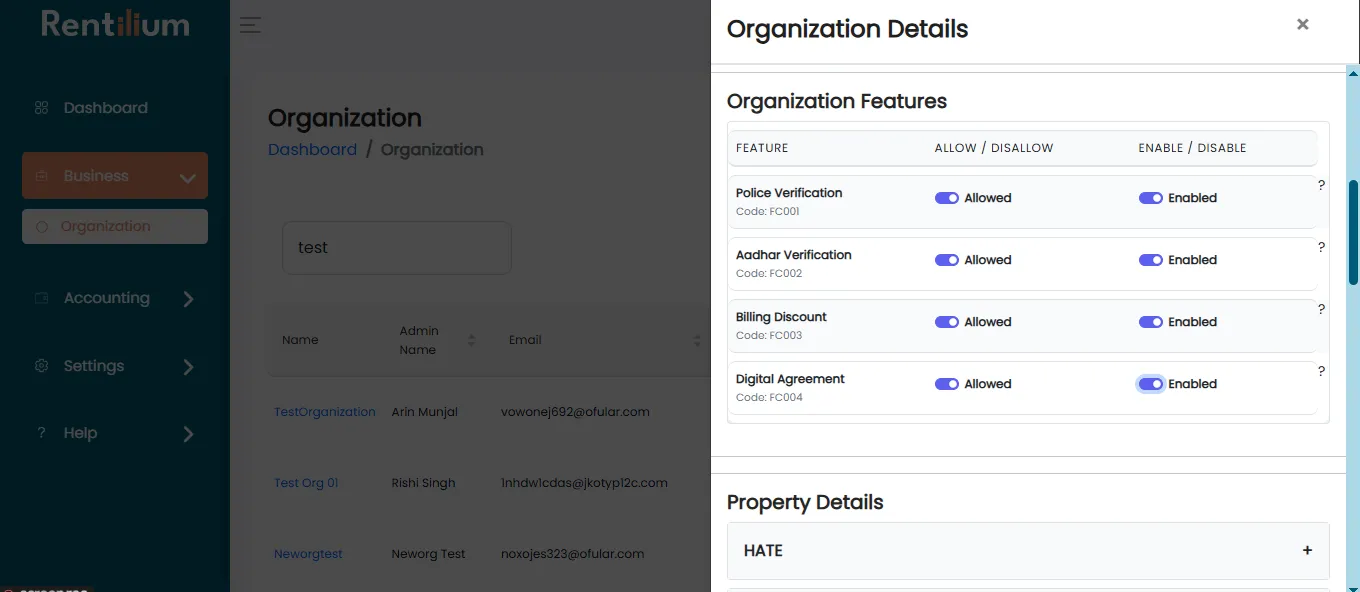
- Allow/Disallow specific features
- Enable/Disable features as needed
When features are allowed, both the Property Manager and the Tenant will be able to view them.
Invoice Management
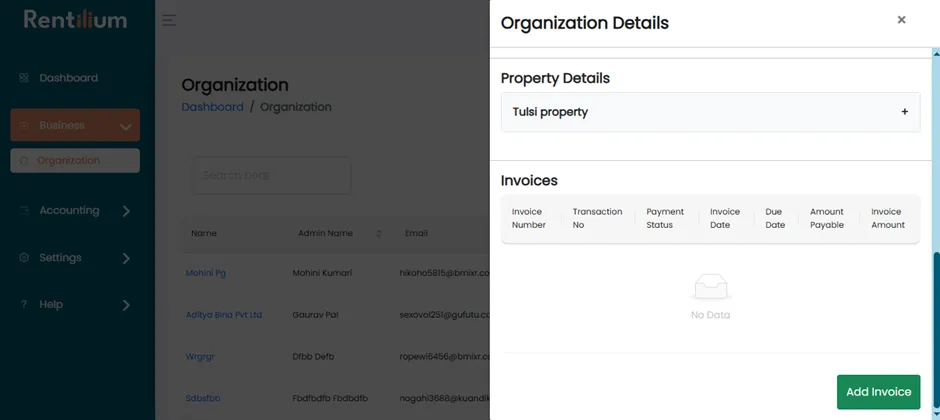
Add a New Invoice
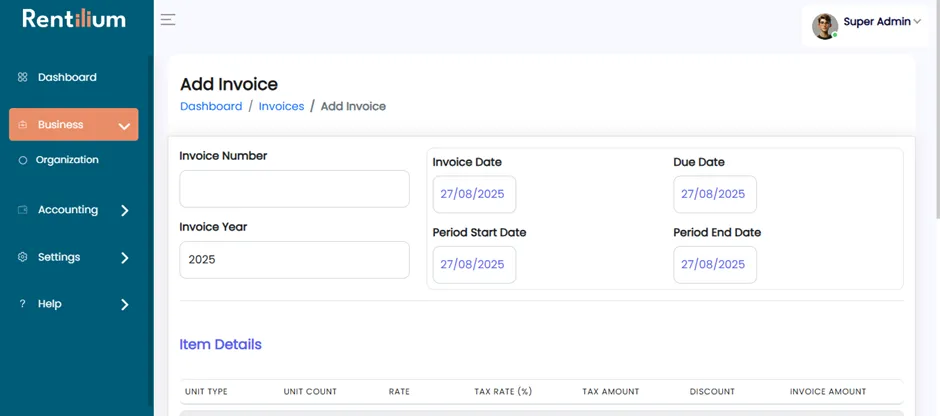
Navigate to the Invoice section, and click on "Add Invoice." A new invoice creation page will open.
Enter Invoice Details
Fill in the following information:
- Invoice Number
- Invoice Date
- Due Date
- Invoice Year
- Period Start Date
- Period End Date
Add Item Details
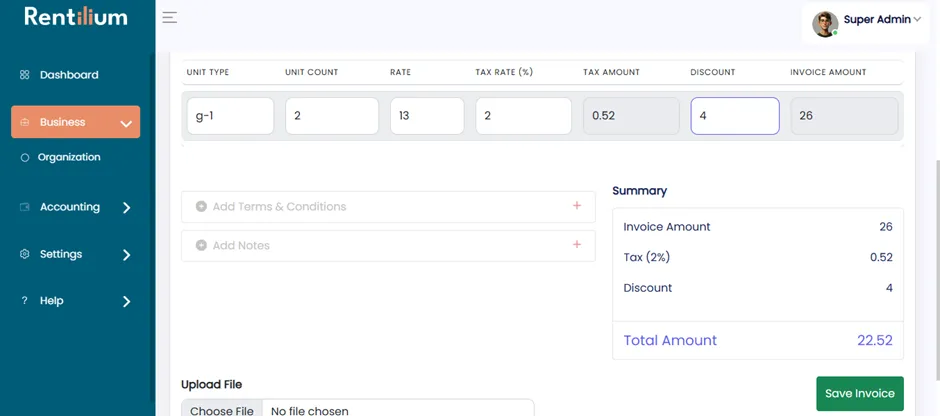
Provide the item-specific details:
- Unit Type
- Unit Count
- Rate
- Tax Rate
- Tax Amount
- Discount
- Invoice Amount
- Upload supporting file (if any)
Finalize & Send Invoice
Once all required fields are completed:
- Click on "Send Invoice."
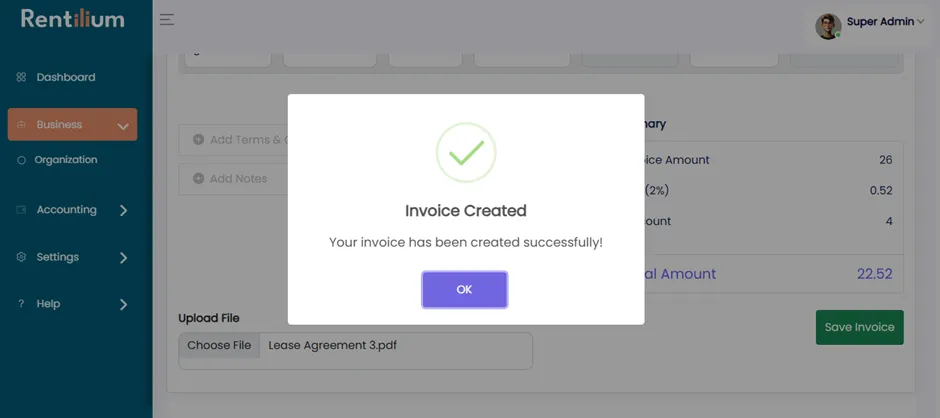
- The invoice has been generated successfully.