Tenant Creation
For Admins & Property Managers, adding tenant creation is an essential step to ensure smooth operations. Once a tenant is added, their details are instantly reflected in the system. This document provides you with a step-by-step guide to adding a tenant in the ERP. It will cover everything from tenant verification, entering details, submitting the form, and where the tenant will appear after successful creation.
Go To The Tenant Section
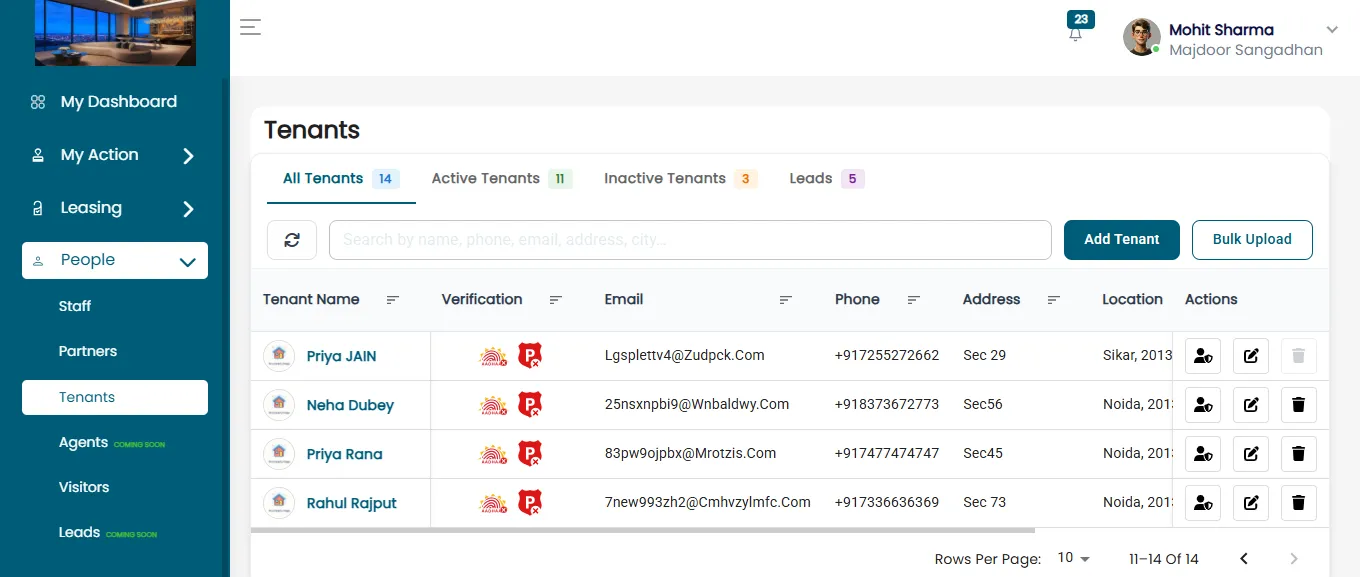
- From the left-side menu, click on Leasing → People → Tenants.
- You will see the Tenant Dashboard with a list of all tenants.
Start Adding A Tenant
- Click on the Add New Tenant button on the top-right side.
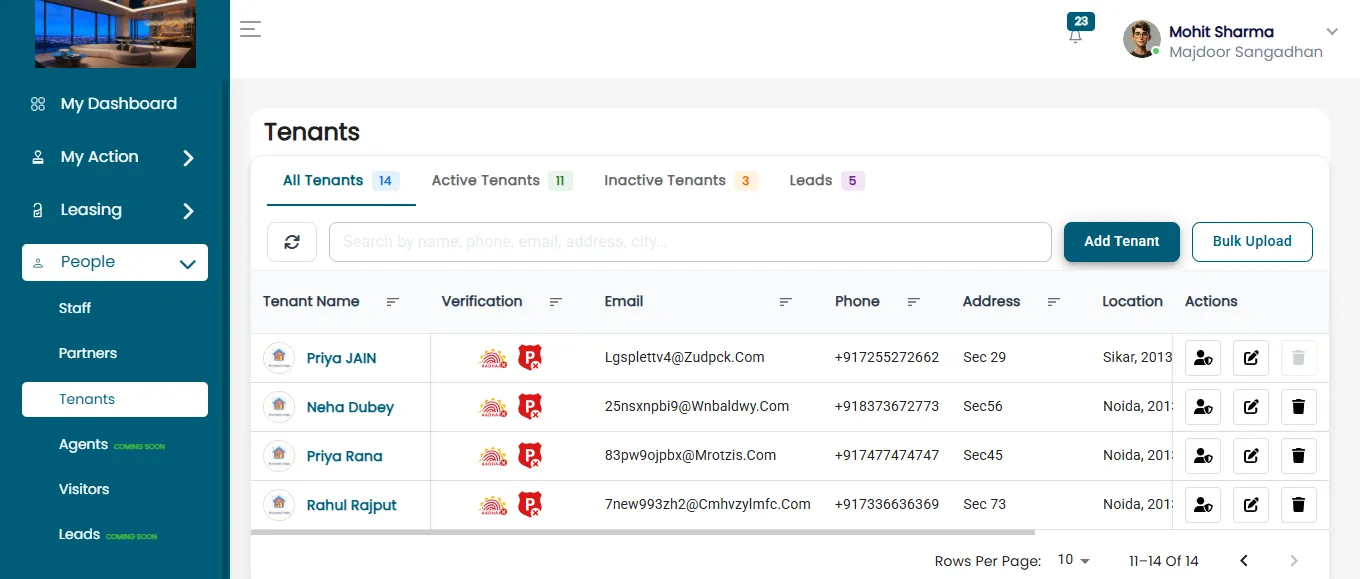
- After Clicking On Add Tenant button, Add tenant Page will open.
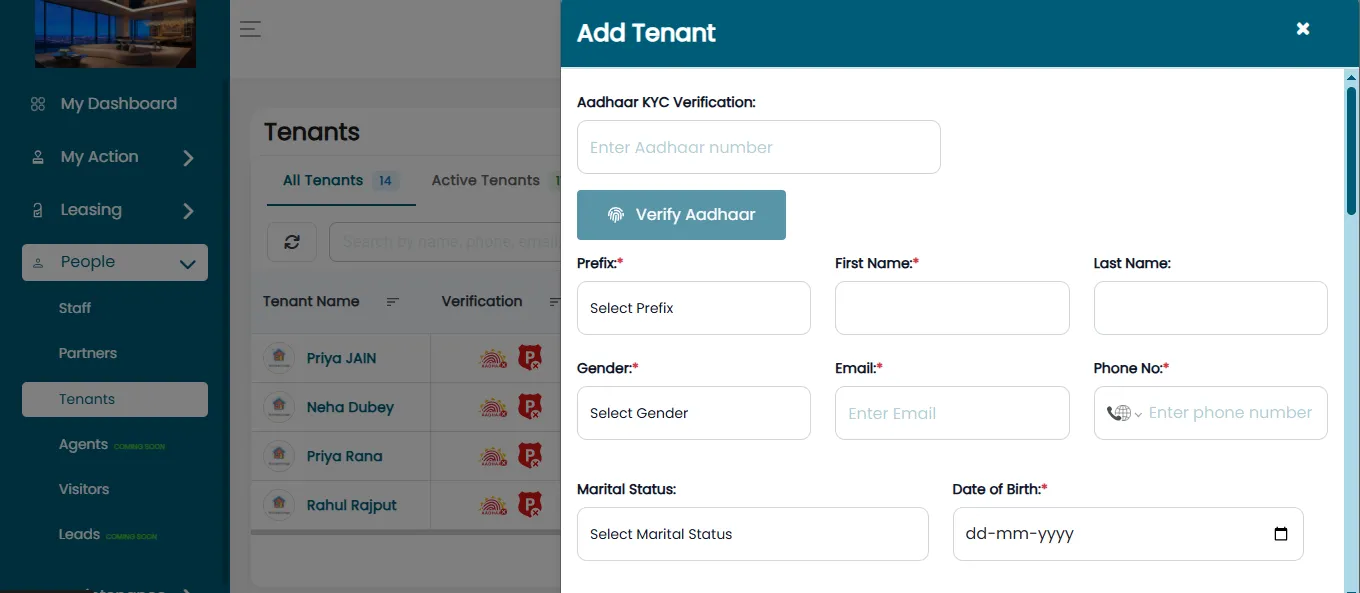
Aadhaar KYC Verification
- Enter the tenant’s Aadhaar Number and click Send OTP.
- Verify using the OTP if required.
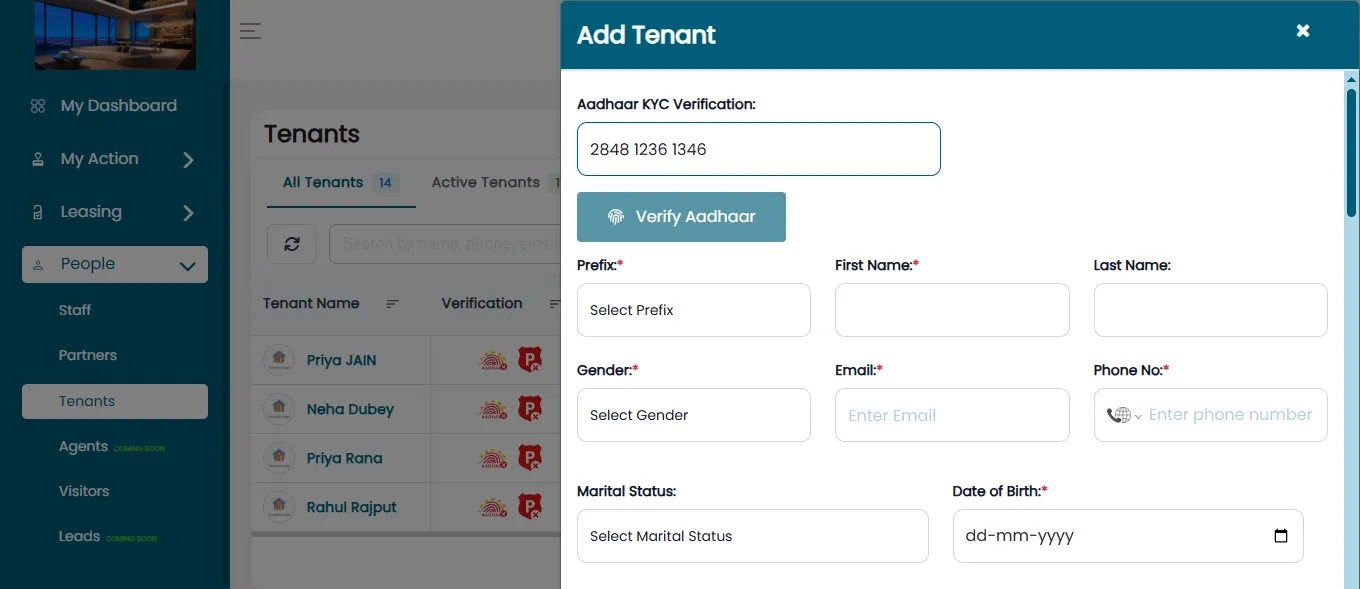
Fill In Tenant’s Personal Information
- Prefix (Mr./Ms./Mrs.)
- First Name and Last Name
- Gender
- Phone Number
- Marital Status
- Date of Birth
- Nationality
- Father’s Name and Mother’s Name
- Spouse’s Name (if applicable)
- Profession
- Blood Group
- Health/Disease Information (if any)
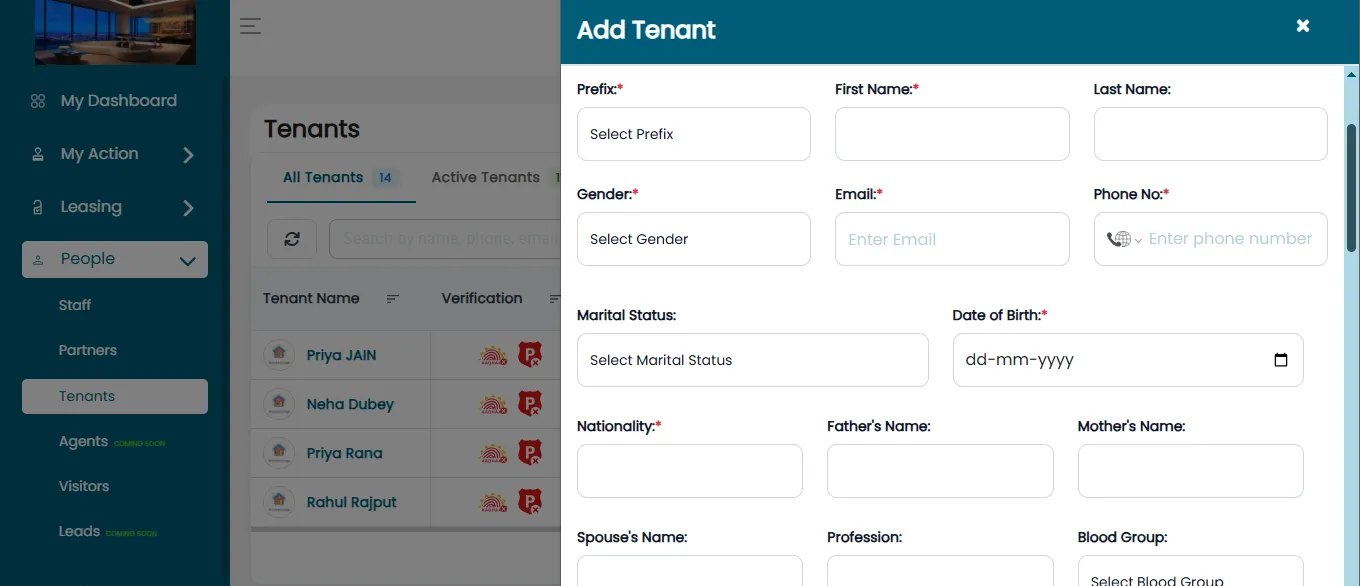
By scrolling down, the admin can access the Tenant Type section, which offers four available options.
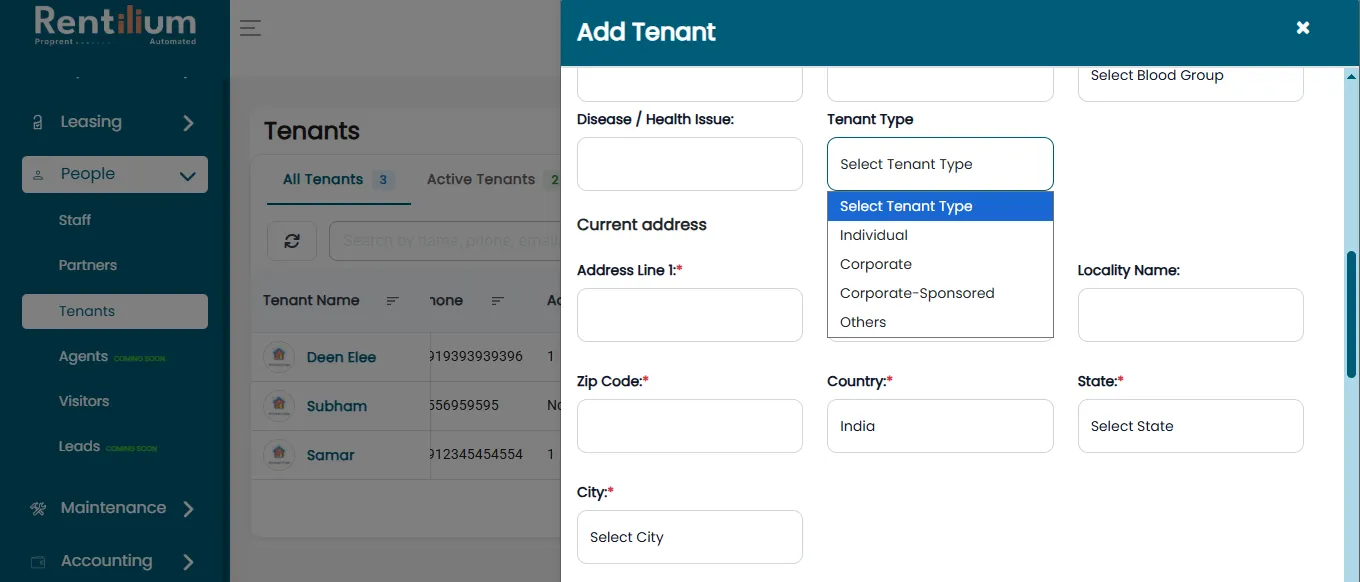
Individual: when an organization rents the property to a single person then it is termed as Individual tenant. The individual tenant is responsible for paying the rent and following all rules mentioned in the rental agreement.
Corporate: when an organization rents the property for work-related purposes or employee accommodation then it is termed as Corporate tenant. In this case, the company is legally responsible for rent payments and for complying with the lease terms.
Corporate Sponsor: A corporate sponsor tenant is a company or organization that arranges and pays for accommodation on behalf of an individual, such as an employee. The sponsoring company takes full financial and legal responsibility for the rent and lease obligations under a corporate agreement.
Other: The “Other” tenant type includes tenants who do not fall under the standard individual or corporate categories. This may include government-assigned tenants, temporary tenants, or tenants under special or custom arrangements defined by the property owner or property manager.
From here admin can select the appropriate tenant type based on their requirements.
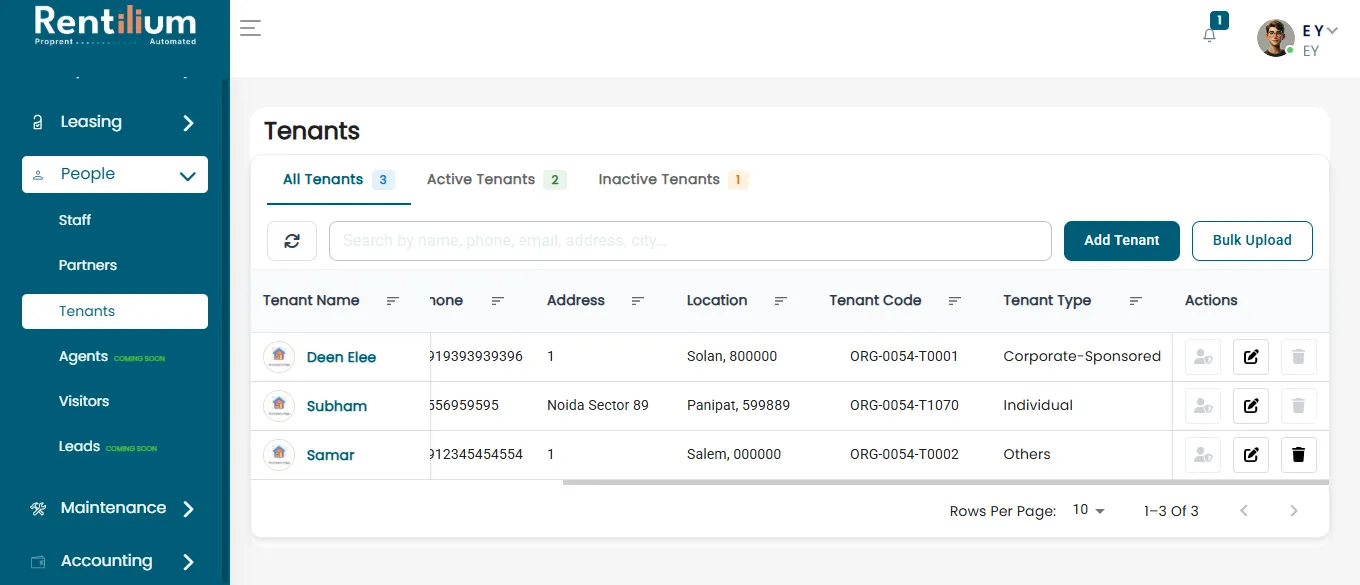
After submitting the information, admin can view the tenant type on the dashboard, after that the selected tenant type and its category will be visible on the dashboard.
Add Tenant’s Address
Current Address
- Address Line 1 & 2
- Locality Name
- Zip Code
- Country
- State
- City
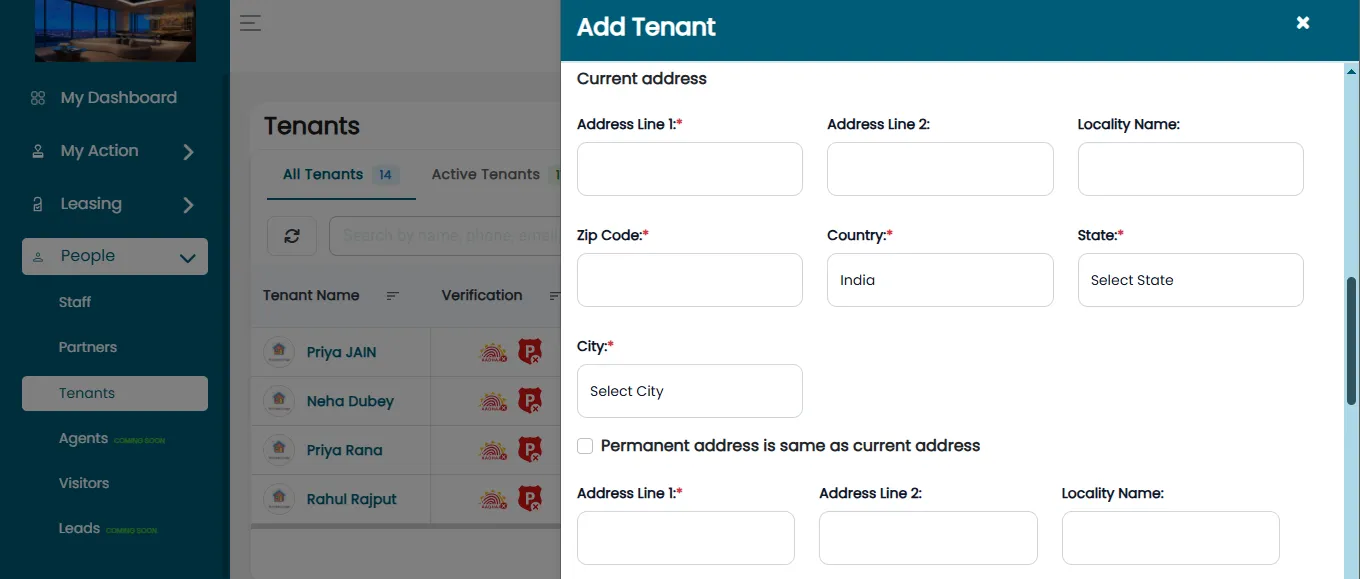
Permanent Address
- If the permanent address is same as current, check the Permanent address is same box.
- Otherwise, fill in the permanent address details separately.
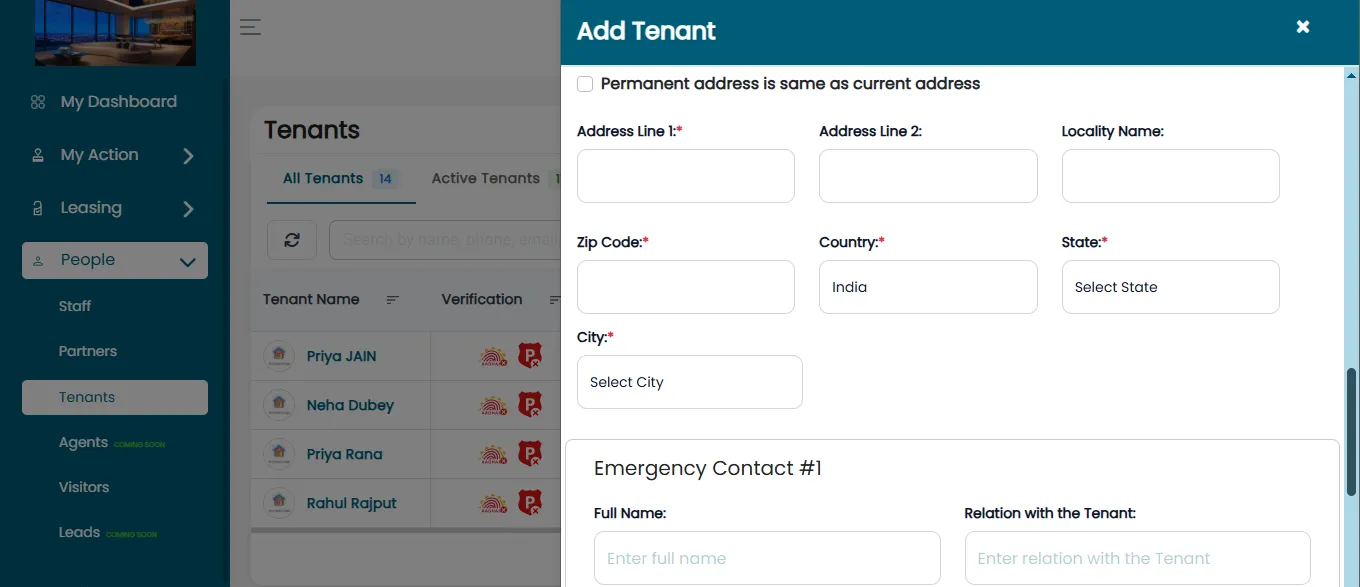
Emergency Contact Number
Scroll down to view the Emergency Contact section.
Enter the following details:
- Full Name
- Relationship with Tenant
- Mobile Number
- Address.
Admin can add multiple emergency contacts for different relatives by clicking on + Add Emergency Contact.
Once all the required information is filled, click the Submit button.
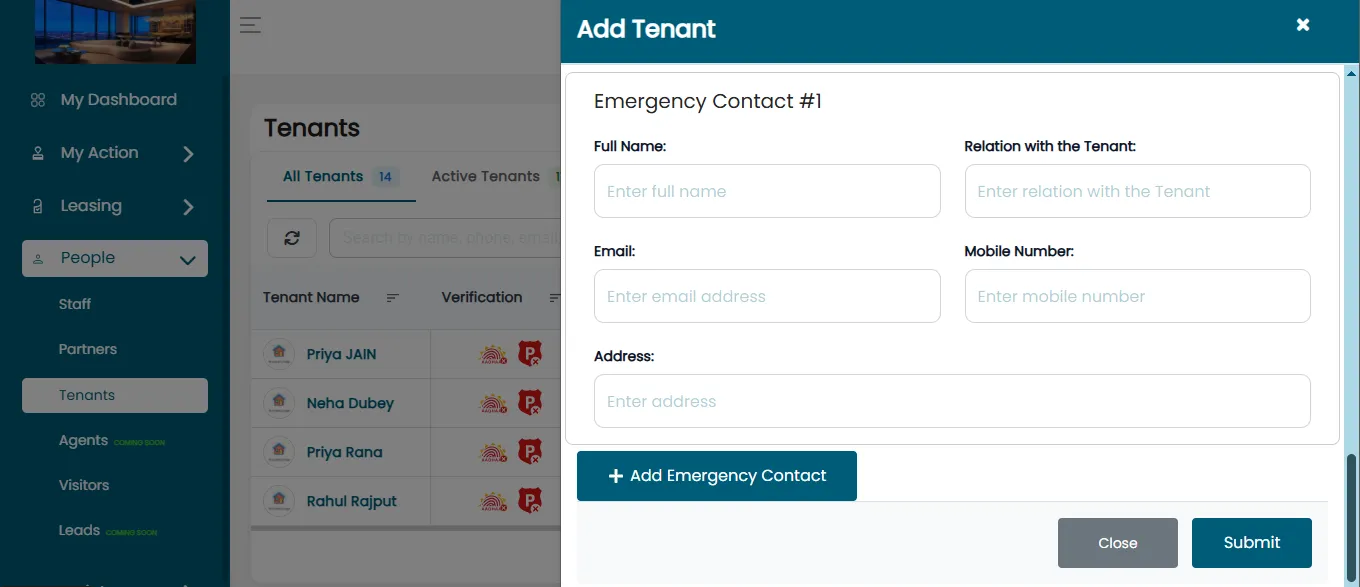
Submit Tenant Details
- After filling in all details, click Submit.
- A confirmation message, “Success! New tenant added successfully!” will appear.
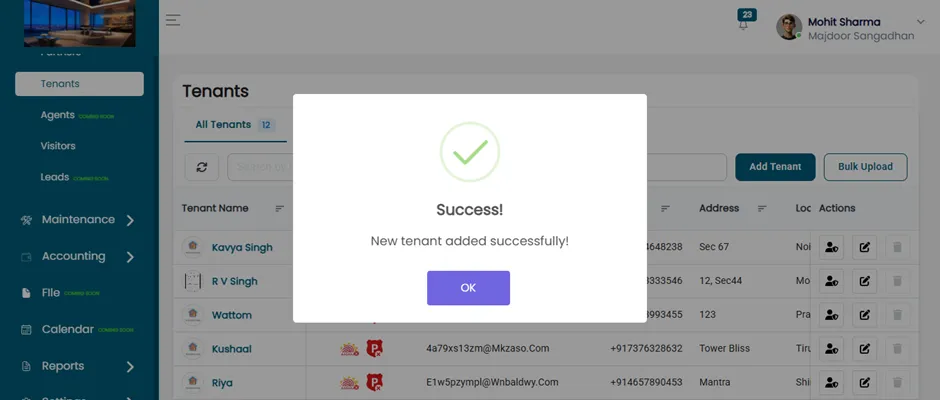
Open Tenant Details Page
Click on the tenant option to move forward. The list of tenants will be displayed. This action will open the tenant details page, including several tabs or sections:
- General
- Address
- document
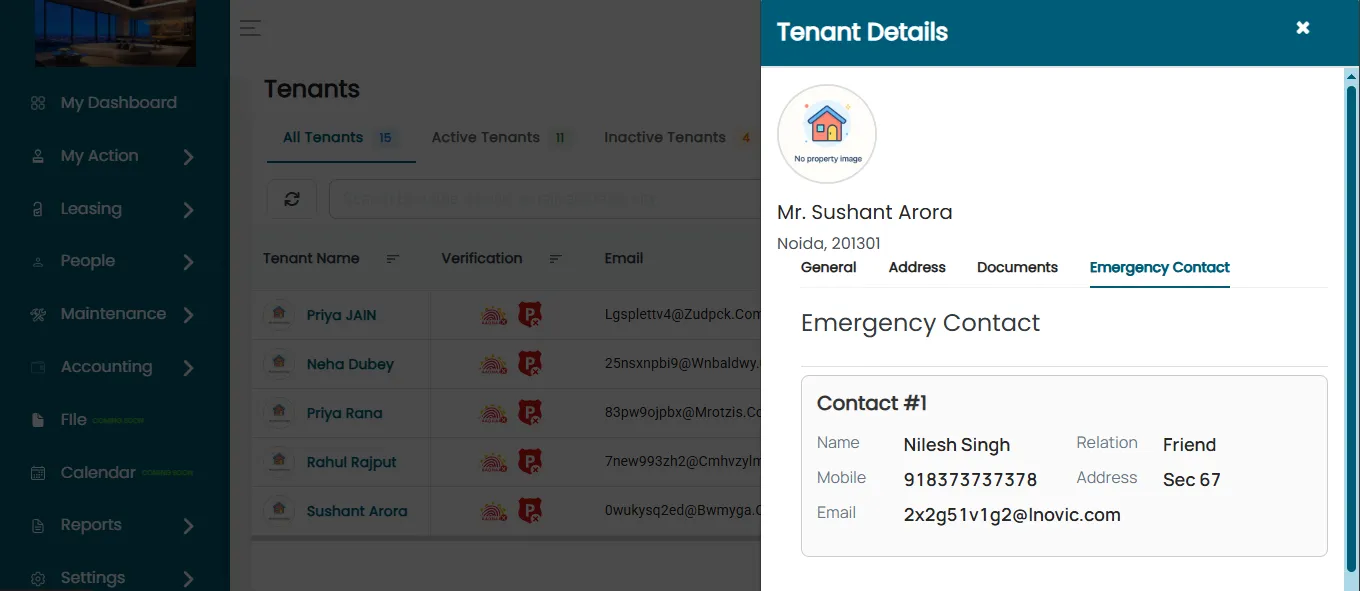
- Emergency Contact
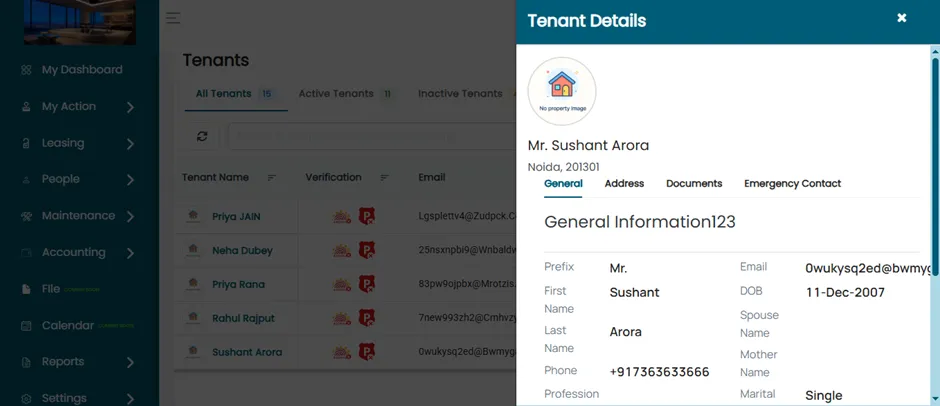
Now, the Admin can view tenant details.
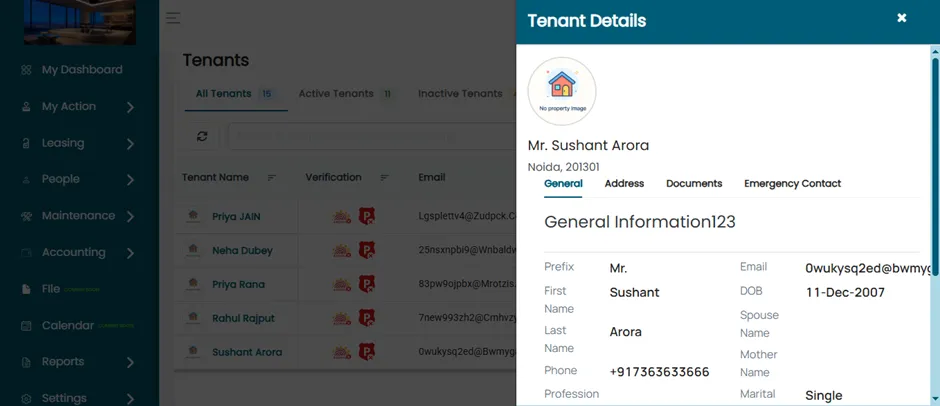
General
In General tab, Admin can access the tenant’s basic information.
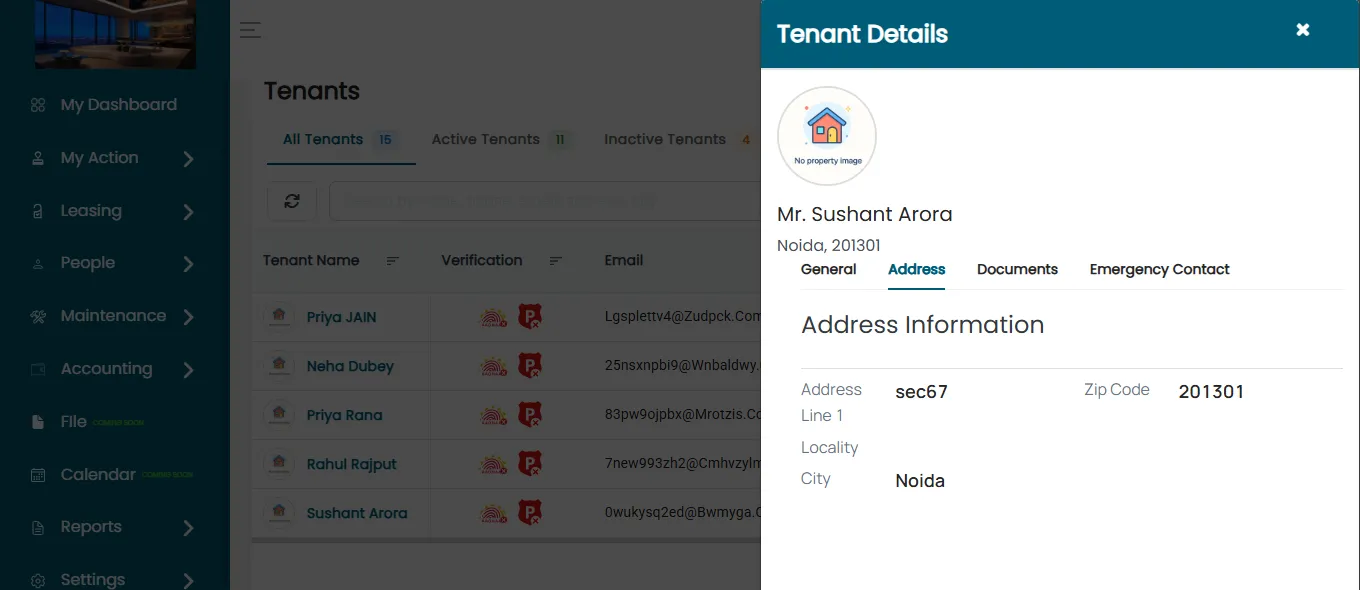
In the Address section, the Admin can view the tenant’s saved address in the ERP.
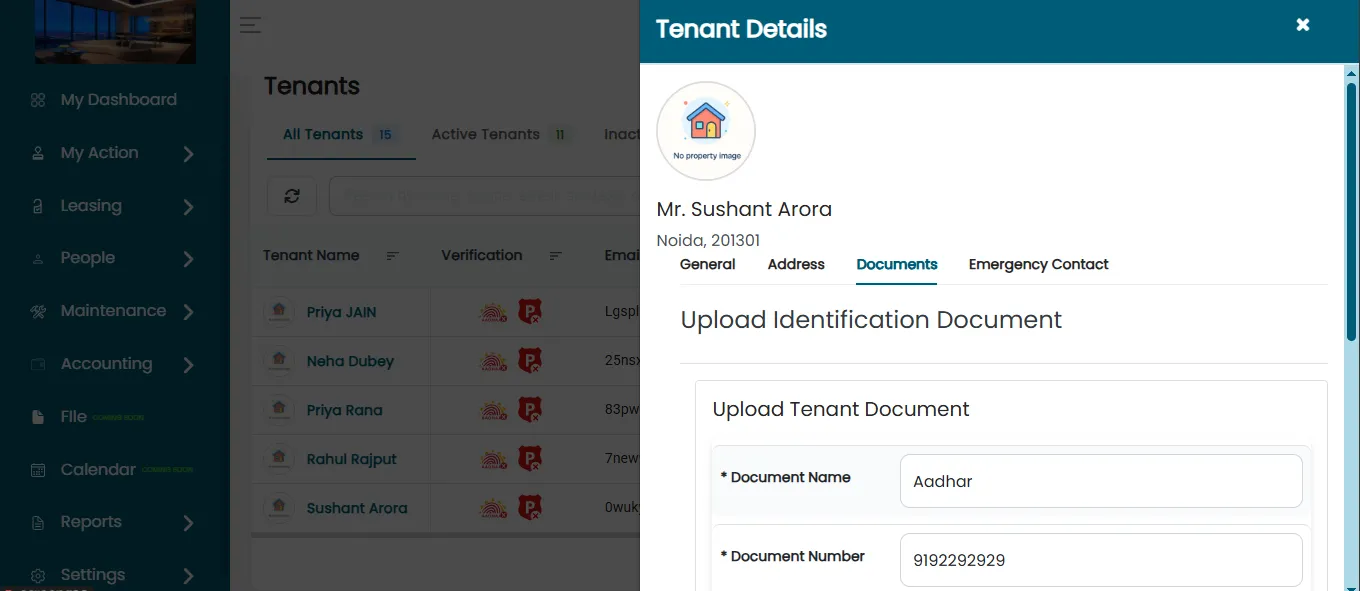
In the Document section, tenants can upload and save all their documents for future reference.
In the Emergency Contact section, the Admin can view the emergency contact details provided by the tenant.