User Enable/Disable
3 min
This document explains the process for disabling a user account in an ERP. By moving to the People section and accessing the Staff Detail Page, you can easily manage user status.
Access The People Section
- Under the People section, you will find several sub-categories such as staff, partner, tenant, etc. Click on the staff section.
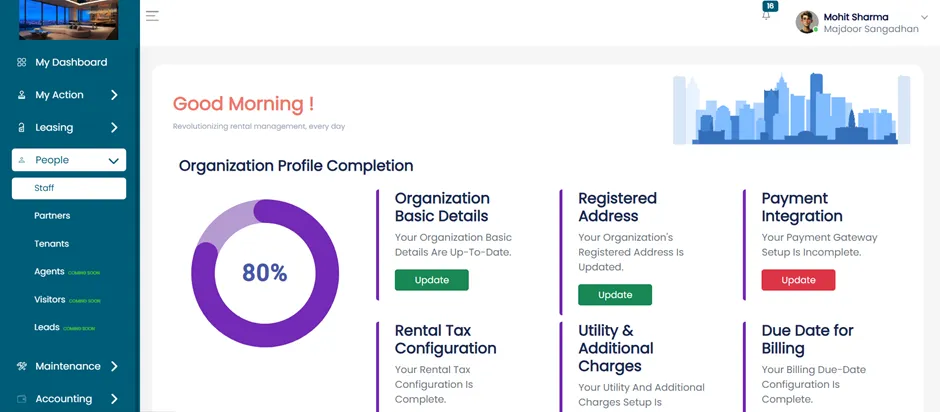
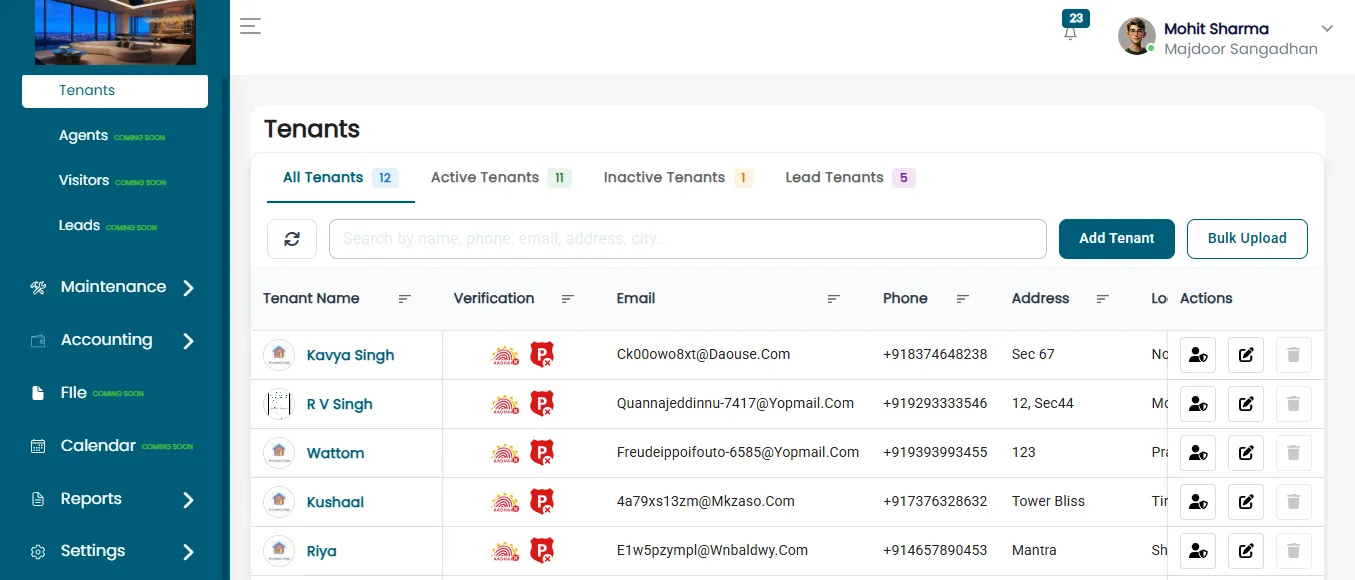
Click on the Staff sub-category to manage staff accounts. Once you click on the Staff section, the Staff Dashboard will open, which includes:
- Username
- Email ID
- Full Name
- Phone Number
- Role
- Employee ID
- Status (Enable/Disable)
- Action (Edit, Delete)
Disable A User Account
In the Status column of the staff table, you will find the Enable and Disable buttons.
To Disable A User
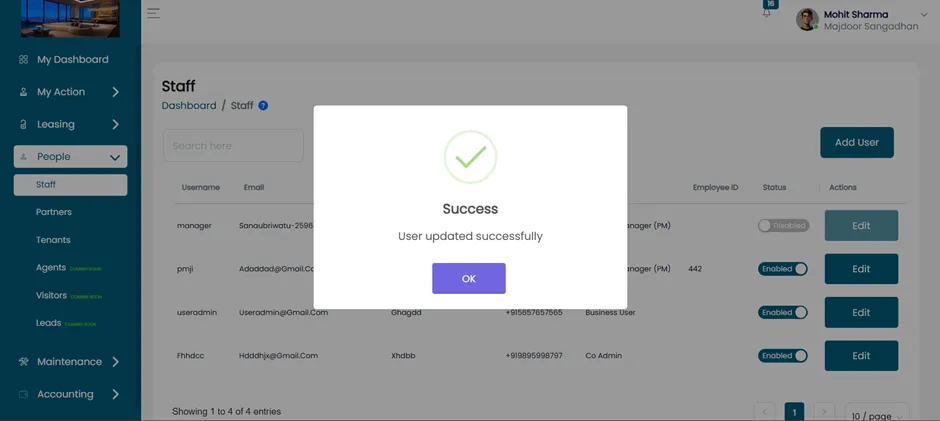
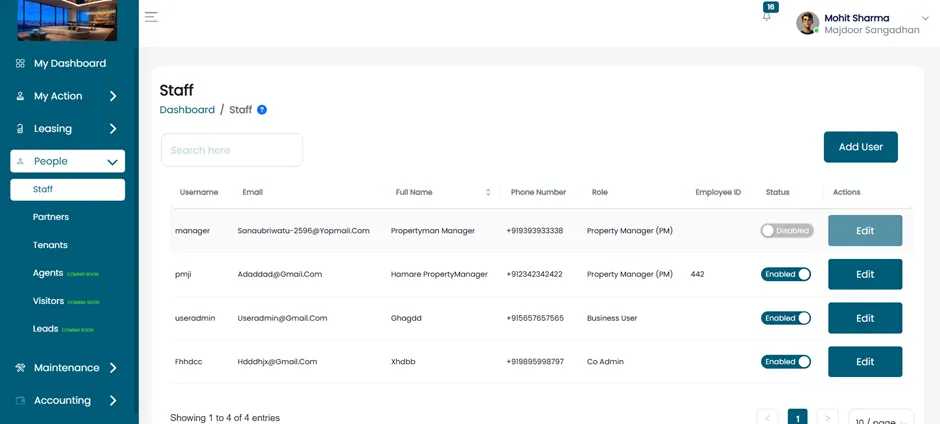
- In the Status column, click the slider button to switch from Enabled to Disabled.
- After clicking, a confirmation pop-up will appear: "User updated successfully"
- The status will now visibly change from Enabled to Disabled.
Disabling a user through the Staff section is a quick and secure way to manage access control in your ERP. By following this process, you can easily disable user accounts when needed.